> ## Documentation Index
> Fetch the complete documentation index at: https://docs.hubtalk.ai/llms.txt
> Use this file to discover all available pages before exploring further.
# History & reports
> Searching the conversation history: the table, the filters — and where to find call details and reports.
# History & reports
The **History** page contains calls and chats across agents. Use it to review conversations, inspect statuses and outcomes, filter the history, and download reports.
This page is about **finding the conversation you need**. What the card of a found call shows, and how to download an export, are on separate pages listed at the bottom.
## History table
The table includes:
* **Agent** — the agent that ran the conversation. The caller's opening line sits under the name, so rows can be told apart at a glance.
* **Channel** — where the conversation came from; the values are spelled out [below](#conversation-channels).
* **Date** — date and time of the conversation.
* **Duration** — conversation duration. For a call that never connected it is **empty**: there was no conversation. When a call is transferred to a human operator, the duration is counted up to the moment the caller is handed over — the conversation with the operator is not included.
* **Turns** — number of dialogue turns.
* **Status** — how the conversation ended: **Completed**, **Not connected** or **Platform error**, and for one still running, **active**. The end reason sits under the status, for example "Agent hung up (flow completed)".
* **Sentiment** — the post-call analytics verdict: positive, neutral or negative. When analytics did not run, the cell says so — **not run**.
* **Health** — the technical verdict: **OK**, **Warning** or **Error**.
* **Mode** — `live` for a real conversation, `test` for a dashboard test.
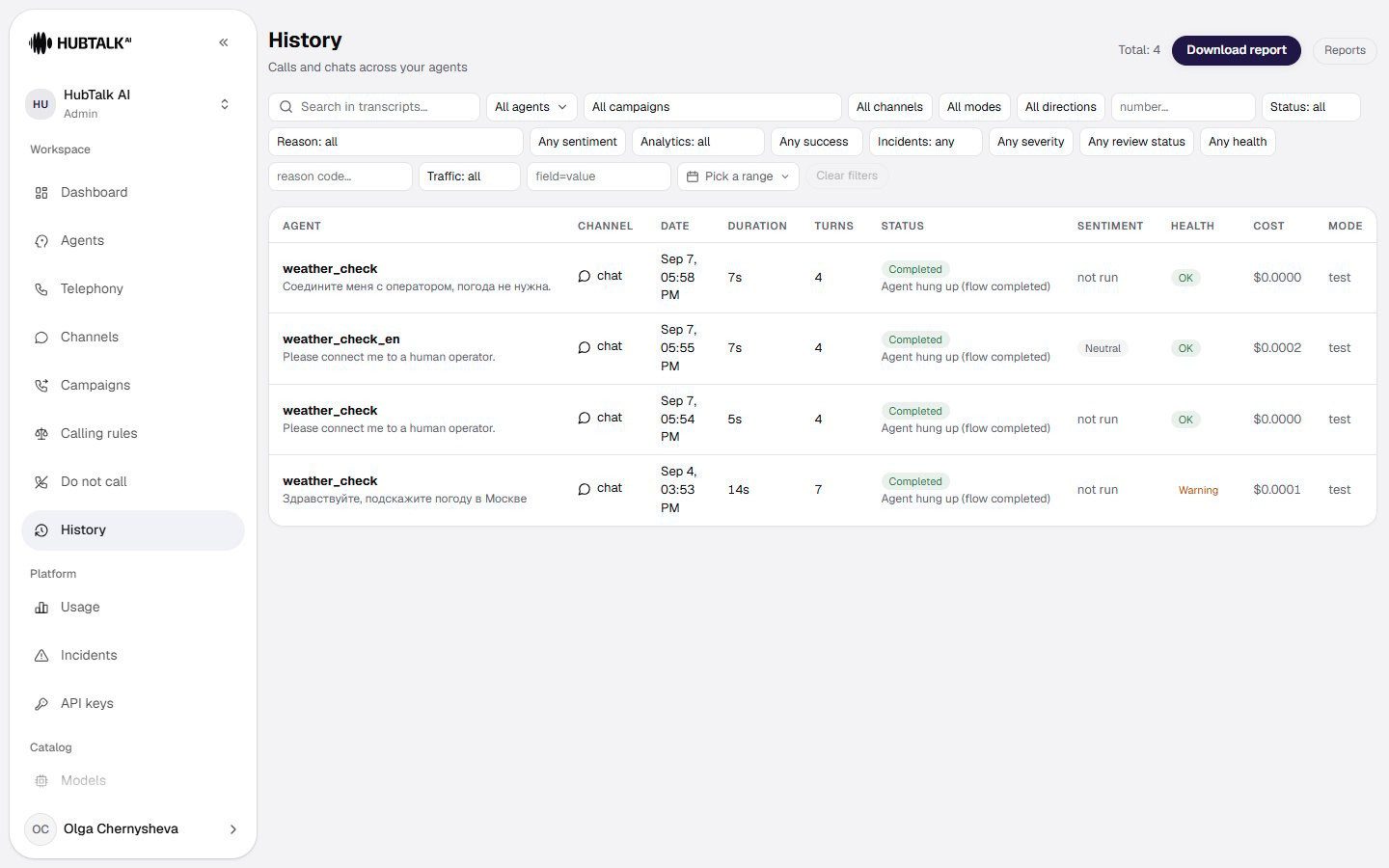 Select a row to open the [conversation details](/v4/platform/campaign-history/call-details).
### Conversation channels
The channel answers the question "where did this conversation come from". It appears in the table column, in the header of the call card, in the filter and in report exports — the same value everywhere.
| Value | In the dashboard | Where the conversation came from |
| ---------- | ---------------- | -------------------------------------------------------------------------------------------------------------------------------------------------------------------------------------------------------------------- |
| `phone` | phone | A call over a telephone line via SIP — inbound to your number or outbound from a campaign. **This is live traffic.** |
| `web` | web | A conversation from a visitor's browser: the widget on your site, a [demo link](/v4/platform/demo-links), or your own code on the [browser SDK](/v4/web-api). A microphone is enough; no telephone line is involved. |
| `chat` | chat | A text test from the dashboard — the Chat tab of the agent test panel. |
| `voice` | voice | A voice test from the dashboard — you talk to the agent through your computer microphone without occupying a telephone line. |
| `whatsapp` | WhatsApp | A conversation from WhatsApp. |
**Channel and mode answer different questions.** The channel says which line the conversation arrived on; **Mode** says whether it was live or a test. Dashboard tests (`chat` and `voice`) are always `test`, while `phone` and `web` come in both: a test call to your own number is `phone` + `test`.
This is the most common source of mismatched figures: the [dashboard](/v4/platform/dashboard) counts only `phone` in `live` mode, while History shows every channel and both modes. The numbers will not agree, and that is not an error.
## Filters
The filters sit in the page header, in this order:
* **Search in transcripts** — searches the words that were actually said in the conversation.
* **All agents** — pick an agent. The list holds live agents only: deleted and archived ones are gone from it. Their calls have not disappeared from the history — they are still found by a direct filter.
* **All campaigns** — narrow the history to one campaign. Calls are resolved through the campaign's attempt log, so a call belongs to the campaign that actually dialed it.
* **All channels** — chat, voice, phone, web or WhatsApp; what each one means is [above](#conversation-channels).
* **All modes** — **Live** or **Test**.
* **All directions** — inbound or outbound.
* **number…** — search by phone number: the whole number or its tail (the last 10 digits, or with the country code), in any format. Extra digits in front will not find it; this is not a substring search. An eleven-digit entry starting with **8** and one starting with **7** are the same spelling: a number stored with the 8 is found by the 7 as well. An entry shorter than 10 digits finds nothing, and the hint **Whole number needed — at least 10 digits** appears under the field. The same filter applies to the [report](/v4/platform/campaign-history/reports).
* **Status: all** — Completed, Not connected or Platform error.
* **Reason: all** — the reason the call ended, from "Agent hung up (flow completed)" and "Caller hung up" to "Busy", "Voicemail" and "Provider unavailable".
* **Any sentiment** — positive, neutral or negative.
* **Analytics: all** — keep only calls whose post-call analytics has finished.
* **Any success** — whether the call was successful, by the post-call analytics verdict.
* **Incidents: any** — with or without observer incidents.
* **Any severity** — low, medium or high incident severity.
* **Any review status** — open, reviewed, resolved or false positive.
* **Any health** — the technical verdict: OK, warning or error.
* **reason code…** — filter by the verdict reason code, for example `rag_degraded`.
* **Traffic: all** — **Load tests only** or **Real calls only**. This is about load-testing the platform, not about the call mode: live and test are separated by the **All modes** filter.
* **field=value** — filter by an extracted field, for example `appointment_booked=false`.
* **Pick a range** — the period to display.
* **Clear filters** — returns the list to its default; the button stays disabled until a filter is set.
Filters can be combined to find a specific campaign conversation or a group of calls for analysis. The campaign and incident filters narrow the **same** set and intersect: a chosen campaign plus **With incidents** gives the incidents of that campaign, and the same campaign plus **Without incidents** gives the rest of its calls.
**The filters live in the page address.** You can send a colleague a link to the selection you found and they will see the same list, not an empty History.
## Where to go next
Transcript and events, turn latency, post-call analytics, health, the operator code, the recording and webhook deliveries.
What goes into the file, which period is exported and how the build queue works.
An export within the bounds of one campaign, the Campaign field, and ready-made forms for migration.
Presets, the transcript as a column, the column builder and columns for those migrating.
Column labels, value replacements, extra columns, and the structure and language of the file.
Select a row to open the [conversation details](/v4/platform/campaign-history/call-details).
### Conversation channels
The channel answers the question "where did this conversation come from". It appears in the table column, in the header of the call card, in the filter and in report exports — the same value everywhere.
| Value | In the dashboard | Where the conversation came from |
| ---------- | ---------------- | -------------------------------------------------------------------------------------------------------------------------------------------------------------------------------------------------------------------- |
| `phone` | phone | A call over a telephone line via SIP — inbound to your number or outbound from a campaign. **This is live traffic.** |
| `web` | web | A conversation from a visitor's browser: the widget on your site, a [demo link](/v4/platform/demo-links), or your own code on the [browser SDK](/v4/web-api). A microphone is enough; no telephone line is involved. |
| `chat` | chat | A text test from the dashboard — the Chat tab of the agent test panel. |
| `voice` | voice | A voice test from the dashboard — you talk to the agent through your computer microphone without occupying a telephone line. |
| `whatsapp` | WhatsApp | A conversation from WhatsApp. |
**Channel and mode answer different questions.** The channel says which line the conversation arrived on; **Mode** says whether it was live or a test. Dashboard tests (`chat` and `voice`) are always `test`, while `phone` and `web` come in both: a test call to your own number is `phone` + `test`.
This is the most common source of mismatched figures: the [dashboard](/v4/platform/dashboard) counts only `phone` in `live` mode, while History shows every channel and both modes. The numbers will not agree, and that is not an error.
## Filters
The filters sit in the page header, in this order:
* **Search in transcripts** — searches the words that were actually said in the conversation.
* **All agents** — pick an agent. The list holds live agents only: deleted and archived ones are gone from it. Their calls have not disappeared from the history — they are still found by a direct filter.
* **All campaigns** — narrow the history to one campaign. Calls are resolved through the campaign's attempt log, so a call belongs to the campaign that actually dialed it.
* **All channels** — chat, voice, phone, web or WhatsApp; what each one means is [above](#conversation-channels).
* **All modes** — **Live** or **Test**.
* **All directions** — inbound or outbound.
* **number…** — search by phone number: the whole number or its tail (the last 10 digits, or with the country code), in any format. Extra digits in front will not find it; this is not a substring search. An eleven-digit entry starting with **8** and one starting with **7** are the same spelling: a number stored with the 8 is found by the 7 as well. An entry shorter than 10 digits finds nothing, and the hint **Whole number needed — at least 10 digits** appears under the field. The same filter applies to the [report](/v4/platform/campaign-history/reports).
* **Status: all** — Completed, Not connected or Platform error.
* **Reason: all** — the reason the call ended, from "Agent hung up (flow completed)" and "Caller hung up" to "Busy", "Voicemail" and "Provider unavailable".
* **Any sentiment** — positive, neutral or negative.
* **Analytics: all** — keep only calls whose post-call analytics has finished.
* **Any success** — whether the call was successful, by the post-call analytics verdict.
* **Incidents: any** — with or without observer incidents.
* **Any severity** — low, medium or high incident severity.
* **Any review status** — open, reviewed, resolved or false positive.
* **Any health** — the technical verdict: OK, warning or error.
* **reason code…** — filter by the verdict reason code, for example `rag_degraded`.
* **Traffic: all** — **Load tests only** or **Real calls only**. This is about load-testing the platform, not about the call mode: live and test are separated by the **All modes** filter.
* **field=value** — filter by an extracted field, for example `appointment_booked=false`.
* **Pick a range** — the period to display.
* **Clear filters** — returns the list to its default; the button stays disabled until a filter is set.
Filters can be combined to find a specific campaign conversation or a group of calls for analysis. The campaign and incident filters narrow the **same** set and intersect: a chosen campaign plus **With incidents** gives the incidents of that campaign, and the same campaign plus **Without incidents** gives the rest of its calls.
**The filters live in the page address.** You can send a colleague a link to the selection you found and they will see the same list, not an empty History.
## Where to go next
Transcript and events, turn latency, post-call analytics, health, the operator code, the recording and webhook deliveries.
What goes into the file, which period is exported and how the build queue works.
An export within the bounds of one campaign, the Campaign field, and ready-made forms for migration.
Presets, the transcript as a column, the column builder and columns for those migrating.
Column labels, value replacements, extra columns, and the structure and language of the file.