> ## Documentation Index
> Fetch the complete documentation index at: https://docs.hubtalk.ai/llms.txt
> Use this file to discover all available pages before exploring further.
# Campaign launch
> The campaign wizard: five steps from the agent to the attestation signature.
# Campaign launch
Open **Campaigns** and select **Create campaign**. A campaign is not assembled in a dialog box but on a page of its own — a wizard with five steps:
**Campaign** → **Schedule** → **Dialing** → **Contacts** → **Review and launch**
**Next** does not let you past a step with incomplete data and names the missing fields; leaving the page warns about unsaved changes. Visited steps stay open for going back, steps ahead are locked.
The campaign record is created when you move on to the **Contacts** step: before that there is nowhere to upload contacts or to compute the effective calling window. **An existing campaign is edited in the dialog box** on the campaign card, not in the wizard — the set of fields there is the same.
## Step 1. Campaign
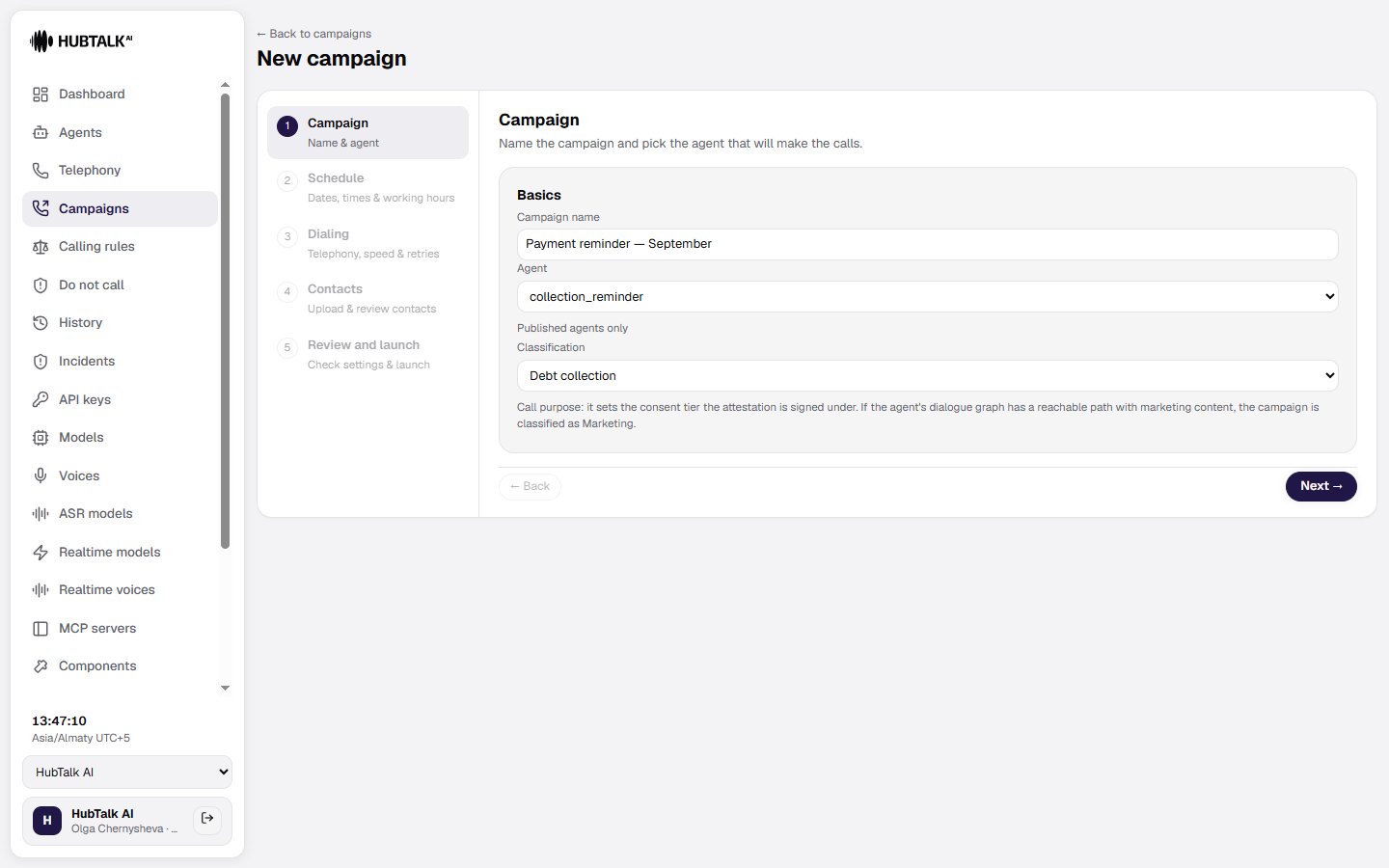
The **Basics** group — name and agent:
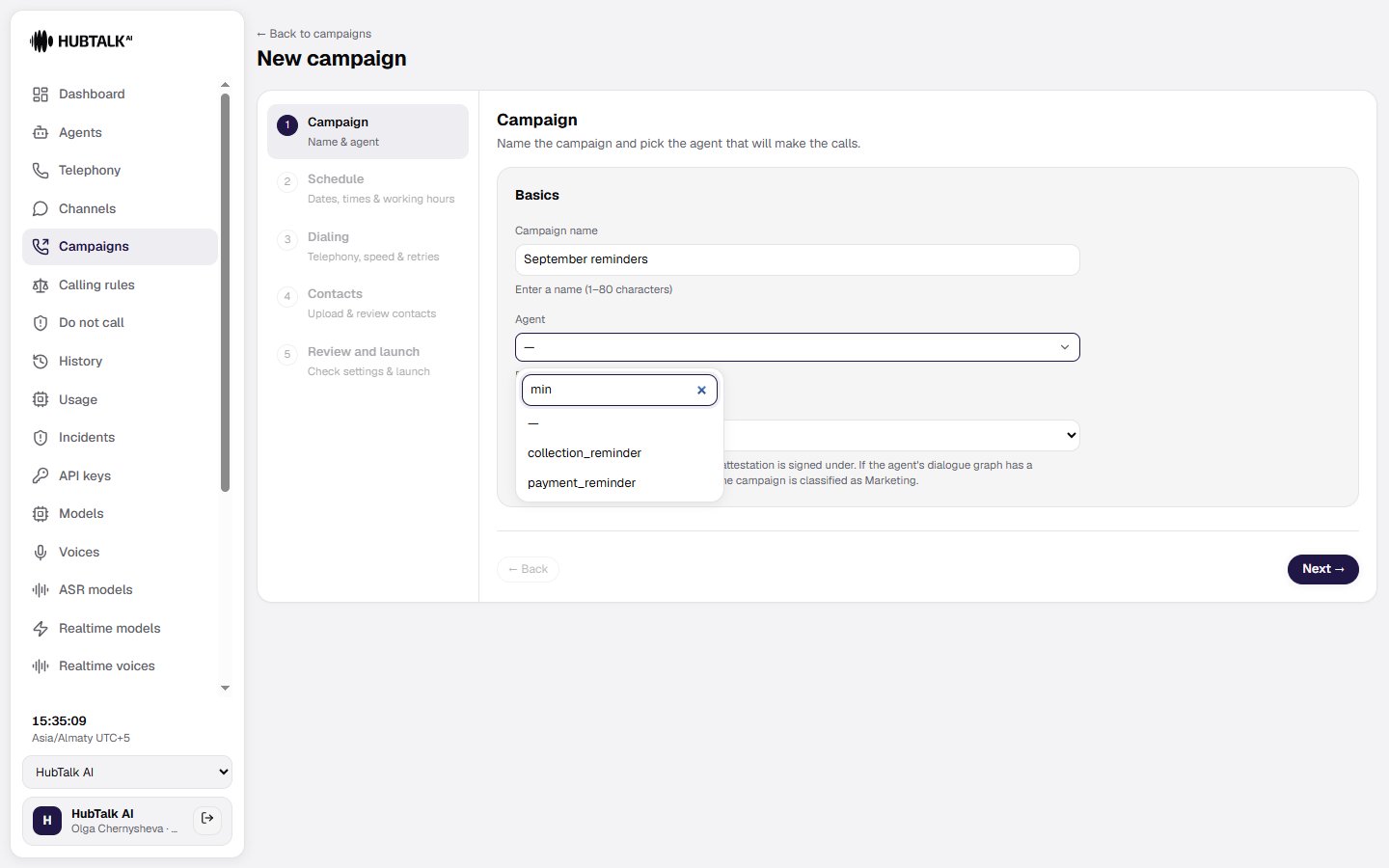
* **Campaign name** — 1 to 80 characters.
* **Agent** — published agents only. The field is a searchable list: start typing to filter by name instead of scrolling. Members are offered only agents [visible to them](/v4/platform/agents/list); for administrators and developers a hidden agent carries a `· Hidden from members` suffix.
* **Classification** — a mandatory call purpose: **Marketing**, **Servicing**, or **Debt collection**. It sets the consent tier required from the subscriber and the exact legal wording the operator signs at the launch step. Next to the selected value the platform shows which consent tier it requires.
**Classification cannot be changed after launch** — otherwise the attestation signature would no longer match what it was signed under. If the agent's dialogue graph has a reachable path with marketing content, the campaign is classified as **Marketing** regardless of the selection.
 ## Step 2. Schedule
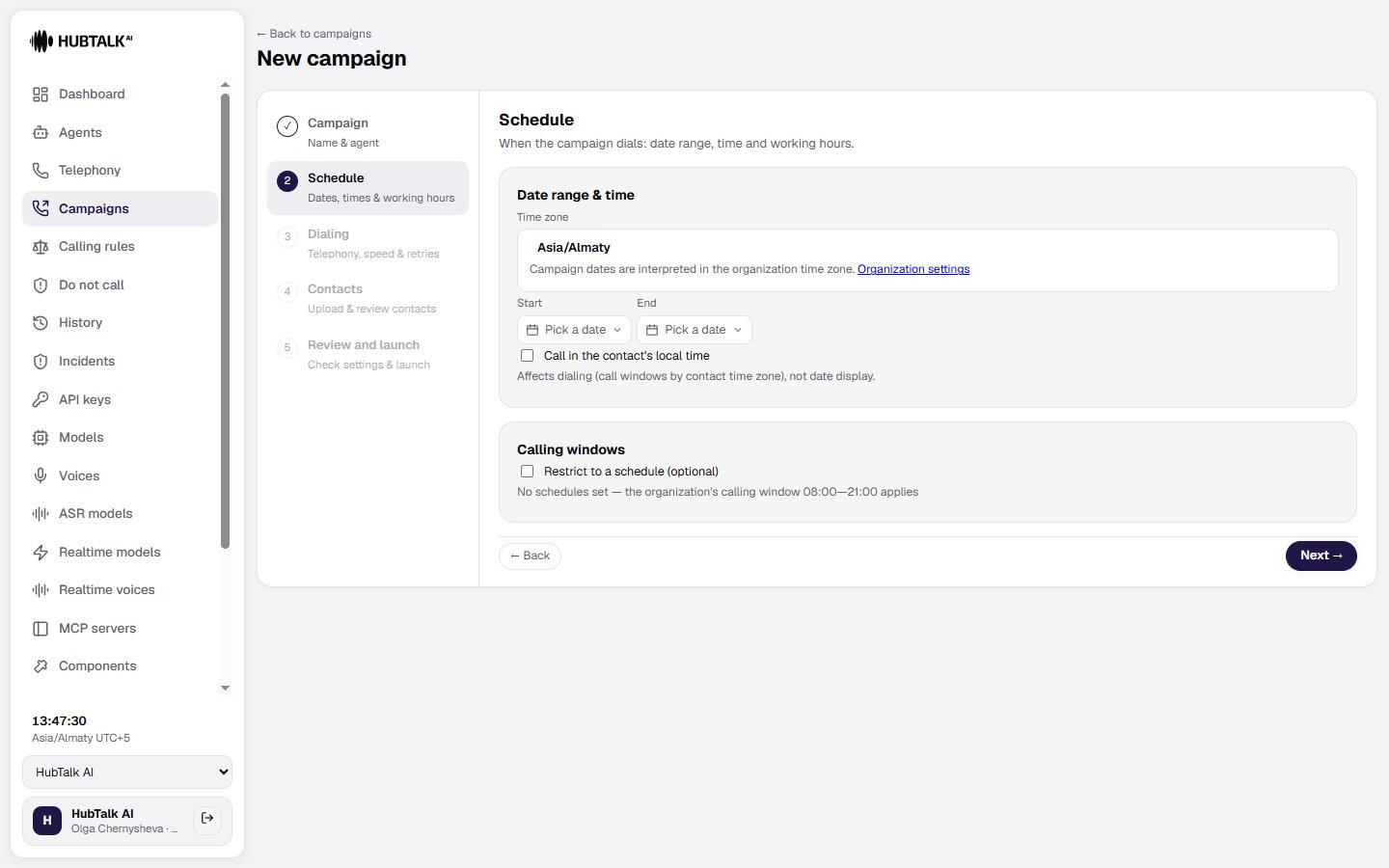
The **Date range & time** group:
* **Time zone** — campaign dates are interpreted in the organization's time zone. The current zone is shown in the form, with a link to organization settings. The zone list is searchable — by name and by offset (`UTC+5`).
* **Start** and **End** — the dates the campaign is allowed to dial.
* **Call in the contact's local time** — calling windows are computed in each contact's zone. This affects dialing, not the displayed campaign dates.
The **Calling windows** group:
* **Restrict to a schedule (optional)** — a toggle. Turn it on to set weekdays and time intervals, for example 09:00–18:00.
* If no schedule is set, the platform states what applies instead: **"No schedules set — the organization's calling window 08:00—21:00 applies"**. Round-the-clock dialing does not exist — see [The organization calling window](#the-organization-calling-window).
* **Effective calling window** — what the restrictions actually add up to. It appears once the campaign record exists (that is, when you come back to this step). If your schedule is wider than allowed, the platform narrows the window and says so: **"Narrowed to the organization's calling window … — the saved value is kept"**. Your saved schedule is not rewritten.
## Step 2. Schedule
The **Date range & time** group:
* **Time zone** — campaign dates are interpreted in the organization's time zone. The current zone is shown in the form, with a link to organization settings. The zone list is searchable — by name and by offset (`UTC+5`).
* **Start** and **End** — the dates the campaign is allowed to dial.
* **Call in the contact's local time** — calling windows are computed in each contact's zone. This affects dialing, not the displayed campaign dates.
The **Calling windows** group:
* **Restrict to a schedule (optional)** — a toggle. Turn it on to set weekdays and time intervals, for example 09:00–18:00.
* If no schedule is set, the platform states what applies instead: **"No schedules set — the organization's calling window 08:00—21:00 applies"**. Round-the-clock dialing does not exist — see [The organization calling window](#the-organization-calling-window).
* **Effective calling window** — what the restrictions actually add up to. It appears once the campaign record exists (that is, when you come back to this step). If your schedule is wider than allowed, the platform narrows the window and says so: **"Narrowed to the organization's calling window … — the saved value is kept"**. Your saved schedule is not rewritten.
 ### The organization calling window
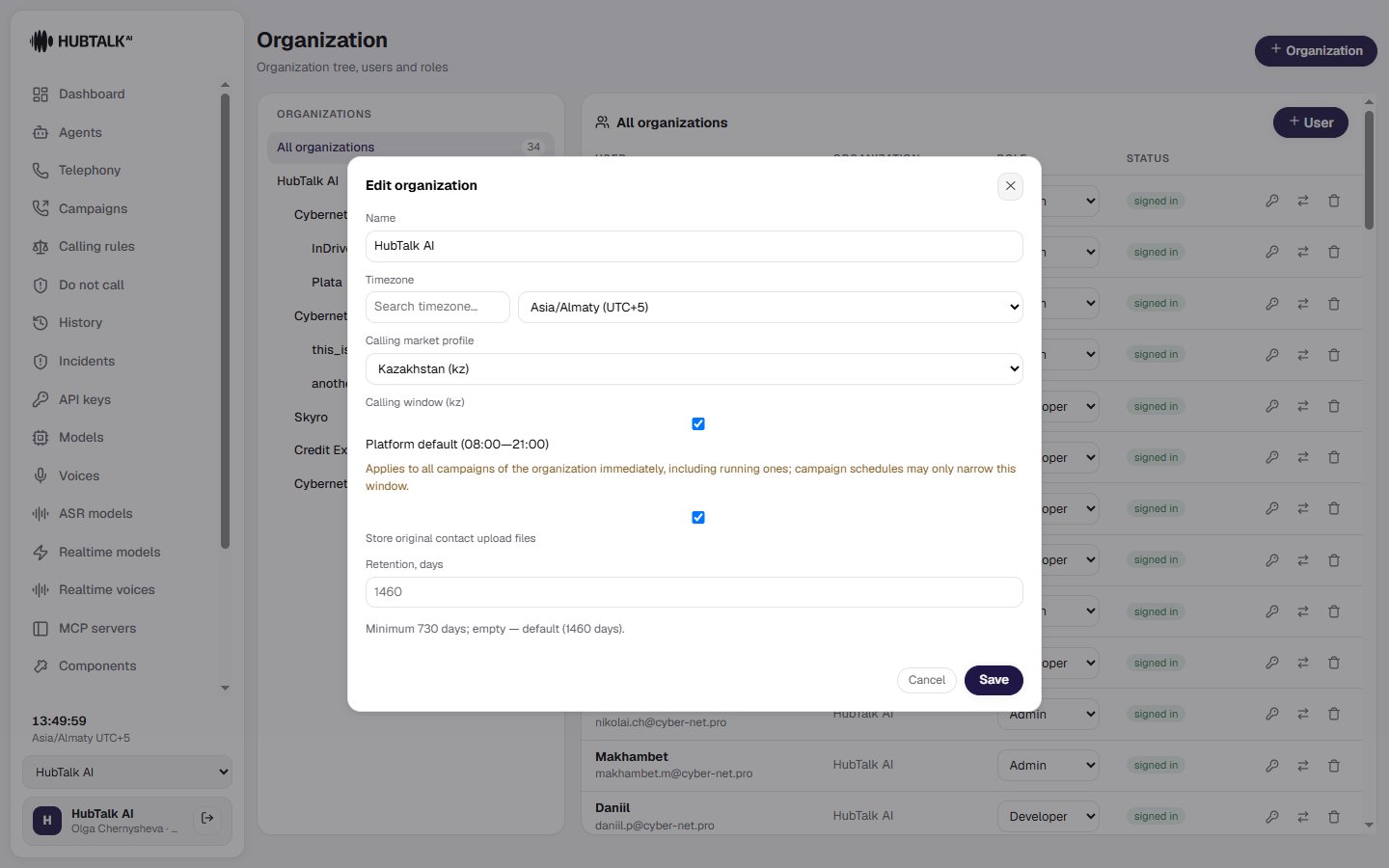
An organization has a calling window — an interval that applies every day of the week in the dialing time zone. The platform default is **08:00–21:00**.
* A campaign schedule may only **narrow** the window, never widen it.
* An empty campaign schedule equals the organization window on all seven days.
* A contact outside the window is not dropped but deferred until the window next opens.
* A schedule that does not intersect the window at all is rejected with **"No legal calling window (empty intersection)"**.
* The window itself is set only by the platform administrator; the change is audited and applies to every campaign of the organization at once, **including running ones**.
### The organization calling window
An organization has a calling window — an interval that applies every day of the week in the dialing time zone. The platform default is **08:00–21:00**.
* A campaign schedule may only **narrow** the window, never widen it.
* An empty campaign schedule equals the organization window on all seven days.
* A contact outside the window is not dropped but deferred until the window next opens.
* A schedule that does not intersect the window at all is rejected with **"No legal calling window (empty intersection)"**.
* The window itself is set only by the platform administrator; the change is audited and applies to every campaign of the organization at once, **including running ones**.
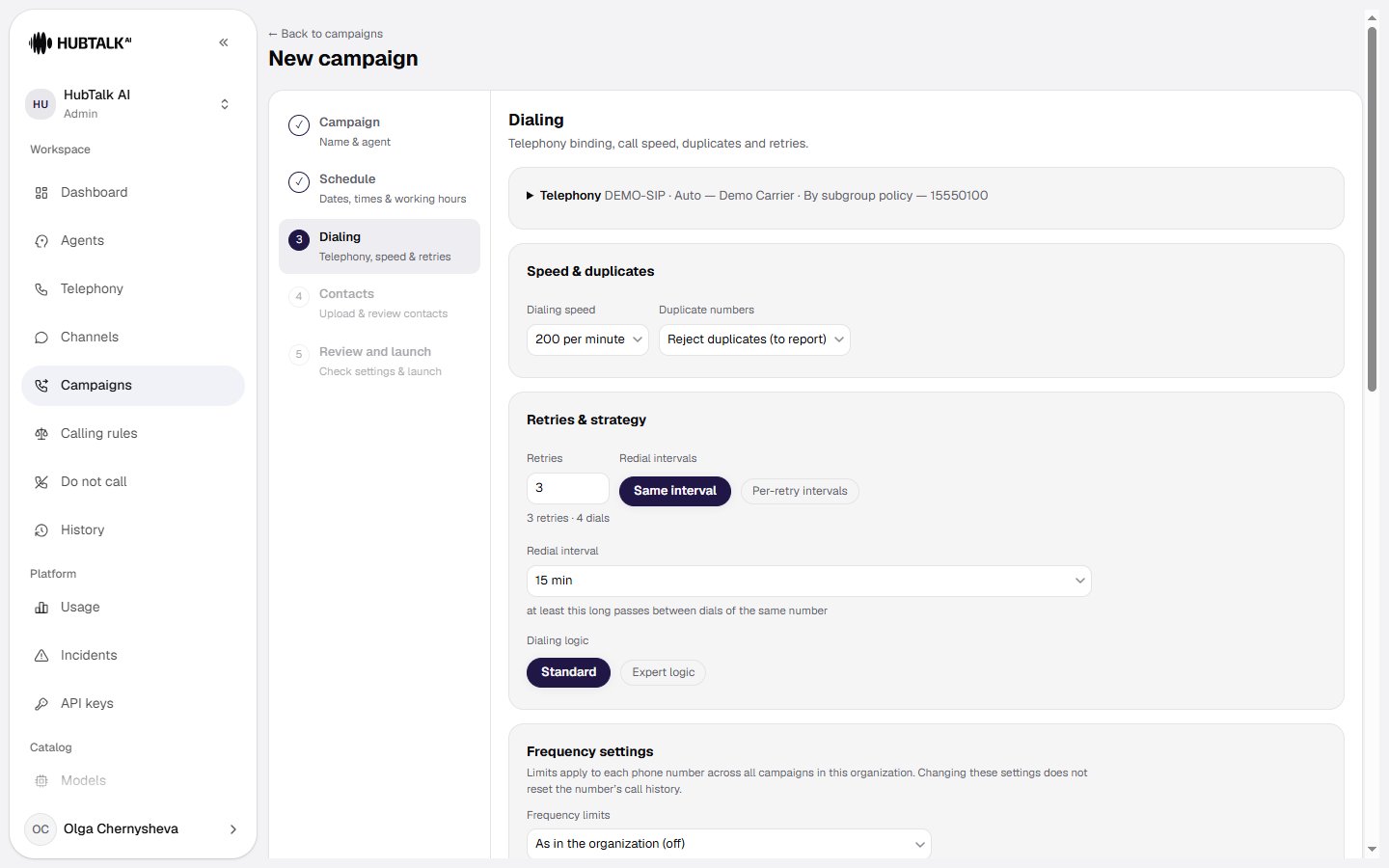
 ## Step 3. Dialing
**Telephony** — a collapsible group with a summary line:
* **SIP trunk** — the trunk used for outbound calls. If the organization has exactly one, the field opens already filled in: a choice with no alternatives is not a choice, it is an extra step. With two or more the platform does not guess.
* **Subgroup** — automatic by trunk and agent pair, or another available option. Once the trunk is filled in, the label names the subgroup that will be used right away.
* **Caller ID** — the number the subscriber sees. The **By subgroup policy** option leaves the choice of number to the subgroup, and the label names the actual number whenever the pool holds only one.
**The autofill only applies when a campaign is created.** On a saved campaign an empty trunk is a deliberate state, and the platform writes nothing into it. Anything filled in for you can be changed by hand or set back to empty.
The **Speed & duplicates** group:
* **Dialing speed** — calls per minute, chosen from these tiers: **1, 2, 5, 10, 20, 30, 60, 100, 200**. An arbitrary number cannot be entered.
* **Duplicate numbers** — how repeated contacts are handled, for example reject them and report them.
**The pace means exactly what it says:** a campaign dials the number of calls per minute you picked. There is no shared dialing ceiling that would clamp the tier you chose.
The **Retries & strategy** group:
* **Dialing logic** — **Standard** (a dial budget and an interval) or **Expert logic** (rules of the form "if reason → action").
* **Retries** — how many times to call back on top of the first dial, 0 to 9. The first dial is **not** included in that number: both figures are always on screen, for example "9 retries · 10 dials". The limit reads "Maximum 9 retries · 10 dials".
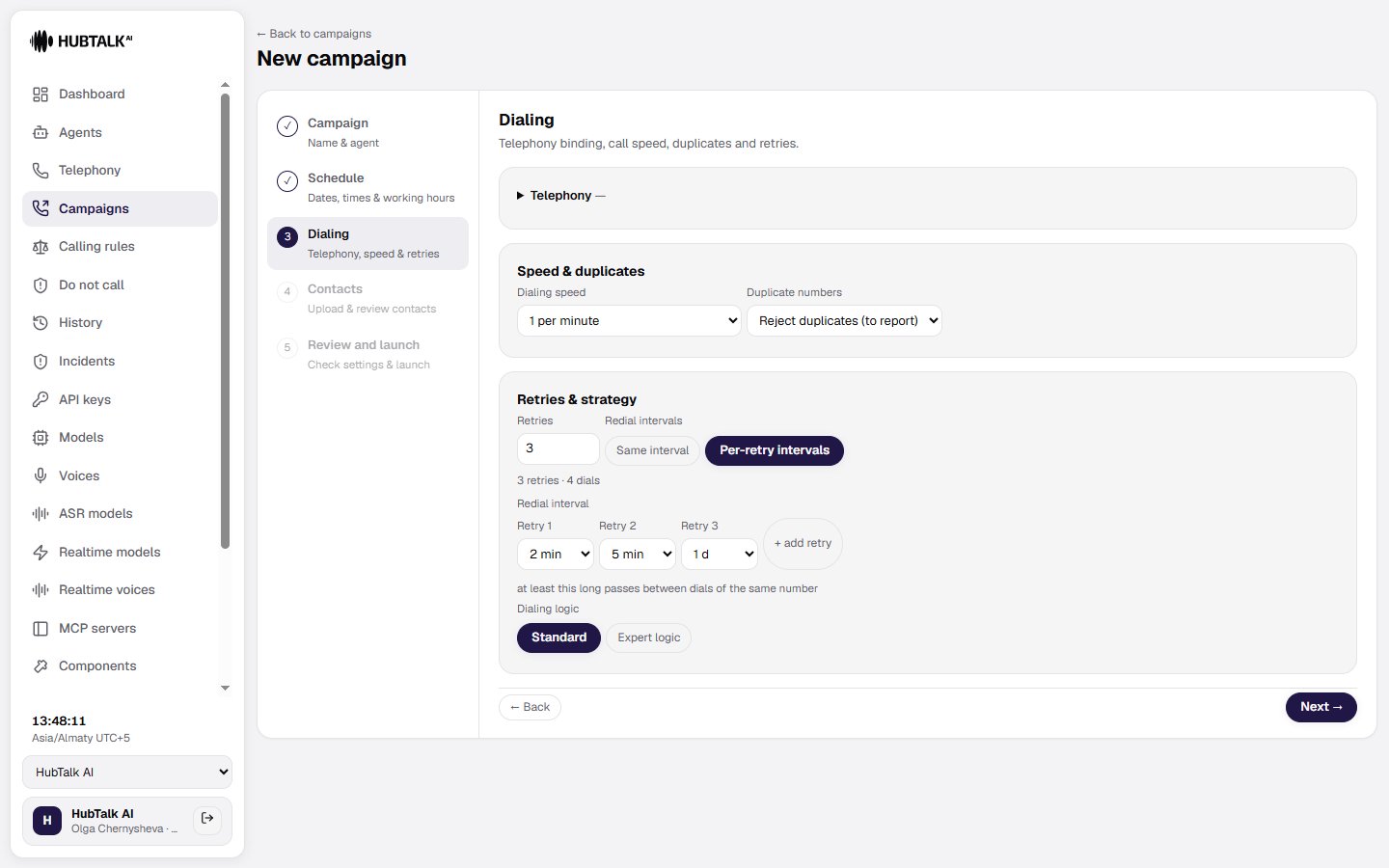
* **Redial intervals** — two modes:
* **Same interval** — one identical pause between all dials of the same number.
* **Per-retry intervals** — an interval per retry, set on the **Retry 1**, **Retry 2**, … pills. This is how a "often first, rarely later" ladder is built, for example 2 min → 5 min → 1 d → 3 d.
* Intervals come from a fixed list of values — **from 1 minute to 7 days**. At the retry limit the **+ add retry** button disappears.
**A campaign can carry a stored dial budget larger than the current limit.** The real number is shown as is, with no silent clamping, and is labelled "Stored budget shown as is — it cannot be increased".
## Step 3. Dialing
**Telephony** — a collapsible group with a summary line:
* **SIP trunk** — the trunk used for outbound calls. If the organization has exactly one, the field opens already filled in: a choice with no alternatives is not a choice, it is an extra step. With two or more the platform does not guess.
* **Subgroup** — automatic by trunk and agent pair, or another available option. Once the trunk is filled in, the label names the subgroup that will be used right away.
* **Caller ID** — the number the subscriber sees. The **By subgroup policy** option leaves the choice of number to the subgroup, and the label names the actual number whenever the pool holds only one.
**The autofill only applies when a campaign is created.** On a saved campaign an empty trunk is a deliberate state, and the platform writes nothing into it. Anything filled in for you can be changed by hand or set back to empty.
The **Speed & duplicates** group:
* **Dialing speed** — calls per minute, chosen from these tiers: **1, 2, 5, 10, 20, 30, 60, 100, 200**. An arbitrary number cannot be entered.
* **Duplicate numbers** — how repeated contacts are handled, for example reject them and report them.
**The pace means exactly what it says:** a campaign dials the number of calls per minute you picked. There is no shared dialing ceiling that would clamp the tier you chose.
The **Retries & strategy** group:
* **Dialing logic** — **Standard** (a dial budget and an interval) or **Expert logic** (rules of the form "if reason → action").
* **Retries** — how many times to call back on top of the first dial, 0 to 9. The first dial is **not** included in that number: both figures are always on screen, for example "9 retries · 10 dials". The limit reads "Maximum 9 retries · 10 dials".
* **Redial intervals** — two modes:
* **Same interval** — one identical pause between all dials of the same number.
* **Per-retry intervals** — an interval per retry, set on the **Retry 1**, **Retry 2**, … pills. This is how a "often first, rarely later" ladder is built, for example 2 min → 5 min → 1 d → 3 d.
* Intervals come from a fixed list of values — **from 1 minute to 7 days**. At the retry limit the **+ add retry** button disappears.
**A campaign can carry a stored dial budget larger than the current limit.** The real number is shown as is, with no silent clamping, and is labelled "Stored budget shown as is — it cannot be increased".
 ### Dialing strategy presets
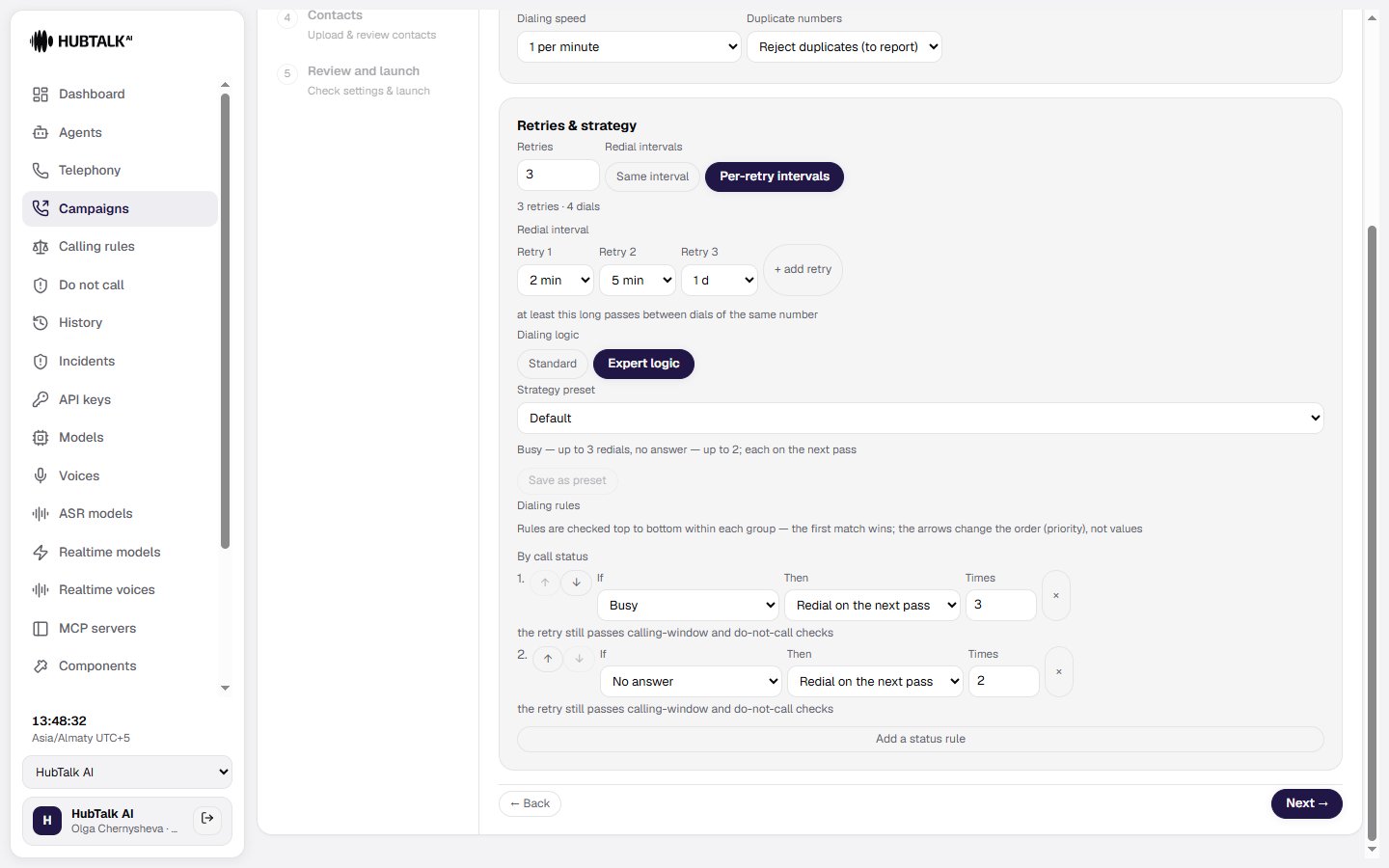
Inside expert logic, a **Strategy preset** selector appears above the rule editor — a ready-made rule set instead of assembling one from scratch. Three are built in:
| Preset | What it does |
| ---------------- | ------------------------------------------------------------------------------------------------------------------------------- |
| **Default** | Busy — up to 3 redials, no answer — up to 2; each on the next pass. |
| **Aggressive** | Busy ×5, no answer ×4, voicemail ×2; a hang-up before 15 s redials without a per-rule limit — the campaign dial budget caps it. |
| **Conservative** | Busy ×2, no answer ×1; voicemail and a hang-up before 10 s stop the number. |
How it behaves:
* Editing any rule automatically switches the selector to **Own rules** — a preset is never detached silently.
* **Save as preset** is available only in the Own rules state; your own preset can be **updated**, **renamed**, and **deleted**, a built-in one cannot. The limit is 20 presets per organization.
* Editing your preset **does not change the rules of campaigns already configured**: a preset is a template, not a live reference.
* **A preset carries rules only.** The retry count and the intervals stay campaign fields and are untouched by the selector.
* Rule order is visible in the list and affects the outcome — rules are evaluated top to bottom.
The selector lives **inside** expert mode: it does not switch the dialing logic from standard to expert, it only fills the rules of the expert logic you already chose.
### Dialing strategy presets
Inside expert logic, a **Strategy preset** selector appears above the rule editor — a ready-made rule set instead of assembling one from scratch. Three are built in:
| Preset | What it does |
| ---------------- | ------------------------------------------------------------------------------------------------------------------------------- |
| **Default** | Busy — up to 3 redials, no answer — up to 2; each on the next pass. |
| **Aggressive** | Busy ×5, no answer ×4, voicemail ×2; a hang-up before 15 s redials without a per-rule limit — the campaign dial budget caps it. |
| **Conservative** | Busy ×2, no answer ×1; voicemail and a hang-up before 10 s stop the number. |
How it behaves:
* Editing any rule automatically switches the selector to **Own rules** — a preset is never detached silently.
* **Save as preset** is available only in the Own rules state; your own preset can be **updated**, **renamed**, and **deleted**, a built-in one cannot. The limit is 20 presets per organization.
* Editing your preset **does not change the rules of campaigns already configured**: a preset is a template, not a live reference.
* **A preset carries rules only.** The retry count and the intervals stay campaign fields and are untouched by the selector.
* Rule order is visible in the list and affects the outcome — rules are evaluated top to bottom.
The selector lives **inside** expert mode: it does not switch the dialing logic from standard to expert, it only fills the rules of the expert logic you already chose.
 ## Step 4. Contacts
Upload a contacts file in CSV or XLSX. The phone column is recognized by its header, and the remaining columns become call variables. The import report lists accepted rows, warnings, rejected rows with their row numbers and reasons, duplicates, and column fill rates; it exports to CSV or XLSX.
For more on uploads and the import report, see [Campaign contacts](/v4/platform/campaigns/contacts).
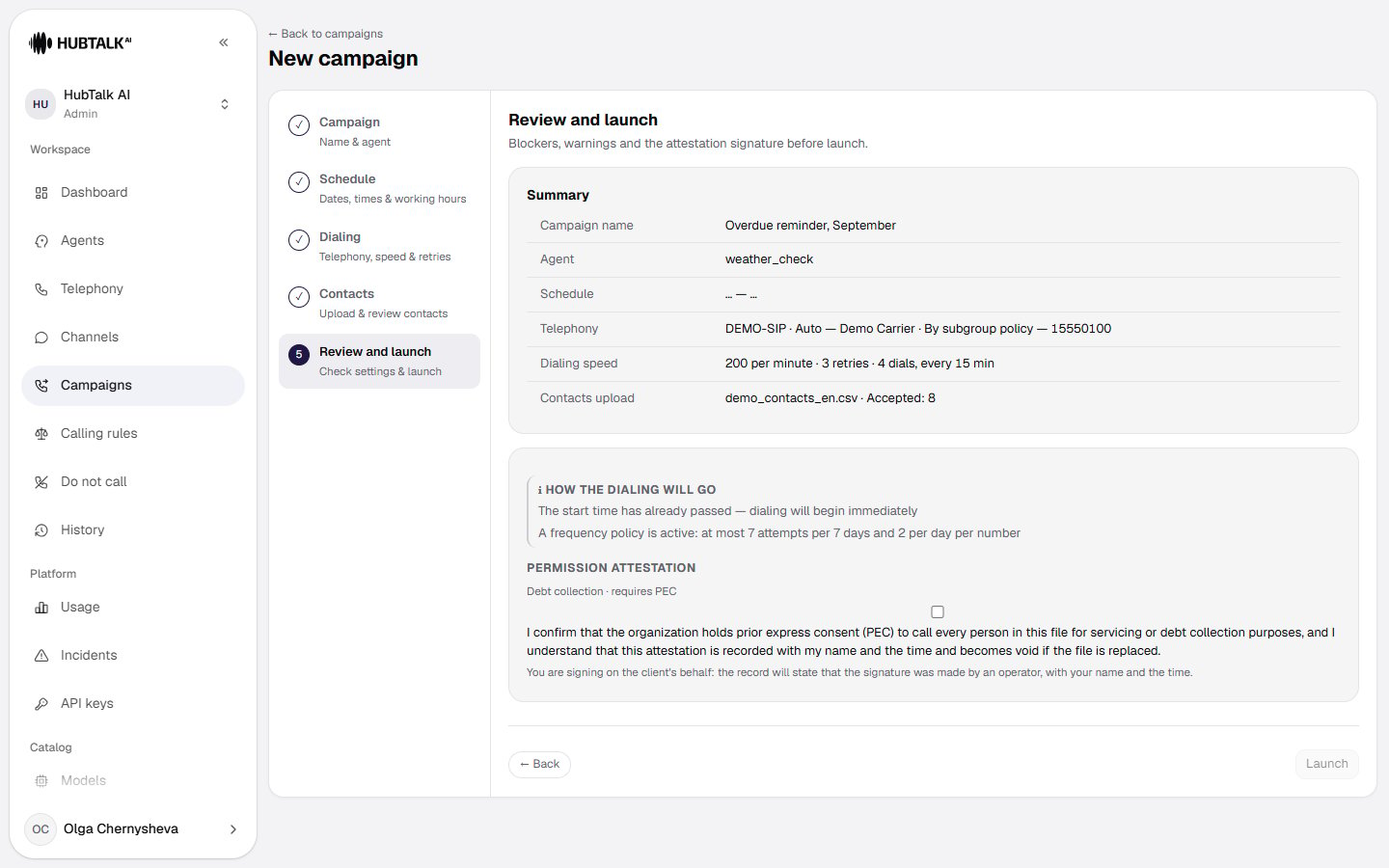
## Step 5. Review and launch
The final step shows three things: **blockers**, **warnings**, and the attestation signature.
**Blockers** stop the launch. For example:
* the agent is unpublished or not bound to a subgroup of the trunk;
* the agent is **hidden from members** and the person launching is a member — see [who sees the agent](/v4/platform/agents/list). An administrator or developer launches the same campaign without the blocker;
* **rows with no usable location**: "N contacts in file '…' have no usable location and cannot be dialed — fix the file and upload it again". There is no way around it: the file has to be fixed and uploaded again, a partial launch is not possible;
* every number in the queue turned out to be on the do-not-call registry;
* an expert-logic rule retries a permanent reason;
* the attestation is unsigned, or was signed under a previous version of the file.
**Warnings** do not block the launch but are worth reading. For example: "The retry schedule is longer than the campaign window — N retries will not happen" — the interval ladder does not fit into the campaign dates.
**Notes** are a third level, below a warning: the platform points something out without suggesting a fix. All three levels sit in one list and are told apart by their mark.
### How to read the findings list
* **Every finding names the field it belongs to** and carries a **Fix** link that jumps to the wizard step where that field lives. From the launch dialog on the campaign card the link opens the form or scrolls to the contacts. Notes have no link: there is nothing to fix.
* **Findings of the same kind collapse.** Four or more warnings about the same variables fold into one expandable row; up to three they are listed one by one.
* **Technical findings carry two halves of text:** a sentence for a human on top, and the technical part under a collapsible "More for the administrator".
* **Finding texts arrive in the cabinet's language.** The server returns a code with parameters and the cabinet renders the text, so the numbers inside a phrase — filled out of how many, which cap, which condition — are substituted as separate values.
**The "missing from the file" list holds only the variables that have to arrive as a contact column.** Everything the flow supplies by itself is subtracted: code-node outputs, transfer outcomes (`transfer_status`, `transfer_line`), the service flags of function calls, the call's numbers and direction, and post-call analytics fields.
One exception: a variable a code node writes through `result` without declaring it among its output variables does appear on the list. Declare it — it then also becomes available in the condition builder.
**Permission attestation** — the signature stating that consent to call has been obtained. The wording comes from the server and depends on the campaign classification from step 1. It is a legal statement, not a formality: the record captures who signed and when, and it is **voided when the contacts file is replaced** — a new version of the file has to be attested again.
## Step 4. Contacts
Upload a contacts file in CSV or XLSX. The phone column is recognized by its header, and the remaining columns become call variables. The import report lists accepted rows, warnings, rejected rows with their row numbers and reasons, duplicates, and column fill rates; it exports to CSV or XLSX.
For more on uploads and the import report, see [Campaign contacts](/v4/platform/campaigns/contacts).
## Step 5. Review and launch
The final step shows three things: **blockers**, **warnings**, and the attestation signature.
**Blockers** stop the launch. For example:
* the agent is unpublished or not bound to a subgroup of the trunk;
* the agent is **hidden from members** and the person launching is a member — see [who sees the agent](/v4/platform/agents/list). An administrator or developer launches the same campaign without the blocker;
* **rows with no usable location**: "N contacts in file '…' have no usable location and cannot be dialed — fix the file and upload it again". There is no way around it: the file has to be fixed and uploaded again, a partial launch is not possible;
* every number in the queue turned out to be on the do-not-call registry;
* an expert-logic rule retries a permanent reason;
* the attestation is unsigned, or was signed under a previous version of the file.
**Warnings** do not block the launch but are worth reading. For example: "The retry schedule is longer than the campaign window — N retries will not happen" — the interval ladder does not fit into the campaign dates.
**Notes** are a third level, below a warning: the platform points something out without suggesting a fix. All three levels sit in one list and are told apart by their mark.
### How to read the findings list
* **Every finding names the field it belongs to** and carries a **Fix** link that jumps to the wizard step where that field lives. From the launch dialog on the campaign card the link opens the form or scrolls to the contacts. Notes have no link: there is nothing to fix.
* **Findings of the same kind collapse.** Four or more warnings about the same variables fold into one expandable row; up to three they are listed one by one.
* **Technical findings carry two halves of text:** a sentence for a human on top, and the technical part under a collapsible "More for the administrator".
* **Finding texts arrive in the cabinet's language.** The server returns a code with parameters and the cabinet renders the text, so the numbers inside a phrase — filled out of how many, which cap, which condition — are substituted as separate values.
**The "missing from the file" list holds only the variables that have to arrive as a contact column.** Everything the flow supplies by itself is subtracted: code-node outputs, transfer outcomes (`transfer_status`, `transfer_line`), the service flags of function calls, the call's numbers and direction, and post-call analytics fields.
One exception: a variable a code node writes through `result` without declaring it among its output variables does appear on the list. Declare it — it then also becomes available in the condition builder.
**Permission attestation** — the signature stating that consent to call has been obtained. The wording comes from the server and depends on the campaign classification from step 1. It is a legal statement, not a formality: the record captures who signed and when, and it is **voided when the contacts file is replaced** — a new version of the file has to be attested again.
 After launch the dialing configuration is frozen: changing the speed, the retries, or the rules requires a new campaign. That is why a first launch is done on 20–30 contacts rather than the whole base.