

Adapter accounts
An adapter account is the login and password a V2 client uses to sign in to the adapter. It is bound to a V4 organization and stores the dialing defaults that are filled into a campaign when the client’s request did not pass a parameter.What to know before you start
- The account login and password work only in the adapter. They do not open the cabinet or the Web API, and a cabinet token or a Web API key does not open the adapter.
- The password is kept in the adapter password store and is recorded nowhere else: a generated password is shown once.
- The account organization is the source of agents, report templates and dialing bindings for all its scripts. While the account has no scripts, the organization can be changed; after that it cannot.
Who sees the section and where it is
The Compatibility adapter section is in the cabinet menu under the Admin group, after Market package. Only the root organization administrator sees it. The root organization developer and users of client organizations do not have this item. The section has two tabs: Accounts and Compatibility registries. The selected tab, account and filters are kept in the page address, so you can send the link to a colleague.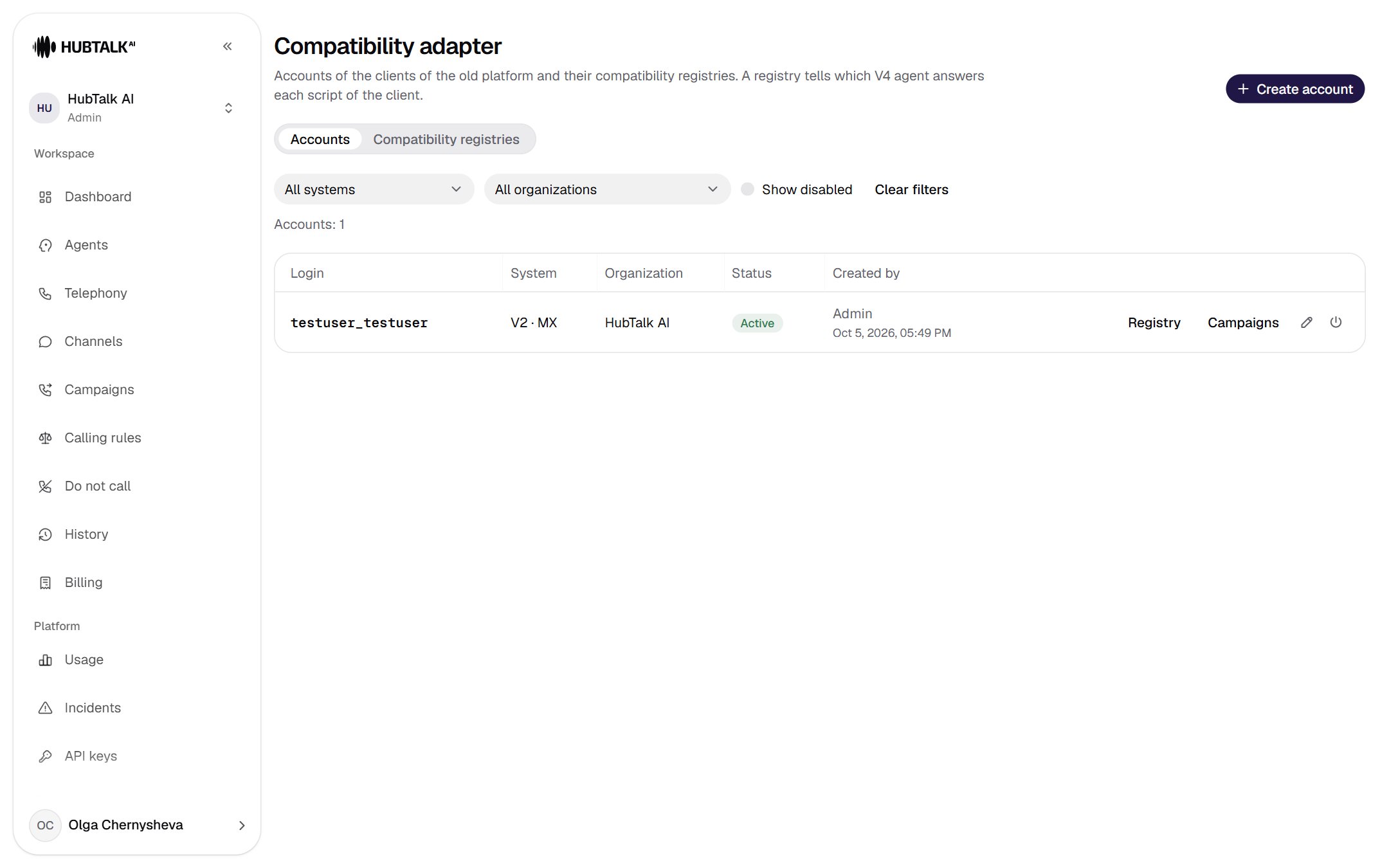
- Section tabs: Accounts and Compatibility registries.
- Create account.
- List filters: system, organization, Show disabled, Clear filters.
- Status: Active or Disabled since ….
- Row actions: Registry, the Edit pencil, the power button Disable or Enable. Next to them is the Campaigns button.
Creating an account
Before creating an account, get the client’s V2 login exactly as the client writes it in requests, and decide with the business whether to keep the former V2 password or issue a new one. The former V2 password cannot be carried over automatically — it has to be entered by hand.1
Open the section and click Create account
The button is in the top right corner. While the section is empty, it is inside the empty list card.
2
Select the system
V2 · MX or V2 · KZ. The system determines the common request fields and login uniqueness: the same login can exist in both MX and KZ. The system cannot be changed after saving.
3
Enter the login
Exactly as in the client’s requests: this is the
user field in the request body. Case does not matter — User_Freedom and user_freedom are the same login. Spaces are not allowed; the length is up to 150 characters.4
Set a password or click Generate
A manual password: not empty, not only spaces, up to 255 characters; any former client password works. A generated password is shown once after saving. While generation is selected, the field shows Generated on saving; the Enter by hand link returns to manual entry.
5
Select the V4 organization
An organization tree with search. The organization provides the agents for scripts, the report templates and the dialing bindings. An archived organization cannot be selected.
6
Fill in the For the adapter core block
- Display name — the client’s name in V2, up to 255 characters. A reference field; it is not passed to the agent.
- Response to create — the form of the response to the client: List of ids (
{"type":"success","data":[100000001,…]}) or Pairs of batch_id and foreign_id ([{"batch_id":100000001,"foreign_id":"…"}]). Choose the one the client’s code parses. - Export template — the organization report template used to build the response to
details. Without a template,detailsreturns a refusal. For the general V2 form there is the system templatesys-api-v2, for the moneyman form —sys-api-moneyman. - Number on the do-not-call list — what to do with a row whose number is on the organization’s Do not call list: Skip the number, as in V2 (the row gets an ID, but no contact is created) or Refuse the whole request (the client gets an error on the
phone_numberfield).
7
Check the dialing defaults
They are filled into a campaign when the request did not pass a parameter:
The window must fit inside the organization’s dialing window, otherwise saving is refused.
8
Click Create
The account is created together with the password in the store. If the store refuses, the account is not created and the reason appears at the bottom of the window.
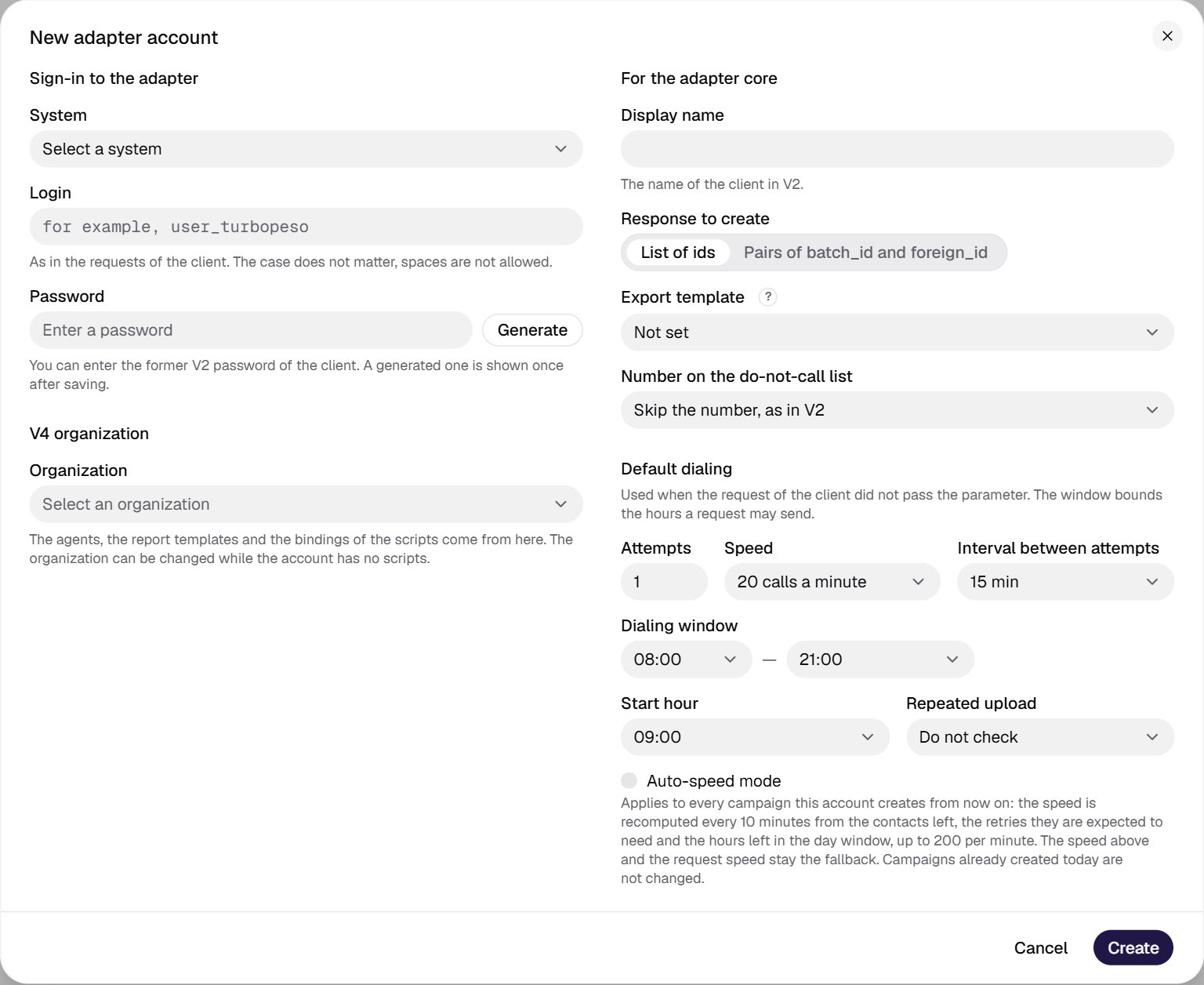
- System: V2 · MX or V2 · KZ. Cannot be changed after saving.
- Login exactly as in the client’s requests, no spaces, up to 150 characters.
- Password by hand or Generate: a generated one is shown once.
- V4 organization: the source of agents, templates and bindings.
- The client’s display name in V2, for reference.
- Form of the response to
create: a list of IDs orbatch_id/foreign_idpairs. - Export template for the
detailsoperation. - What to do with a number on the Do not call list.
- Dialing defaults: attempts, speed, interval.
- Dialing window: the hours a request may send.
- Repeated upload: checking numbers uploaded today.
- Create.
What to check right after creating
- Give the client the login, password and adapter address. The cheapest way to check sign-in is the request
{"user":"…","pass":"…","type":"delete","data":[1]}: the adapter echoes{"type":"deleted", "data": [1]}and withdraws nothing. - Create the registry: without scripts, any client
creategets an error on thetypefield. The Open the registry button is right in the window with the shown password.
Password: shown once and changing it
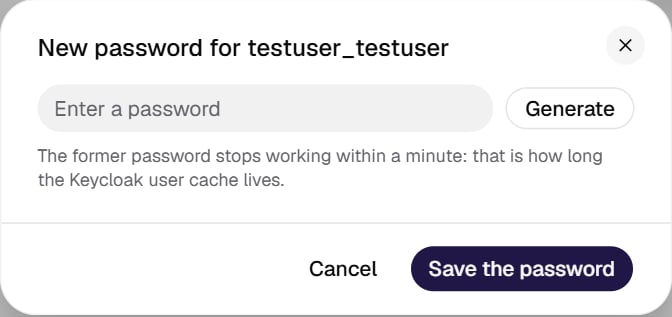
If the password was generated, after Create the Account created window opens with the password and a Copy button. Copy the password right away: it is shown once and stored nowhere else. If you lose it, set a new one in the account edit window.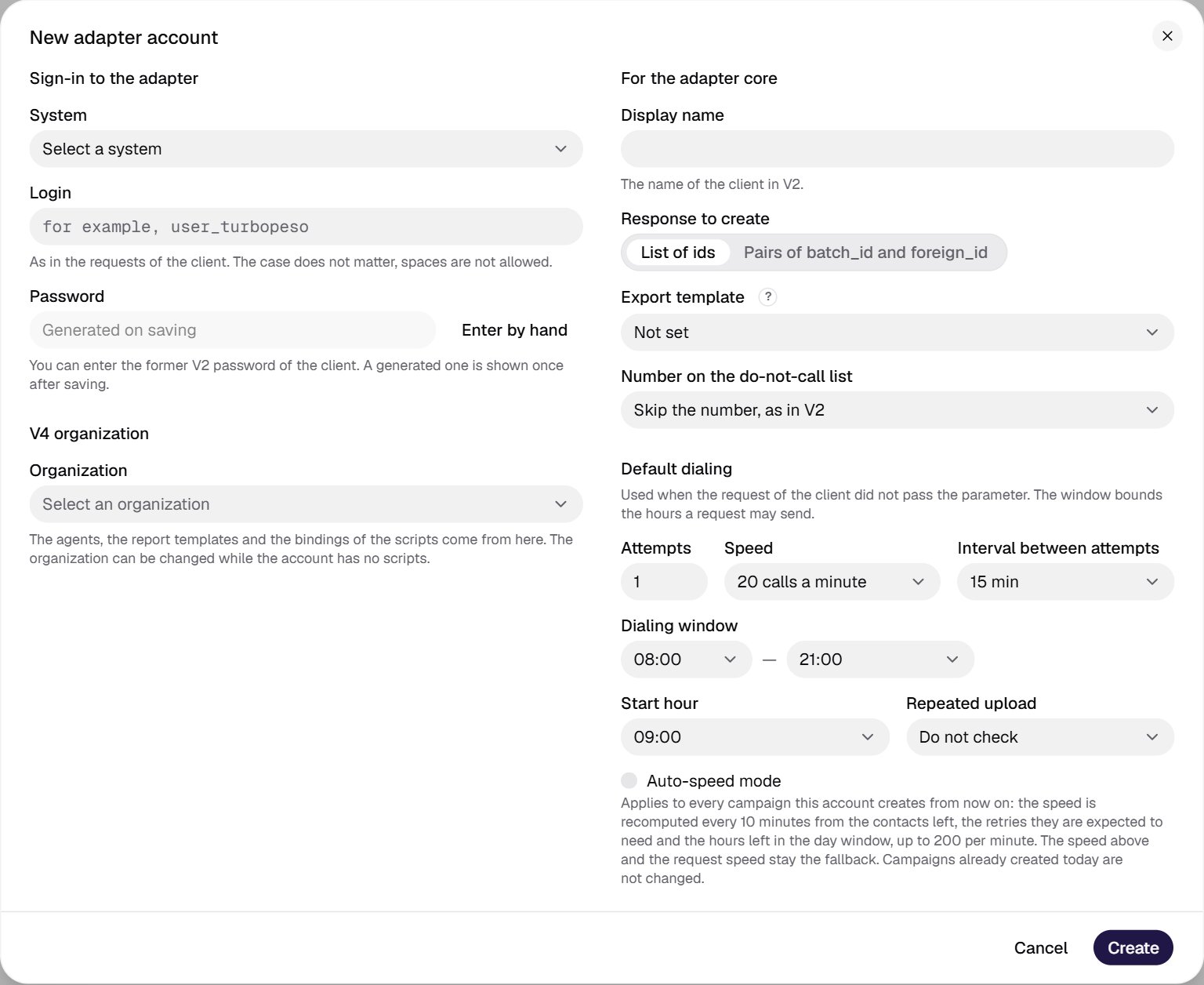
- After Generate, the field shows Generated on saving. The Enter by hand link returns manual entry.
Changing an account
The pencil in a list row opens the Account <login> window. The header shows the system, the internal account number and who created it.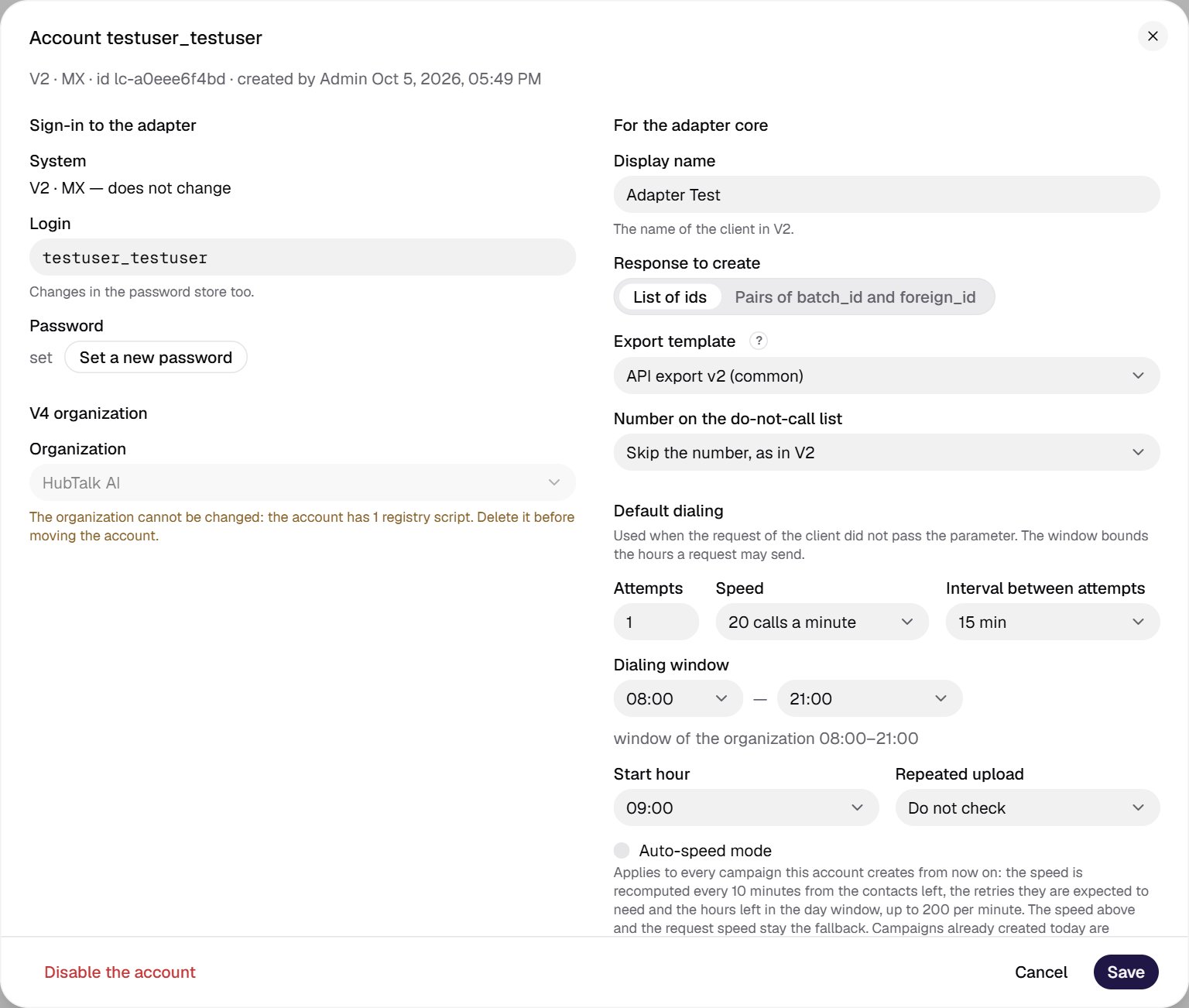
- The system cannot be changed.
- The login can be changed.
- Password: set and the Set a new password button.
- The organization is locked while the account has scripts.
- Display name, response to
create, export template and do-not-call mode can be changed at any time. - Dialing window with the hint window of the organization …: you cannot set it wider.
- Disable the account.
- Save.
Disabling and enabling
The power button in a list row or the Disable the account button in the edit window opens a confirmation. An account cannot be deleted: disabling is the only way to close sign-in for a client.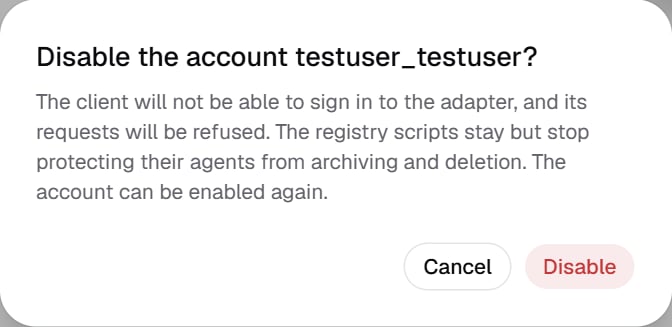
- Disabling. The client immediately gets
{"type":"error", "data":"Authentication failed"}for any request. The registry scripts remain but stop protecting their agents from archiving and deletion. - Enabling. Sign-in returns within a minute. The scripts protect their agents again.
- A disabled account is visible in the list when the Show disabled filter is on: the row is dimmed, and the status says Disabled since …. On the registries tab it has the The account is disabled banner.