

Adapter campaigns
Client requests turn into ordinary V4 campaigns with contacts and calls. The cabinet marks them with the Compatibility adapter badge and shows the root organization administrator the account, the registry script and the adapter contact IDs.The adapter attributes — the account, the registry script, the contact IDs — are visible only to the root organization administrator. Users of the client organization see the same screens as before.
How a request becomes a campaign
The campaign launch and added batches are signed with the adapter login.
Campaigns live in the client’s organization. In their home organization, the root administrator sees only that organization’s campaigns. Adapter campaigns are created in the account organization, so first switch to it with the organization switcher in the top left corner. The Campaigns link in the account row and the Open the contact in the campaign link in the call overview switch the organization by themselves.
How to find an adapter campaign
1
From the account
The Compatibility adapter section → the Accounts tab → the Campaigns button in the account row. The cabinet switches the organization and opens the list of this account’s campaigns with the Account: <login> chip.
2
From the campaign list
In the client organization: the Source filter = Compatibility adapter. Or search by name: part of
cname, the date or the script name. In the Status column, such campaigns have the Compatibility adapter badge; hovering shows the hint “login · system · script”.3
By adapter contact ID
The History section → More filters → the Adapter contact ID field (digits only, exact match) → open the call → the Open the contact in the campaign link in the overview. This finds only a contact that has already been dialed.
4
On the campaign card
The third search field in the Campaign contacts block finds a contact by adapter ID, including one not yet dialed.
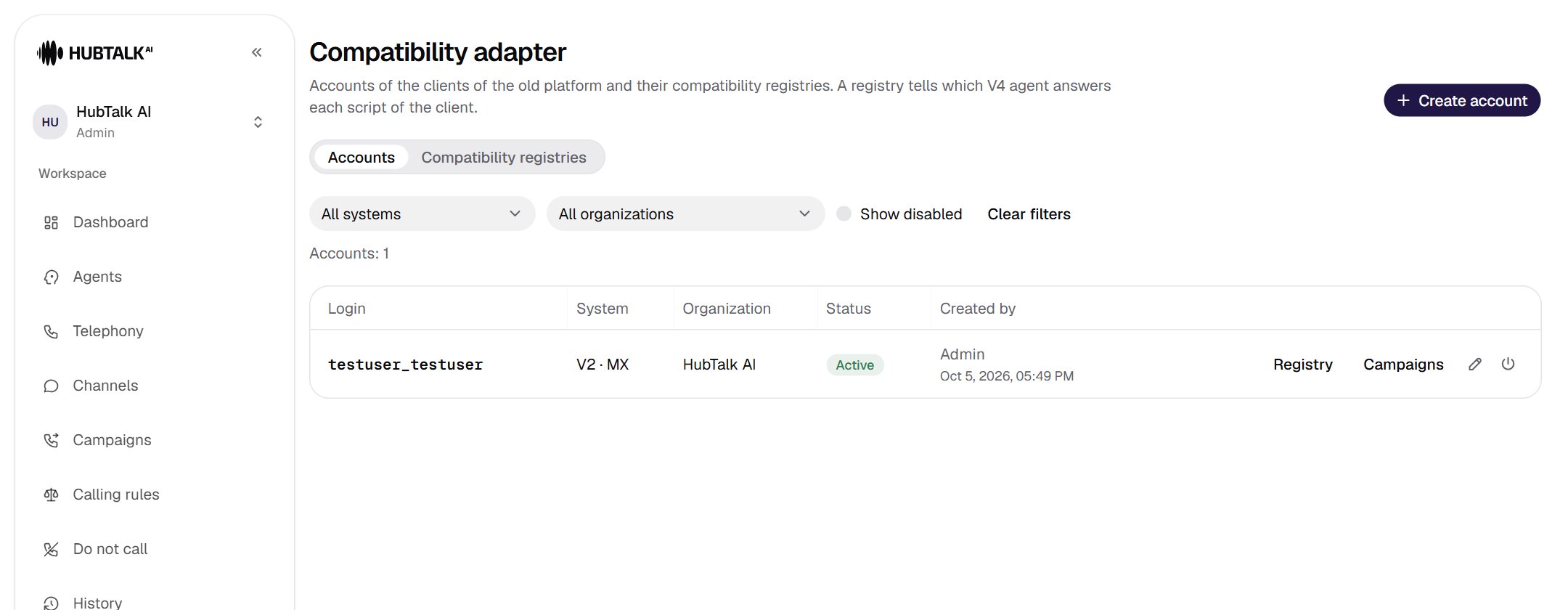
- Campaigns: switches the organization and opens the list of this account’s campaigns.
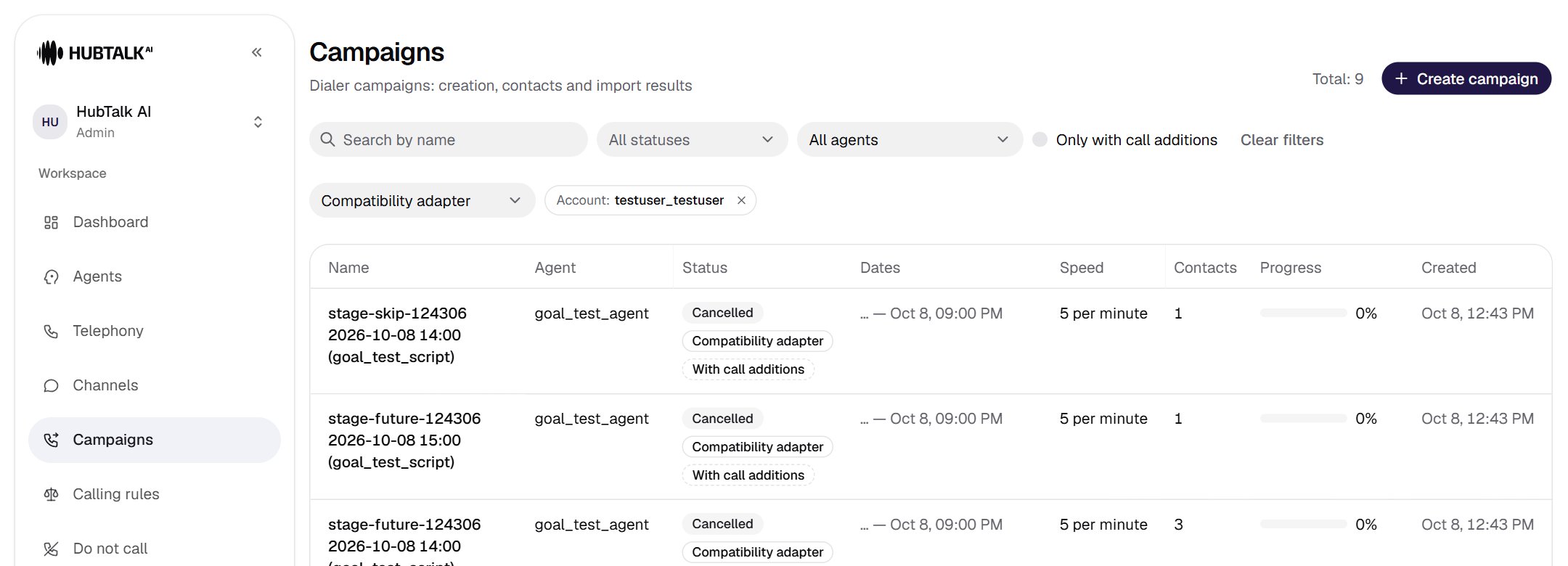
- The Source filter: Compatibility adapter is already selected.
- The Account: login chip; the cross removes the filter.
- The Compatibility adapter badge in the status cell.
- The organization is already switched to the account organization.
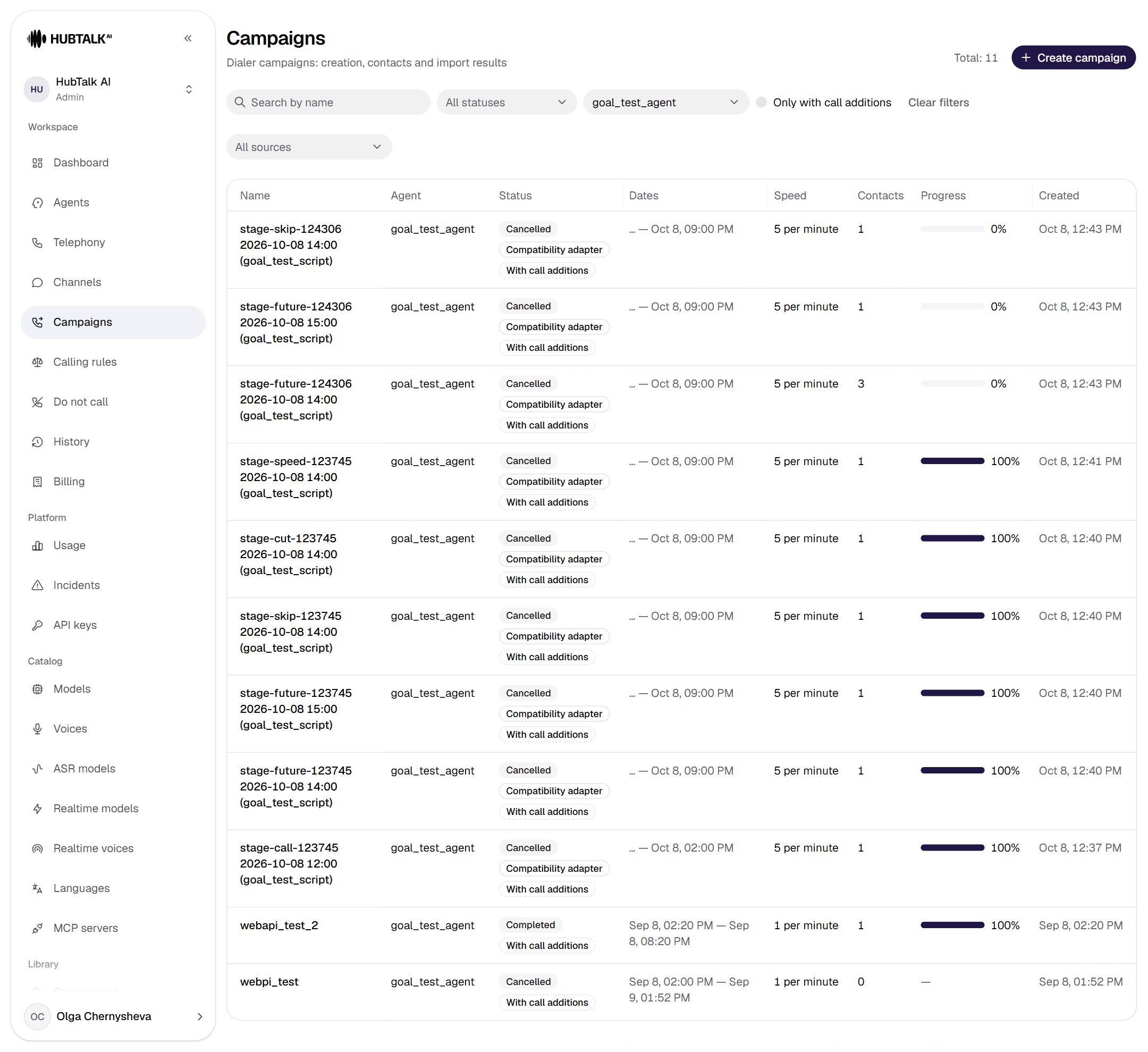
- The Source filter: All sources, Cabinet, API, Compatibility adapter, Not recorded.
- Only the adapter campaign has the badge; campaigns from the cabinet and the Web API do not.
- Adapter campaign name:
cname· date · start hour · (script).
Campaign card
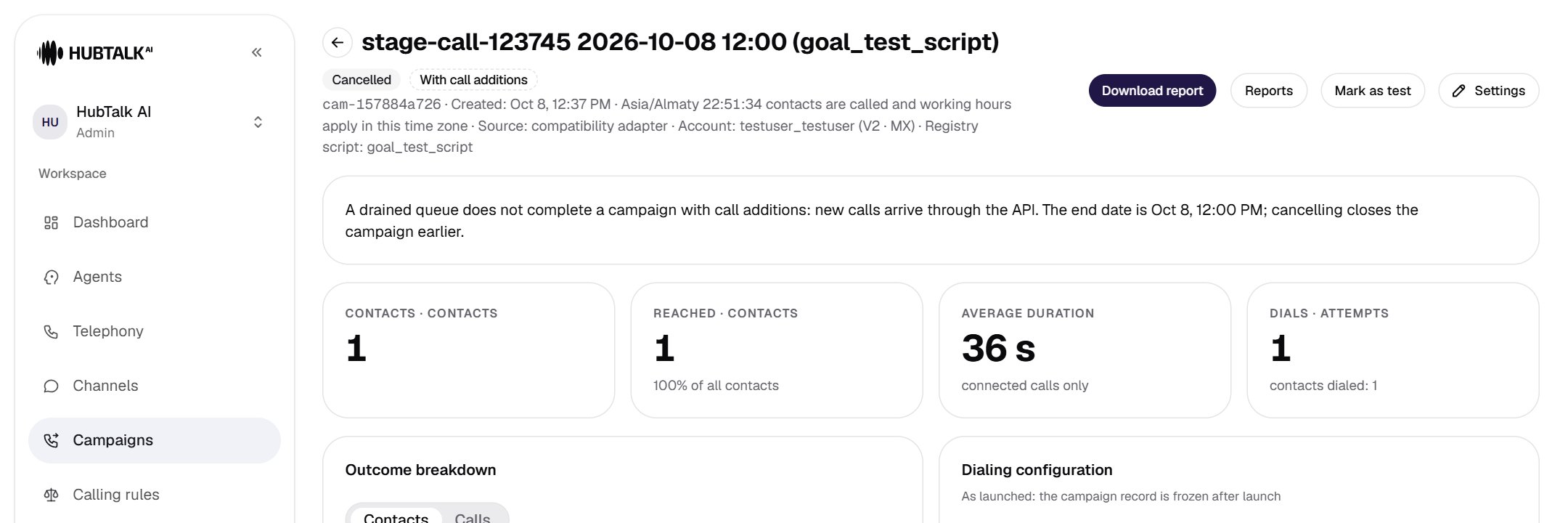
- Subtitle: “Source: compatibility adapter · Account: login (system) · Registry script: name”. There is no badge in the title — the attributes are in the subtitle.
- Status and dates. An adapter campaign launches immediately: Running, or Scheduled until the start hour. An empty queue does not end it; it is closed by the end of the campaign day or by cancellation. A completed or cancelled campaign with the same attributes cannot be revived before the end of the day: the client gets an internal error.
- Dialing configuration “as launched”. Agent, classification, trunk, subgroup, caller ID, speed, retries, and working hours on the Schedule tab. This is a snapshot at launch time: editing the registry or the account does not change it.
- Scheduler state. Held for reasons, suppressed by policy (with reasons and contact counts), next attempt, speed. The reasons Withdrawn at the client’s request and Compatibility adapter request not accepted are adapter withdrawals and rollbacks.
- Permission attestation. Signed by: <V2 login> with the organization user mark — the signature by the adapter account. For batches — Batch signature in the upload report.
- Upload history. Each batch from a repeated request is a separate upload with its own report.