

Campaigns
Campaigns organize outbound calls for a defined group of contacts. Use this page to create, launch, monitor, and review calling campaigns.What campaigns do
A campaign lets you:- prepare a list of contacts for outbound calls
- assign an agent and calling settings
- define when calls should run
- monitor campaign progress and results
- open individual calls for review
Campaigns list
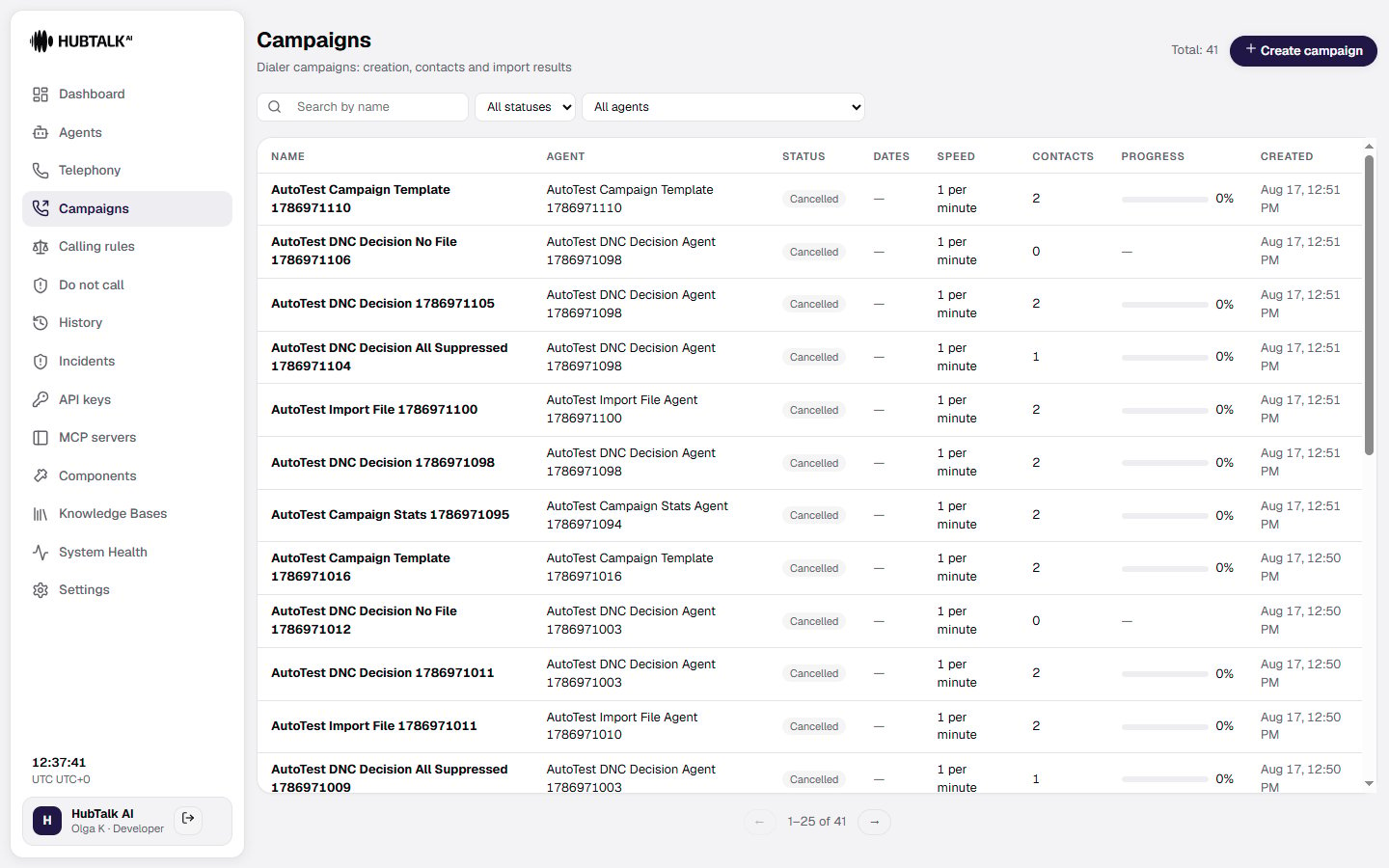
When you open the Campaigns tab, you see the total number of campaigns and the Create campaign button. Use the filters to find a campaign:- Search by name — search campaigns by name.
- All statuses — Draft, Scheduled, Running, Paused, Completed or Cancelled.
- All agents — filter by the assigned agent.
- Only with call additions — keeps the campaigns that are open to having numbers added.
- Name — campaign name.
- Agent — agent assigned to the campaign.
- Status — current state: Draft, Scheduled, Running, Paused, Completed or Cancelled.
- Dates — campaign date range.
- Speed — dialing rate.
- Contacts — number of contacts in the campaign.
- Progress — completion percentage.
- Created — creation date and time.
Campaign details
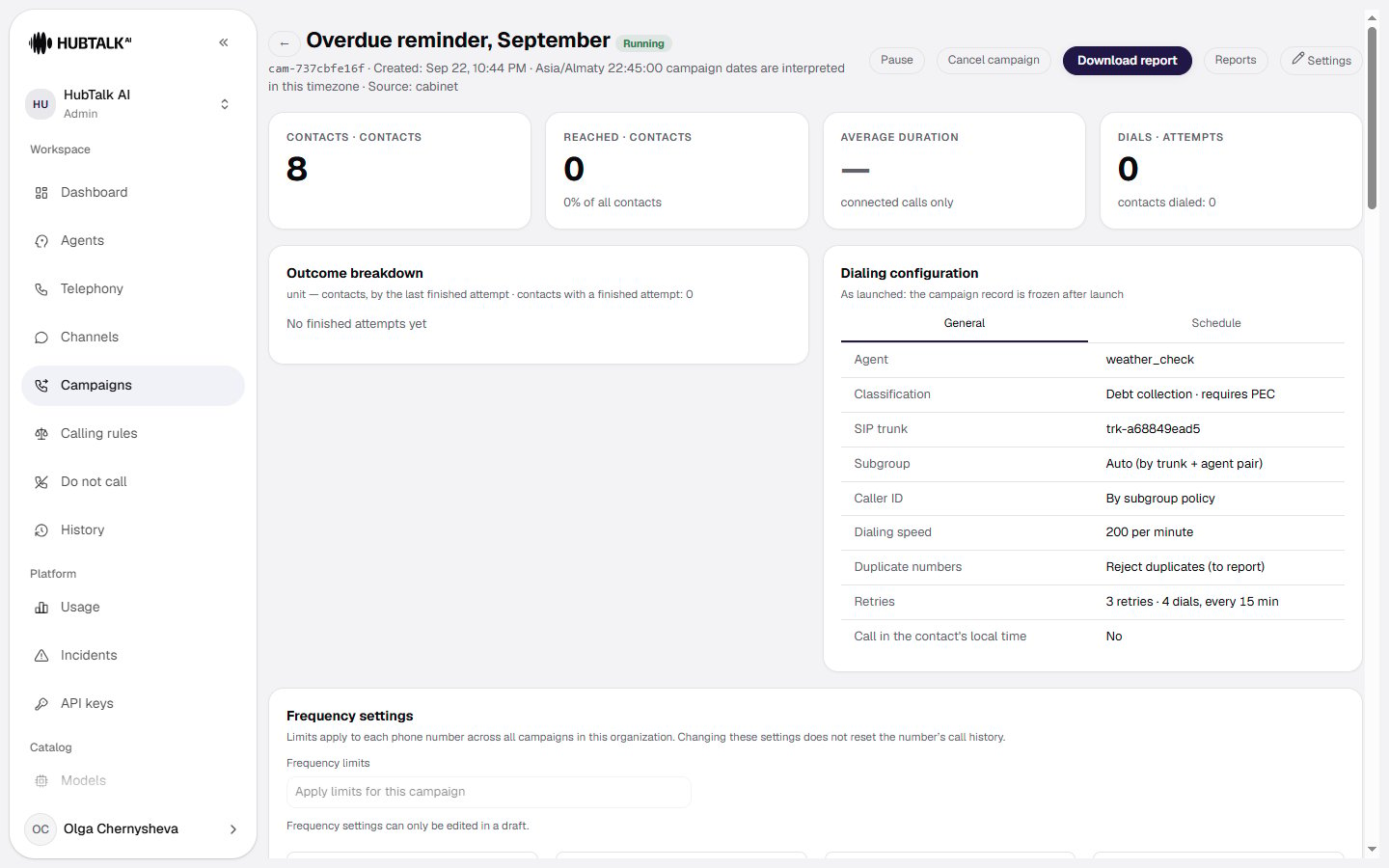
When you open a campaign, the details page shows its status and key performance metrics:- Contacts — how many contacts the campaign holds.
- Reached — how many were reached, and what share of the total that is.
- Average duration — the caption under it says what it counts: connected calls only.
- Dials — how many dialing attempts were made, with “contacts dialed: N” on its own line.
Outcome and dialing configuration
- Outcome breakdown — summarizes the outcomes of campaign calls; the unit is contacts, counted by their last finished attempt. If no attempt has finished yet, the block says so.
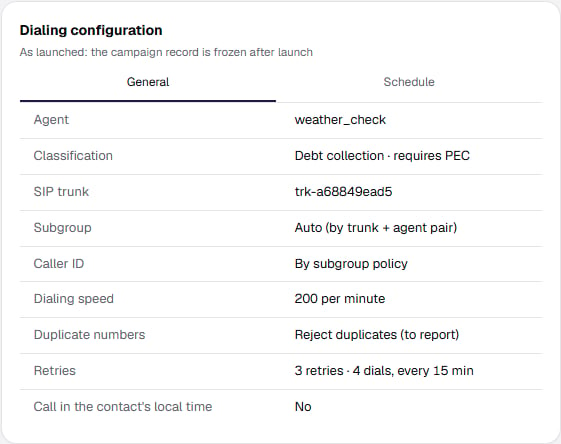
- Dialing configuration — displays the agent, the call classification, SIP trunk, Subgroup, Caller ID, Dialing speed, Duplicate numbers, Retries and Call in the contact’s local time. Retries are labelled as a pair of figures plus the interval mode: “9 retries · 10 dials, every 15 min” or “9 retries · 10 dials, intervals: 2 min, 5 min, 1 d”. After launch the configuration is frozen.
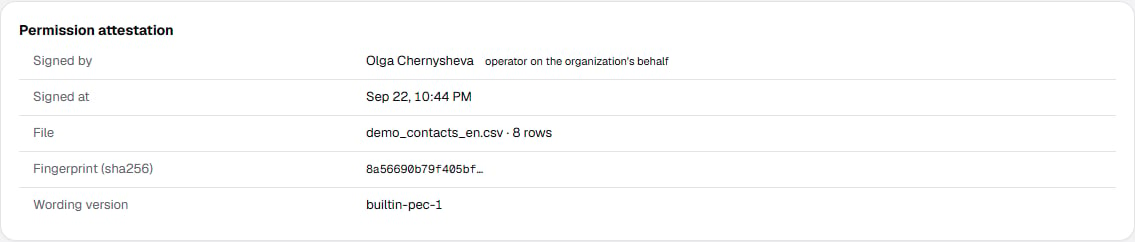
- Permission attestation — a separate card below: who signed, when, the file and its fingerprint, and the wording version. The call purpose itself — marketing, servicing or debt collection — and the consent tier derived from it sit in the Classification row of the dialing configuration. For campaigns launched before attestations were introduced, the card says plainly that there is no signature.
Scheduler state
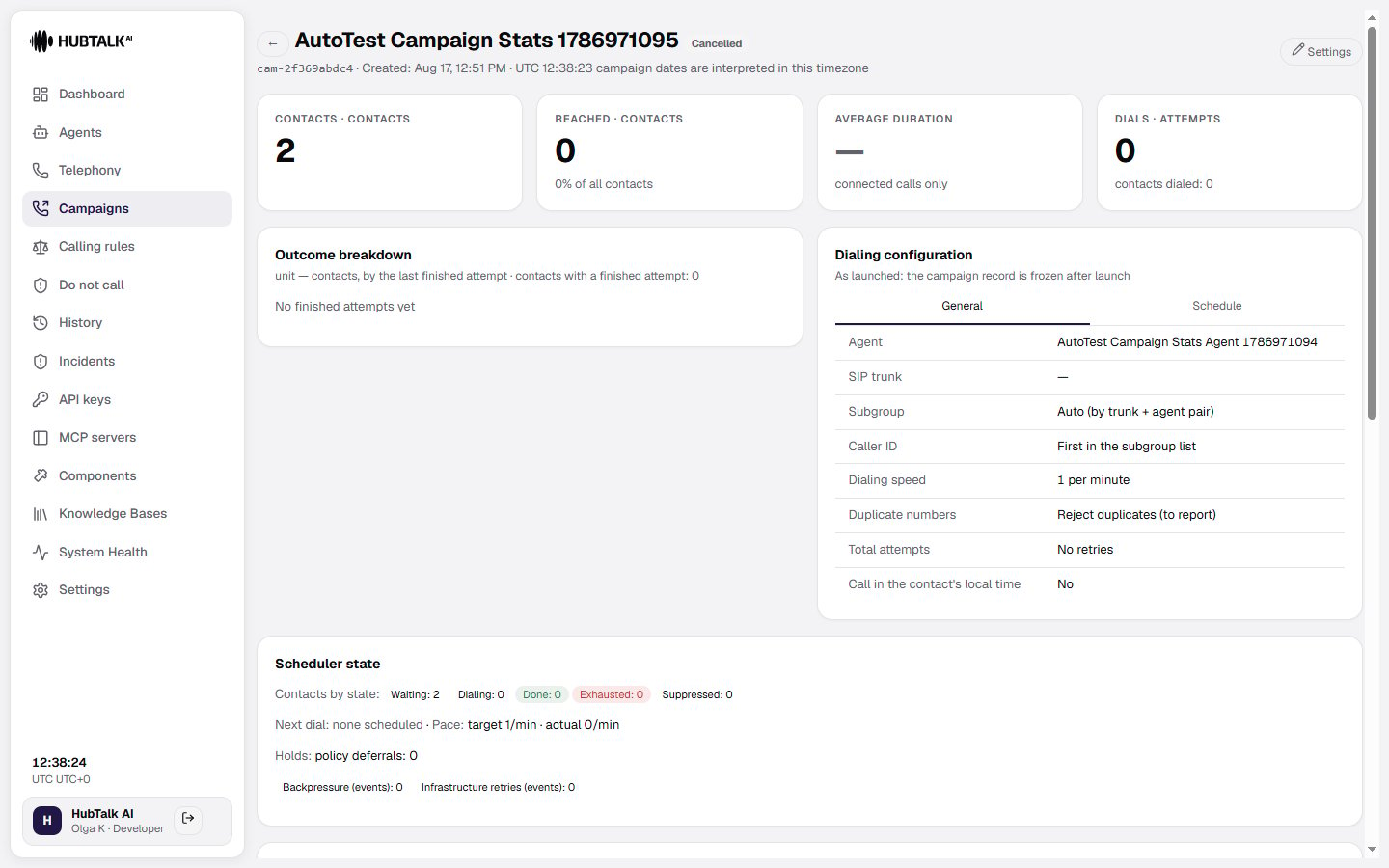
The Scheduler state block shows contacts by state — Waiting, Dialing, Done, Exhausted, Suppressed — a Next dial line with the target and actual pace, Holds with the reason for each deferral, Suppressed by policy, DNC suppression phases, and the backpressure and infrastructure-retry counters.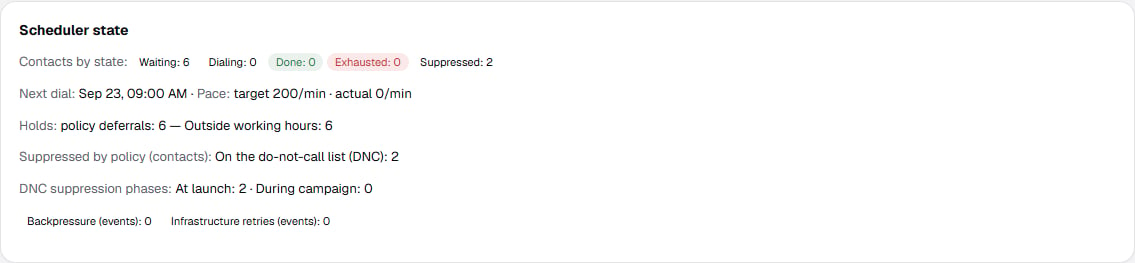
Frequently asked questions
The campaign is running slower than I expected. Most likely some contacts are waiting for their window: in the US, a person in another time zone may only be reachable for a few hours of your day. Contacts are not lost — they are dialed once the permitted time arrives. Some contacts were never dialed. Three usual reasons: the number is on the do-not-call registry; the row was rejected at upload (check the import report); the contact is still waiting for its window. All three are visible on the campaign card. Why did calls stop at 20:00 when I set 21:00? That state’s law is stricter than federal. A campaign may narrow the window, never widen it. Outside the US profile the same logic applies to the organization calling window. What happens when the rules are updated? The rules are maintained and updated as laws change. A change applies to all subsequent calls, and already-deferred contacts are recomputed under the new rules. The change history is available for review. Can the restrictions be switched off for one campaign? Depends which ones. Legal restrictions — no: state caps, Reg F and the calling windows cannot be disabled or widened, neither through the interface nor through the API. Narrowing your own window is allowed. Your own frequency limits — yes, by a platform administrator, for one campaign or for the whole company; see Switching the limits off.What is expected from you
- The right to call. The platform records your attestation but does not verify it: the grounds for calling are yours to establish.
- Accurate location data — for US campaigns the time zone and state are derived from what you supplied.
- A current do-not-call registry. If someone asked not to be called by another route — a letter, your website, an operator — add the number to the registry: the platform only learns of it from the conversation, and only on the US profile.
- A clean export. Duplicates, empty numbers, and lost leading zeros in ZIP codes are the most common reasons rows get rejected.
Campaign workflow
A campaign is assembled in a five-step wizard — covered in detail on Campaign launch:- Campaign — name, agent, and call classification.
- Schedule — dates, time zone, working hours.
- Dialing — telephony, speed, duplicates, retries, and dialing logic.
- Contacts — file upload and the import report.
- Review and launch — blockers, warnings, and the attestation signature.
Related pages
Campaign contacts
The contact file and its requirements, adding batches to a running campaign, file retention and do-not-call screening.
Call frequency
How often one number may be called, where the numbers come from, how to switch the limits off and what the switch does not touch.
US campaigns
Calling windows in the contact’s local time, and the geography the file must carry.
Launching a campaign
The five-step wizard: agent and classification, schedule, dialing, contacts, review and attestation.