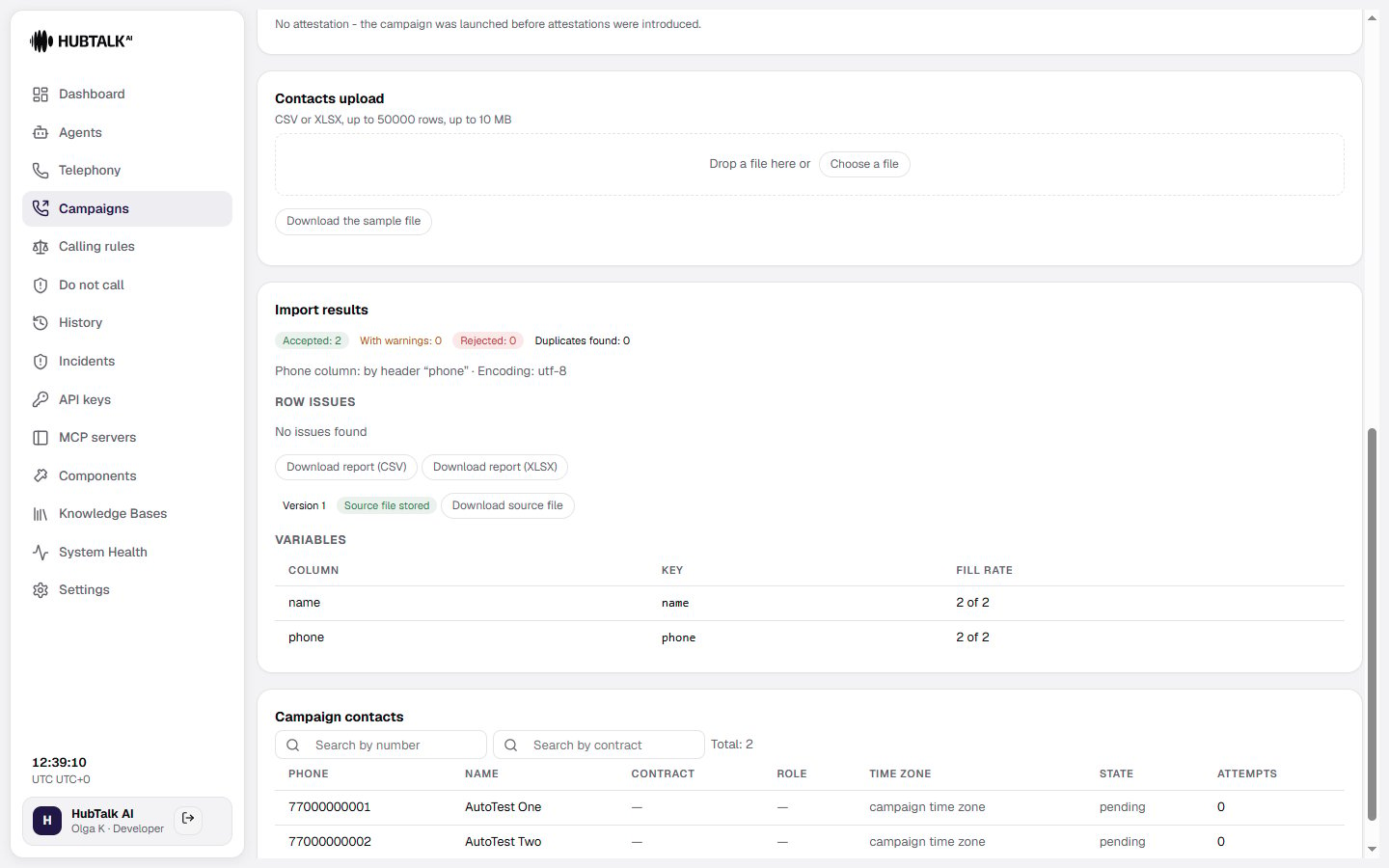
Campaign contacts
Contacts upload and import results
The Contacts upload block lets you upload the contact file. The Import results section shows accepted rows, warnings, rejected rows, duplicates, the phone column used, and row issues. You can download CSV or XLSX reports when validation produces issues. The variables table lists imported columns, their variable keys, and fill rates. Upload history shows uploaded files, upload times, and how many rows were accepted.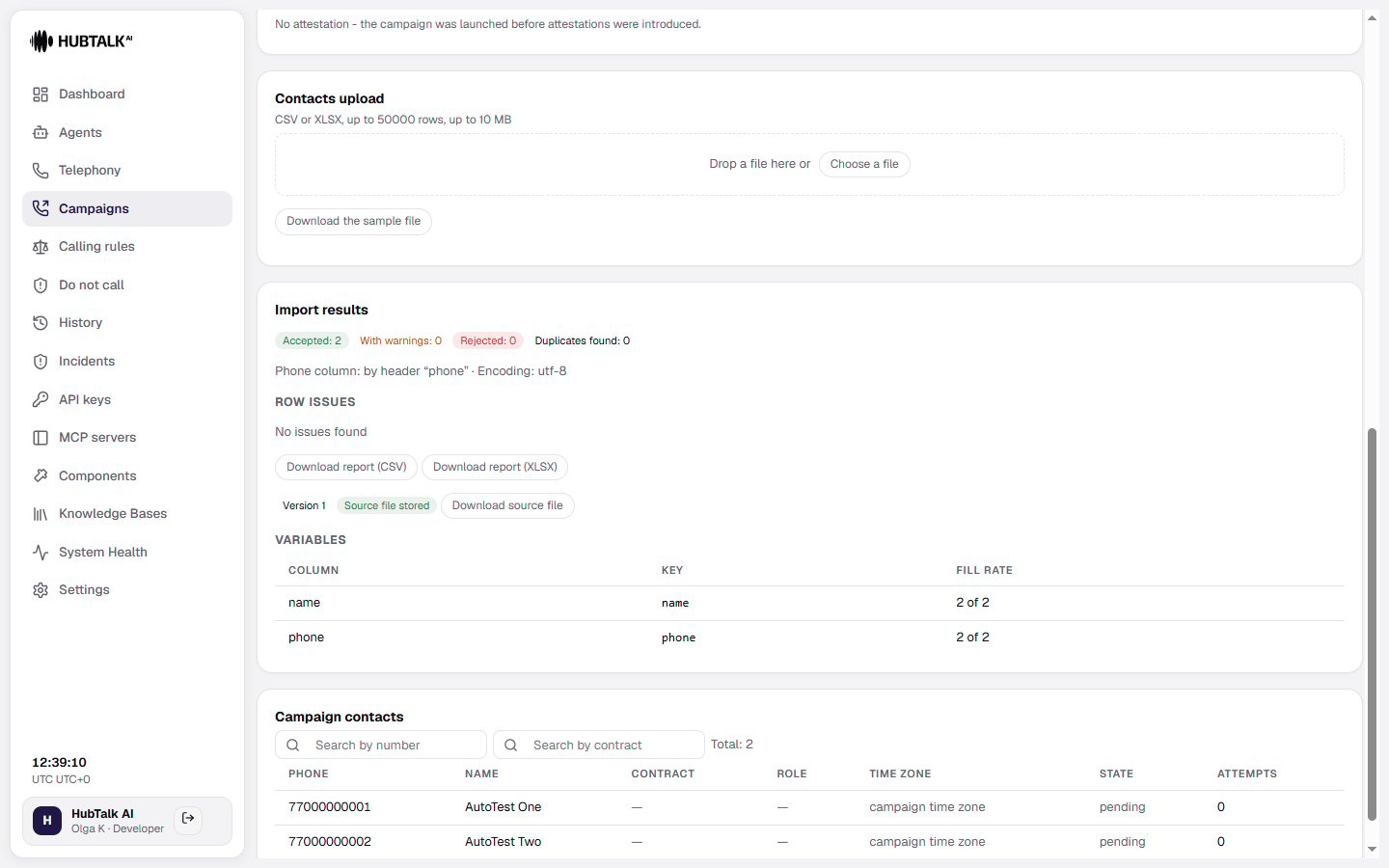
Contact file requirements
CSV and XLSX are accepted. The legacy XLS format is not supported — re-save the file. Limits: up to 50,000 rows and up to 10 MB; a file over the limit is rejected in full, not truncated.- Phone number — the only always-mandatory column. The platform finds it by header (
phone,phone_number,mobile,cell,tel, and similar), and falls back to detecting it by content when no recognizable header exists. Rows with an unreadable number are not dropped silently: they appear in the import report with their row number. - Name is read from a
name/full_namecolumn, or assembled fromfirst_nameandlast_name. - Any other column becomes a call variable: amount owed, contract number, payment date.
- Reject duplicates (the default) — the first occurrence stays, the rest go into the report as errors. This is the loud option: repeated rows usually mean the export from your system is misbehaving, and that is worth knowing.
- Keep the first occurrence — duplicates are dropped without errors.
- Keep the last occurrence — for when corrected rows are appended to the end of the file.
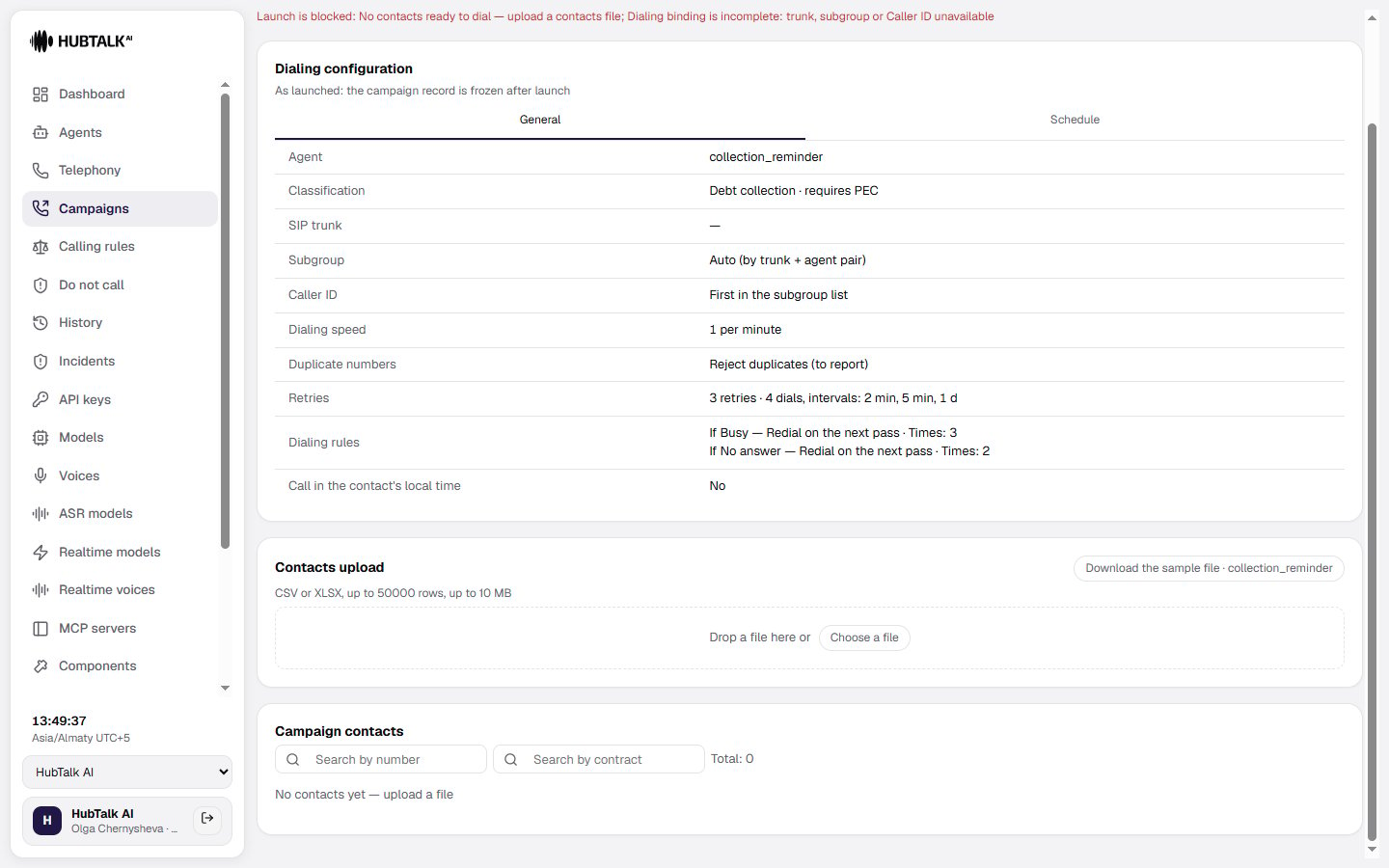
Adding calls to a running campaign
An ordinary campaign closes itself as soon as its queue runs dry, and accepts no numbers after that. If numbers will arrive in batches, create the campaign open to call additions: an empty queue does not end it — only the end date or a cancellation does. Contacts are added to such a campaign straight from the cabinet, while it runs:- a batch is accepted whole or not at all. Half a file will not get in: either every row passed, or the whole file is rejected with reasons;
- each batch carries its own attestation. The signature under the first file does not extend to the next one — the right to call is confirmed per batch;
- a batch appears on the campaign card as its own row, so “what was there originally and what was added later” does not turn into one pile.
An open campaign must have an end date, and it cannot be more than 30 days out: a campaign with neither a queue nor a date would never finish. The same batches can be sent through the Web API — it is one and the same mechanism.
File retention
Uploaded files are kept: the attestation signature points at a specific document, and the file can always be downloaded exactly as the campaign was launched with it. The full retention period is counted from the campaign launch and is configured per organization. The file of a campaign that was never launched is kept only briefly — two weeks by default. Retention can be switched off entirely: only the file’s metadata and checksum remain, but you lose the ability to produce the very file you attested the right to call under. When the period expires the file is deleted, and that is recorded too: its metadata and the deletion date are kept.Do-not-call screening
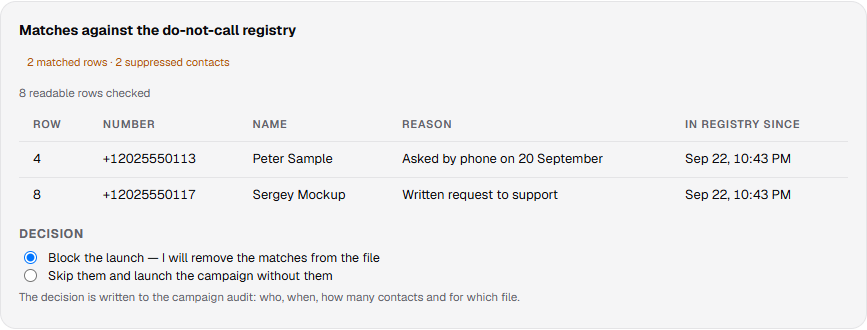
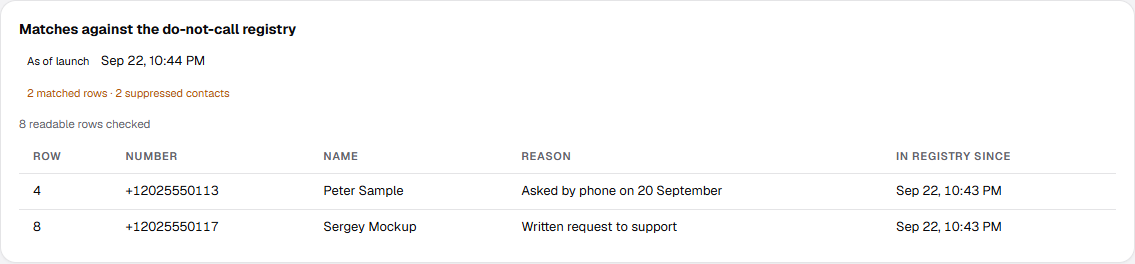
The uploaded file is screened against the do-not-call registry, and the Matches against the do-not-call registry block shows the whole result of that screening:- readable rows checked — how many rows of the file had a readable phone and were screened;
- rows not screened — the phone could not be read; these rows do not count as clean and are named separately;
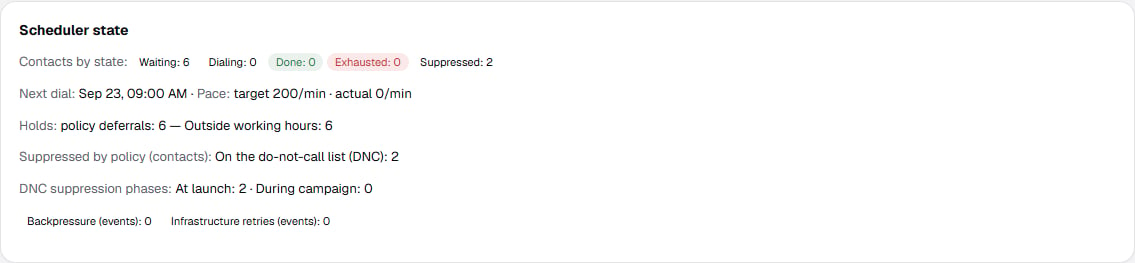
- matched rows · suppressed contacts — two different figures: the same number may appear in the file more than once;
- a table of matches with the columns row, number, name, reason and in registry since — quoted in full, not hinted at. When there are many matches the preview is truncated, and a Download exact list button (CSV or XLSX) appears beside it.
Campaign contacts
The Campaign contacts table contains the contacts loaded into the campaign. Search by phone number and review the total count, phone, name, time zone, state, and number of attempts for each contact.