

Alerts
The Admin → Alerts section reports failures of your campaigns and agents: a campaign stopped, calls do not go through, the agent could not transfer a call, call results do not reach your system. A message comes to Telegram, to Slack or stays in the cabinet. The platform checks campaigns and agents every minute, so an alert comes no later than a minute after the event. The section has two tabs:- Alerts — what to watch and where to send it. Each alert is an object (a campaign or an agent), a set of events and the chats to send to.
- Delivery log — what went out and when, what was held back and what failed.
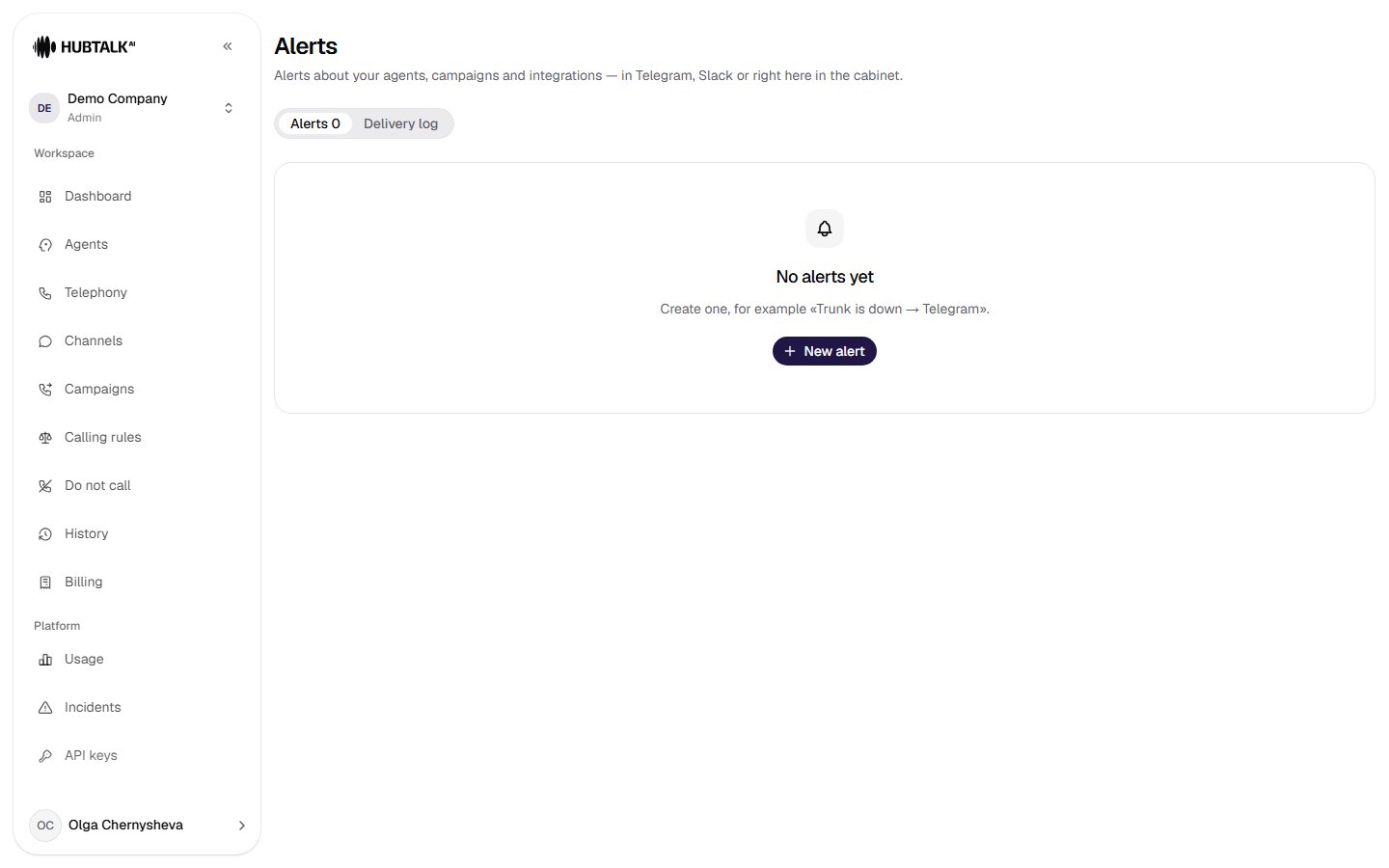
New alert
Click New alert. The window has five blocks.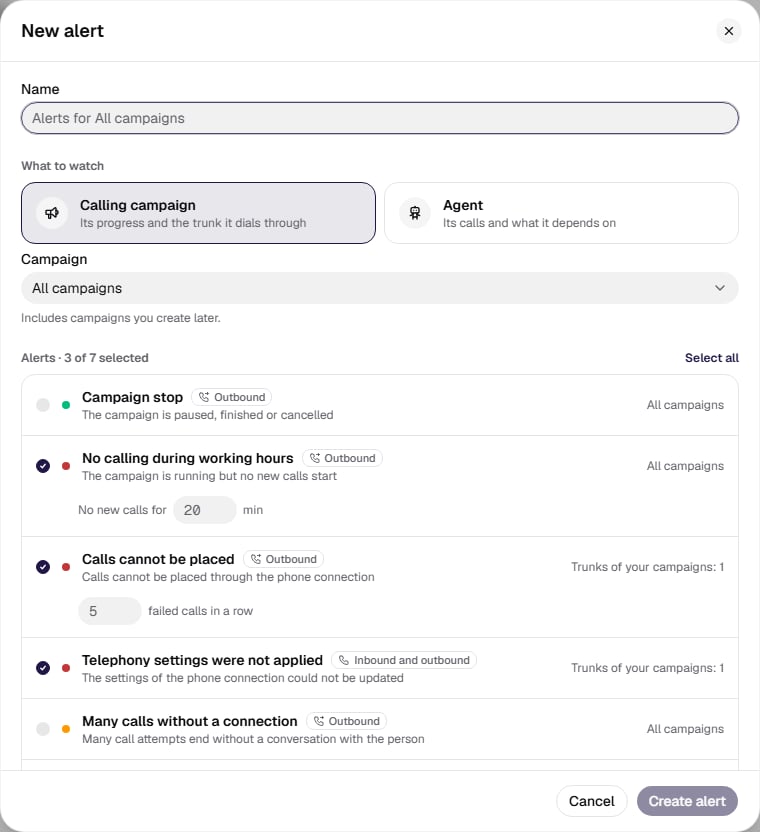
- Name. It fills in by itself, for example “Alerts for All campaigns”; you can change it.
- What to watch — Calling campaign (its progress and the trunk it dials through) or Agent (its calls and what it depends on). Below, pick a campaign or an agent — the list has a search — or All campaigns / All agents. “All” also covers the ones created later.
- Alerts — what to watch on the chosen object, see the list below. A new alert already has the critical events ticked; Select all ticks the rest. Some events have a threshold: its field appears under the event once it is ticked. On the right you see how many objects the event watches, for example “Trunks of your campaigns: 1” or “Webhooks of your agents: 2”.
- Send to — one or more destinations, see below. An alert without a destination is not saved.
- Noise control — repeats and quiet hours, see below.
What you can watch
Each event has a level, shown as a coloured dot: Critical: calls stop, Warning or Info. Thresholds can be changed: a percentage from 1 to 99, a window from 1 to 1440 minutes, a count from 1 to 100. You cannot add an event type of your own.Campaign
Agent
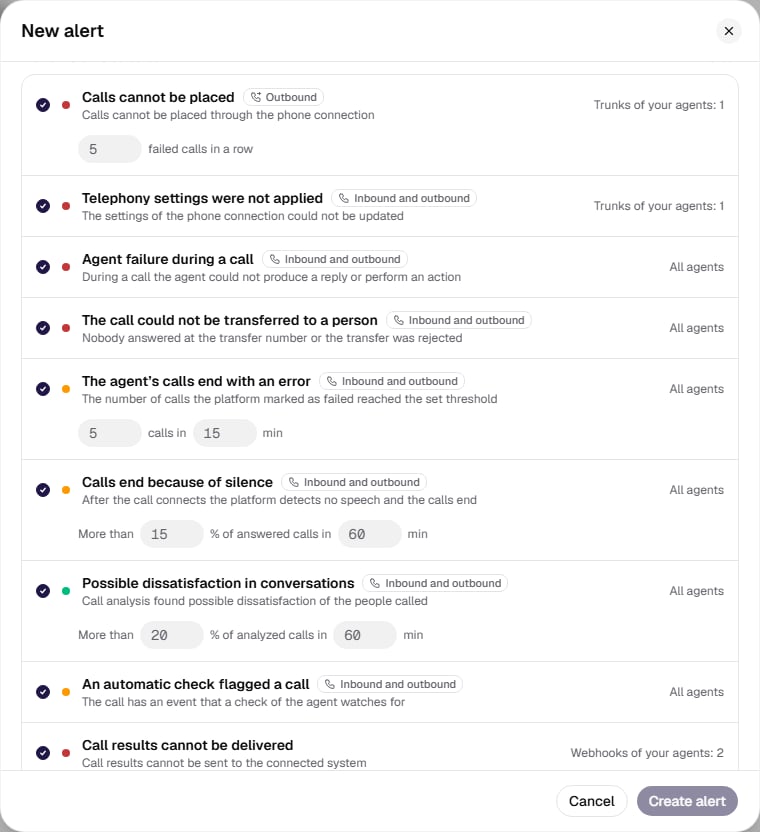
Both campaign and agent
Shares need a sample large enough. Events with a percentage wait for at least 10 calls (20 for Many numbers that do not exist), so a couple of failed calls raise no alarm. An event on a share or a count comes at most once per its window.
The first run sends no history. A new alert reports events that happen after it was created.
Send to
Chats are connected right in the alert window, in the Send to block. You can add as many as you like, each with its own name. A chat is saved only if it accepted a test message.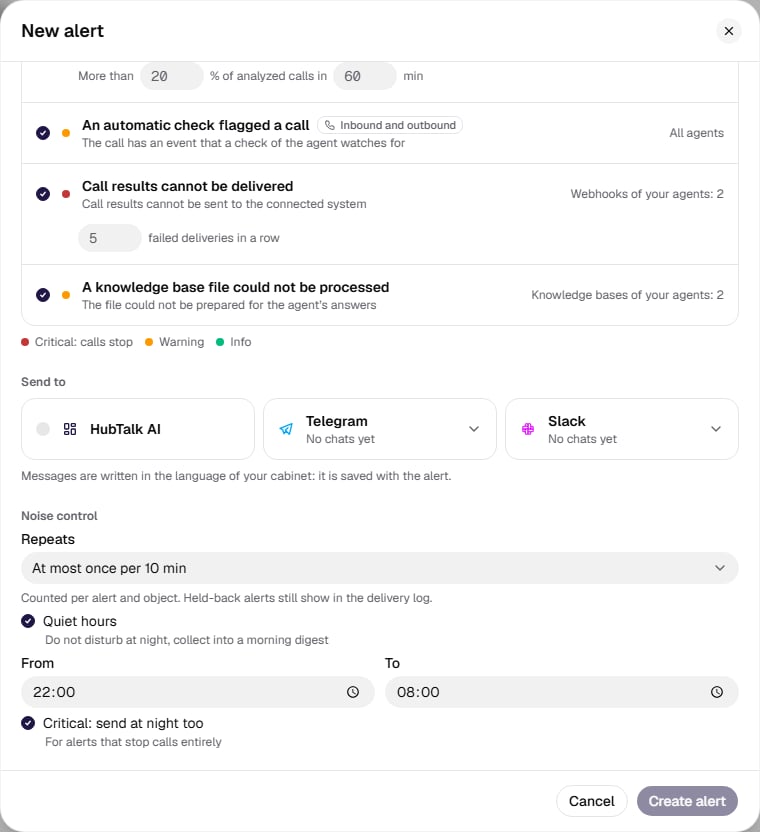
- HubTalk AI — a checkbox. Nothing leaves the platform: the alert lands in the delivery log, and the Alerts menu item shows a counter of new ones.
-
Telegram — open the Telegram list → Add Telegram:
- Add the bot to the group for alerts. The bot’s name is shown in the connection window; a click opens its page in Telegram. If you use a channel, make the bot an admin and allow it to post messages.
- Open the group or channel in Telegram Web. In the address bar copy the number after
#together with the minus, for example-1001234567890. - Paste the number into Chat id and click Check and save. The bot sends a test message.
-
Slack — open the Slack list → Add Slack and paste an Incoming Webhook URL like
https://hooks.slack.com/services/…(in Slack: the app → Incoming Webhooks → Add New Webhook to Workspace). One webhook — one Slack channel.
- The group became a supergroup — its ID changed, connect the chat again.
- The bot was removed from the chat or lost its rights — the log shows “Telegram refused the message”.
- In a group with topics messages go to the General topic; you cannot pick a topic.
Noise control
- Repeats — the pause between identical events on one object: Every time, At most once per 5 min, 10 min (the default), 30 min or At most once per hour. It is counted per event and object; held-back alerts show in the delivery log.
- Quiet hours — 22:00 to 08:00 by default, in the organization time zone; the window may cross midnight. During it non-critical alerts are held and come as one summary when quiet hours end. The summary has up to 20 lines, the rest as “and N more”.
- Critical: send at night too — on when quiet hours are on: events of the Critical: calls stop level go out at once.
The message
A message has a title, two or three lines of facts and a link to the cabinet. The caller’s number never gets into it. The link leads to where the problem is seen:
Call history filters by whole days, so the link opens such calls for the whole day.
Delivery log
The Delivery log tab is a table with the Time, Alert and event, Destination and Status columns and a status filter. The log is kept for 30 days.- Delivered — the message was accepted. A note “Included in the quiet hours summary” means it went out in the morning summary.
- Held back — not sent now: “The repeat alert was not sent: the set interval has not passed yet” or “Sending is postponed for quiet hours”.
- Failed — with the reason: “The alert channel is not connected”, “Telegram refused the message” (the bot is not in the chat, a wrong ID, no right to post), “Slack refused the message” (the webhook was revoked or the URL is wrong), “The message could not be sent because of a network error”.
Who can do what
- An administrator and a developer create, change and delete alerts, connect and delete chats, send tests.
- A manager and a member see the alerts and the log marked “View only. Alerts can be created, changed and deleted by a developer or an administrator.”