Copilot
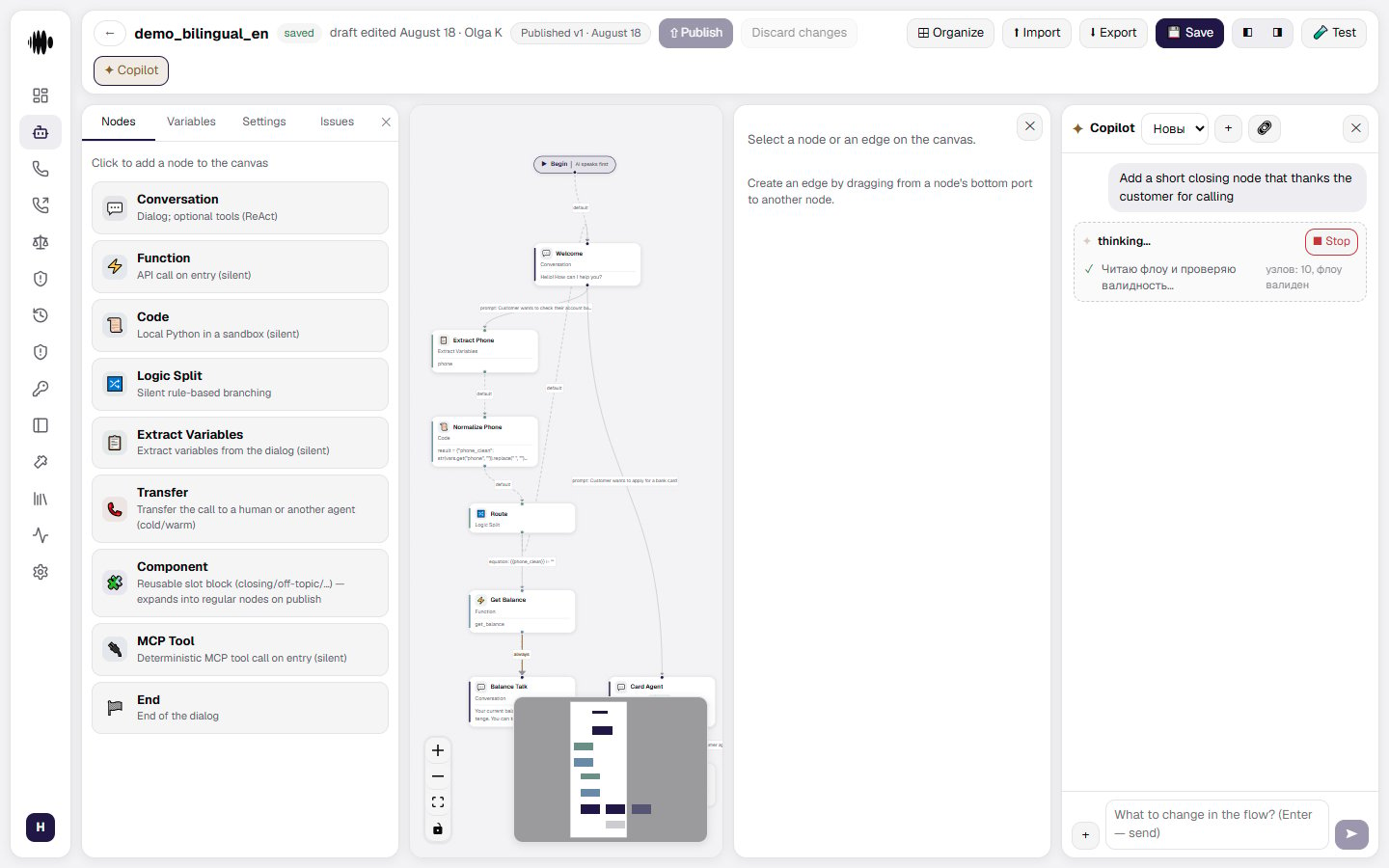
Copilot is the AI assistant built into the agent editor (the ✦ icon). Chat with it in natural language to build a flow from scratch, make a targeted edit, or restructure a whole branch of the conversation — it works out the changes and shows them to you as a proposal before anything is applied.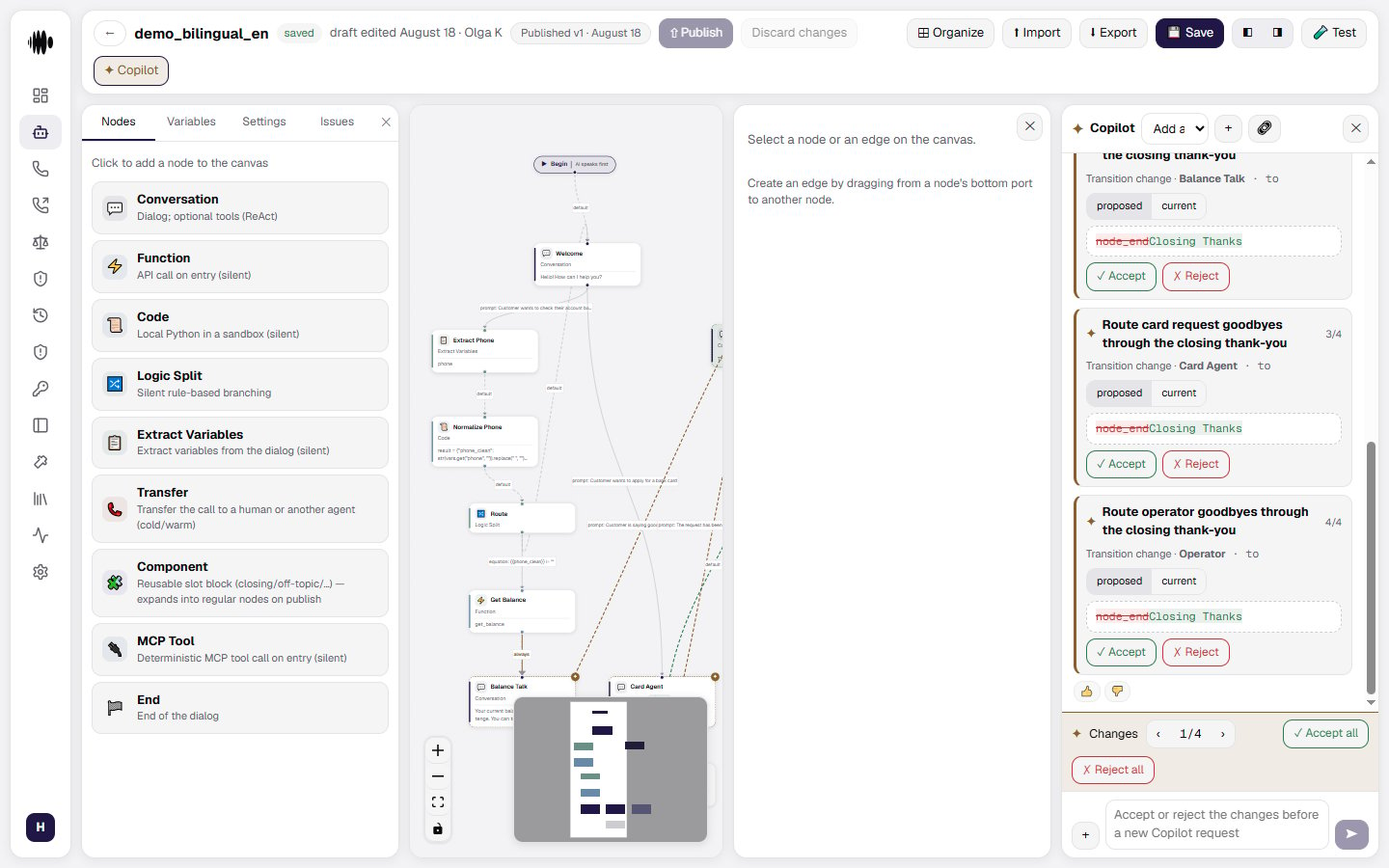
How Copilot works
- Copilot never changes the flow directly. Every suggestion comes as a proposal — a list of specific changes, such as adding a node, editing a field, or rewiring a transition. You review and approve or reject it.
- Proposed changes are checked with the same validation rules as manual edits, so nothing broken can be approved by mistake.
- A proposal is tied to the version of the flow you had open. If the flow changes before you respond, Copilot re-checks the proposal and flags anything that no longer applies.
- While a proposal is waiting for your decision, you can’t send Copilot a new message until you accept or reject it.
- Approving a proposal updates your draft, not the published agent. Copilot never publishes on its own — publishing the change to production is always a separate, explicit step you take yourself.
What Copilot can do
Copilot has the same range of edits available as manual authoring in the flow builder, including:- adding, removing, and reconfiguring nodes
- converting a node from one type to another, carrying over compatible settings
- adding, editing, and removing transitions, and reordering them when order affects which one is evaluated first
- updating the flow’s global settings, dynamic variables, and voice settings
- changing who speaks first in the conversation
- building and converting MCP Tool nodes that call an external tool
MCP nodes
Copilot knows the MCP servers registered by your organization and the tools you have explicitly exposed on them, with their arguments. It proposes an MCP node only with values from that registry: an invented server reference is caught before the proposal card is shown, not later when the draft is saved. What Copilot receives is deliberately narrow — server names, references and descriptions, plus the exposed tools. Secrets, headers and endpoint addresses are not part of it. Copilot does not manage the registry either: creating a server and exposing a tool on it remains a human action in the MCP servers section.Reviewing a proposal
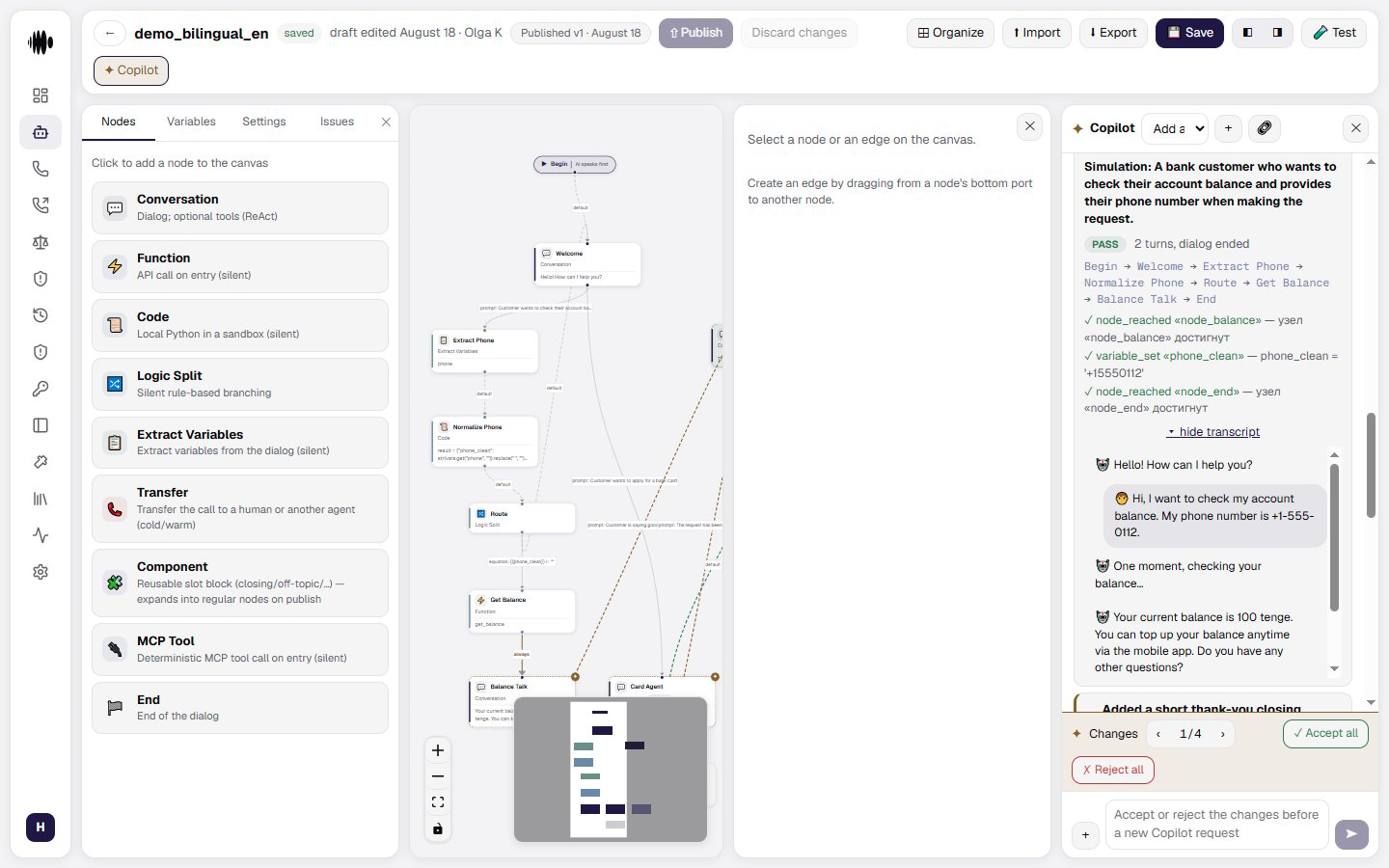
Proposed changes appear directly on the affected nodes in the canvas:- a preview of the incoming values next to the current ones
- a diff of the change — removed content struck through, added content highlighted
- a counter for proposals that touch several nodes, so you can step through them one by one
- Accept or reject a single change, or approve/reject everything at once
- Undo to step back after accepting a change
When a change is not applicable
If part of a proposal cannot be applied, Copilot names the real cause — with the exact path to the field that needs fixing. Downstream symptoms are not passed off as separate problems: they are honestly marked as “depends on operation …”, so that one badly filled setting does not turn into five identical-looking “Not applicable” cards with no indication of what to fix.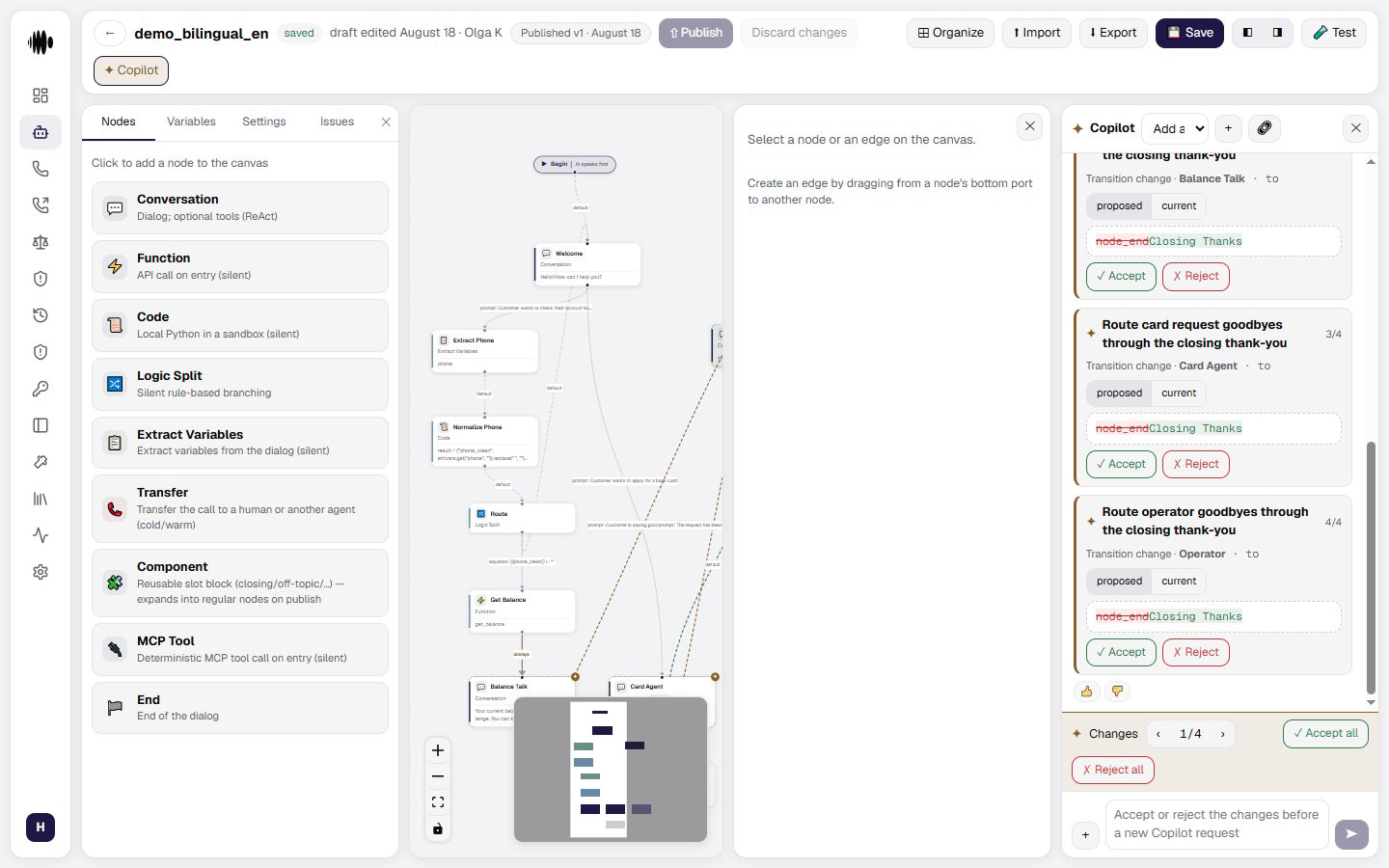
Guardrails on model and voice changes
Copilot won’t quietly change sensitive runtime settings — the agent’s execution model override, or the speech recognition and voice synthesis provider and model — unless you ask for that specifically in your message. This keeps Copilot from silently affecting call quality, latency, or cost while you’re asking for something unrelated. Per-node overrides for the language model or interruption sensitivity are treated as regular flow editing and aren’t restricted.Adding context to a message
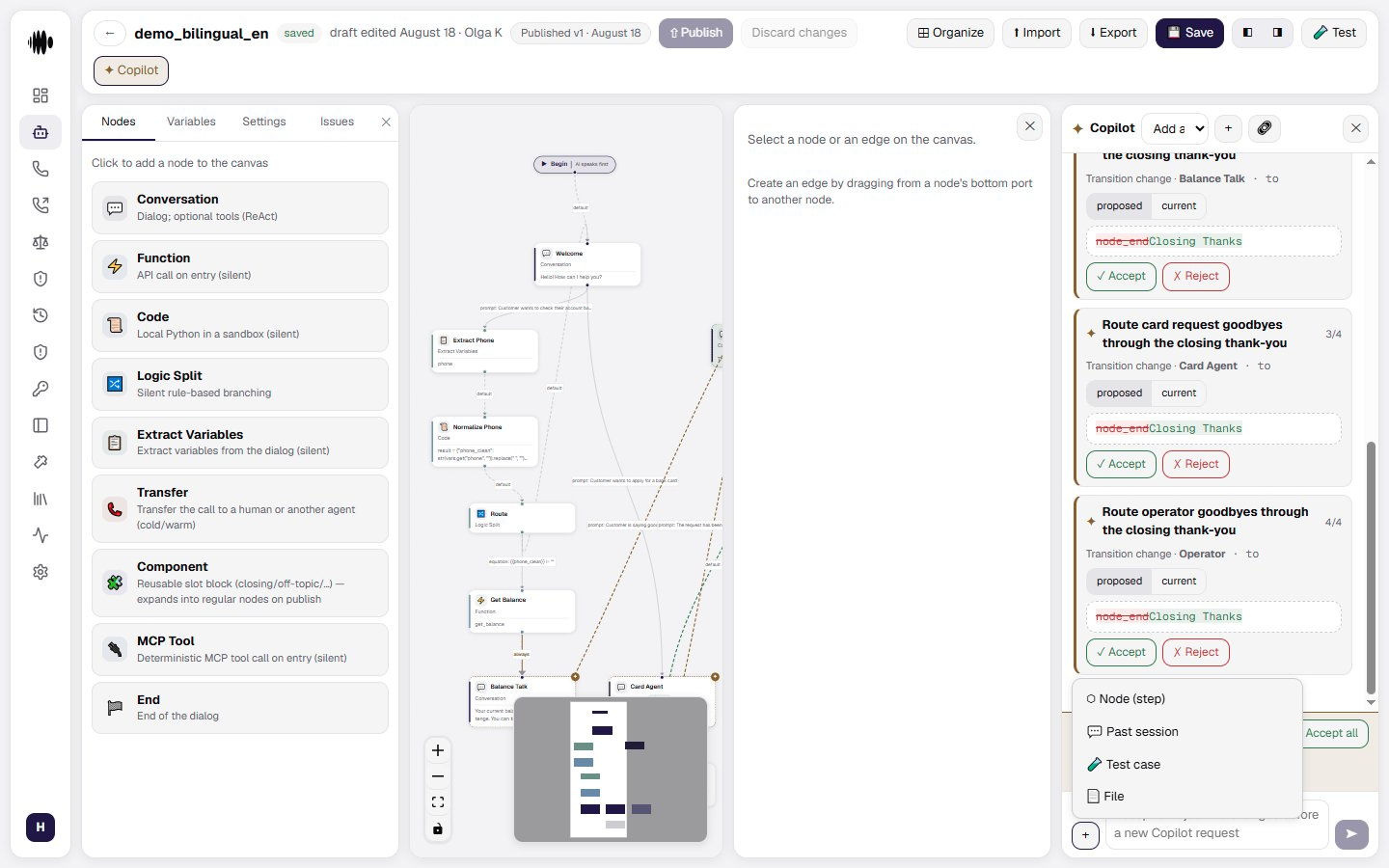
Use the + button on a message to attach context for Copilot to work from:- a specific node in the flow
- a past conversation (a chat or call session)
- a test case
- a file
Simulations and test cases
Ask Copilot to try out the flow without leaving the chat:- Run a simulation — Copilot plays the conversation against a simulated caller, built from a persona or a fixed script, and reports back the transcript, the path taken through the flow, the transitions and variables along the way, and whether your test assertions passed or failed.
- Create a test case — Copilot can write a new test case for you based on the conversation.
Watching Copilot think
Instead of a plain “thinking…” indicator, Copilot shows what it’s actually doing:- Reasoning — when the model provides it, you see its reasoning as it’s generated, in a collapsible area.
- Steps — an always-available trace of what Copilot is doing right now, for example reading the flow and checking its validity, reviewing attached context, running a simulation, or preparing the proposed changes. Each step finishes with a short result, such as how many assertions passed.