

Answering machine detection
Answering machine detection (AMD) decides who answered the call — a live person or a voicemail — and what the agent does if it is an answering machine. It is set up in the Detect answering machines row of the Call card in the agent settings (see Recording and call control). Detection works on outbound phone calls, and on inbound calls only with the Detect on inbound calls too toggle on (see Inbound calls). Test and browser calls from the cabinet are not checked. Detection is off for a new agent.How it goes during a call
- The callee picks up, and the agent starts talking at once if the scenario has the agent speak first. It does not wait for the detector, so a live person hears no pause at the start of the call.
- Meanwhile the detector listens to the line in the background: recognized words, sound without words, and silence.
- The caller’s replies in the first seconds do not wait for the detector. If a person says “Hello?”, the agent replies at once, as in the rest of the conversation.
- A “machine” decision is usually made at once, as soon as a sign fires: a listed phrase, a number read out in digits, the model’s answer, the provider signal, a monologue or silence. The exception is a greeting with no pauses and no listed phrases. The model reads the text when recognition produces a finished piece of a phrase — usually after a pause in speech. If there was no pause, the model is first asked at the timeout, and the “machine” decision comes no earlier than that. The agent is cut off mid-word, a reply that has not started playing is dropped, and the agent carries out the action from the settings. So the start of an agent line may end up in the mailbox.
- A “human” decision comes no earlier than the detection timeout. Until then the detector keeps looking for listed phrases across the whole greeting, even if the model has already answered “human”: a mailbox that first reads out a number and then says “is not available” is caught by the phrase. While the callee keeps talking, the detector listens longer — up to 8 seconds from the start of detection. After a “human” decision the detector stops listening for the rest of the call.
Settings
- Detect answering machines — the switch turns detection on for the agent’s calls: always on outbound calls, on inbound calls by the toggle in the AMD parameters window. Detection runs in the background and never delays the agent’s first reply. Off by default. It writes to the draft at once.
- Action on detection — appears under the row while detection is on: Hang up (the default), Leave message or Continue. The choice writes to the draft at once. What happens in each case is in What happens after the decision.
- Message type and Agent voicemail message — static text with
{{var}}variables, or a prompt the LLM uses to write the line. An empty field means the built-in message in the agent’s primary language: it exists in Russian, Kazakh, English, Spanish, Uzbek and Kyrgyz. - Wait for the greeting/beep to end before speaking — on by default. While the machine is talking, the message does not start: the agent waits for about 1.2 seconds of silence after the greeting. The platform does not recognize the beep tone itself — the silence is the cue. If the line never goes quiet, after 60 seconds the agent starts the message over the sound and finishes it. While the agent waits, no silence reminders are said and the call is not ended on silence — including after a call screener offered to take a message.
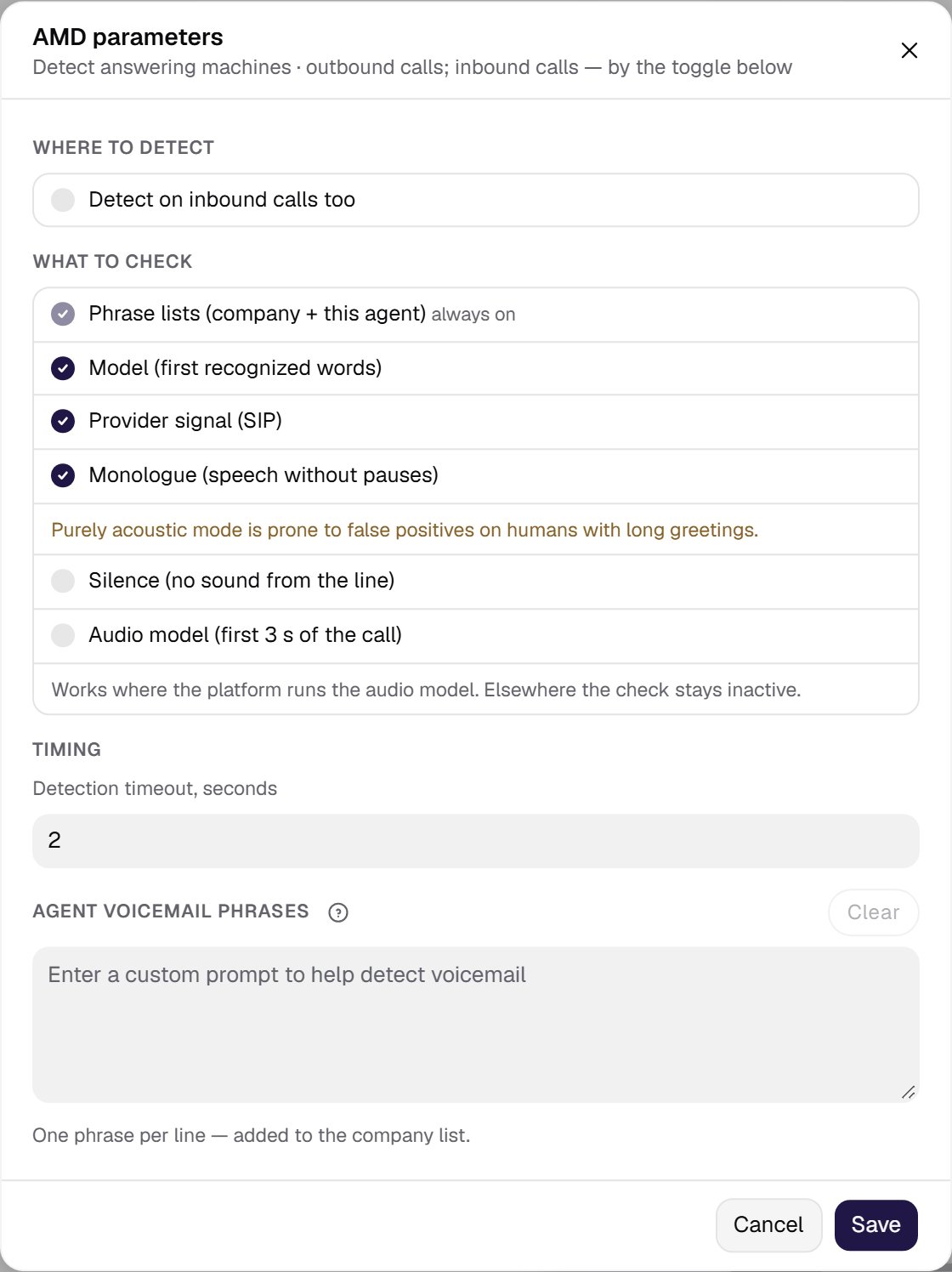
- Where to detect → Detect on inbound calls too — off by default. See below.
- What to check — the signs the platform uses to recognize a voicemail. See below.
- Timing → Detection timeout, seconds — 2 by default. How long the detector looks for signs of a machine before deciding “human”. While the callee is talking and the model is still checking the text, the decision is postponed — up to 8 seconds from the start of detection. A timeout above 8 seconds applies as set.
- Agent voicemail phrases — the agent’s own phrases. See below.
Inbound calls
The Detect on inbound calls too toggle in the Where to detect block of the AMD parameters window turns detection on for the agent’s inbound calls as well. It is off by default: inbound calls are not checked. Turn it on for an agent whose inbound call is really an outbound campaign: your company’s PBX dials the customers itself and passes the connection to the agent’s number. To the platform such a call is inbound, yet a voicemail may answer on the other end. With the toggle on, an inbound call is checked the same way as an outbound one: the same checks from What to check, the same detection timeout, the same Action on detection and the same Voicemail outcome. The toggle does not change outbound calls. Call screen handling does not work on inbound calls.What to check
The What to check group collects the signs of a voicemail. The checks are independent: if any one of them says “machine”, the call is treated as an answering machine.
The audio model decides only “answering machine”: such a call is treated as voicemail at once, and the agent carries out the On detection action. If the model decides a person answered, or does not answer, the other checks decide. The final “human” verdict waits for the model no longer than 4 seconds from the start of detection; the agent’s first reply does not wait for it. With Call screen handling on, the model does not decide the call. The option is in the window when the platform runs the audio model.
A number read out in digits. If a greeting starts with four or more digits in a row — as numbers or as words in English, Spanish, Russian, Kazakh or Kyrgyz — it is a machine: this is how mailboxes read out the callee’s number (“Seven. Five seven five… is not available”). The decision is made at once, without the model. The rule works together with the phrase lists, so it is always on. Digits the agent itself said in this call do not count.
How phrases are compared. Letter case, accents and punctuation do not matter. English contractions equal their full forms: “I’m” = “I am”, “you’ve” = “you have”, “can’t” = “cannot” — both in the phrase and in the speech. A phrase matches whole words only and is searched for anywhere in the greeting, not only in the finished recognition result but also in the draft while the machine is still talking. So a machine that talks without pauses is caught by a phrase without waiting for a pause.
The model is asked up to three times per call: while the greeting goes on and there is more text, it can check it again.
Provider signal and monologue when the model is on. If the greeting has recognized words, these two signs do not decide by themselves — the phrases and the model have the final say. If no word is recognized within 2 seconds after the signal or the monologue (a beep, music), they decide. If the model is off, the provider signal and the monologue decide at once.
Silence is for carriers that connect the call only after the machine’s beep: the platform hears only the silence of the recording, while a live person would at least say “Hello”. Any sound or recognized word turns this rule off for the rest of the call.
Silence settings
- Silence seconds — after this many seconds with no sound, the line counts as a voicemail. 10 by default. The value must be less than the call’s silence timeout, or the call ends before the rule can fire; the editor warns about it and keeps the rule off until you lower the value.
- Sound threshold (RMS) — the signal level from 0 to 1 that counts as sound. A silent line measures about 0.0001, a quiet speaker from 0.005. 0.003 by default.
- Sound must last, ms — how long the sound must stay above the threshold without a break to show the line is live. A connection click is shorter. 0 means any sound counts. 60 by default.
- Ignore the first, ms — sound in the first milliseconds after the answer is not counted: the connection click lands there. 300 by default.
The agent’s own phrases
The Agent voicemail phrases field at the bottom of the AMD parameters window holds the agent’s phrases, one per line; Clear empties it. They add to the organization’s list rather than replace it. A phrase of two words or more is matched exactly and fires even if a live person says it, so do not add phrases a caller might say. An empty field means only the organization’s list is used. The phrase list is copied into the call when it starts: changes apply from the next call, and calls already in progress keep the old list.What happens after the decision
When a message may be left
Even if the agent is set to leave a message, whether it may do so on a given call is decided by the organization’s voicemail message policy; a campaign can set its own on the Dialing step. The modes are Every voicemail reached, By rules and Never.- If the policy blocks the message, the call is still made, the machine is detected, and the call ends without a message. The outcome is Voicemail, no message left. The attempt counts against all limits.
- The policy applies only to campaign calls. Calls started from the cabinet or through the API are not subject to it.
- The policy works only when a machine is detected. If detection decided “human”, the voicemail rules do not apply to the call.
Call screeners
Many phones answer an unknown number with a call screening assistant: iOS Call Screening, Call Assist, Cloaked AI, an answering service. The assistant asks who is calling and why, shows the answer to the owner of the phone, and then connects the call, holds the line, declines it or offers to leave a message. To the answering machine detector such an assistant is neither a person nor a voicemail. With Call screen handling on, the agent tells apart four answers at the start of an outbound call: a person, a voicemail, a call screener and a key-press menu (IVR). The switch is the Call screen handling row of the Call card, right under Detect answering machines. It is off by default; with it off, calls are told apart as before — a person or a voicemail. The switch works on its own: with answering machine detection off, the agent still handles a screener but does not react to a voicemail.How the agent talks to a screener
- The screener is recognized by phrases from the organization’s Call screener phrases list. They are checked before the voicemail phrases.
- A screener phrase at the start of the call is recognized at once, from the text of the line, without waiting for the detector. If the model recognizes the screener only after the agent has started talking, the agent cuts its line short and answers the screener right away.
- The first reply comes without the model, as soon as the screener asks who is calling: the First reply (template) with the agent’s name, the company and the purpose of the call.
- Follow-up questions are answered by the model, within the facts of the Agent identity group. A reply that leaves out the company, names digits other than the callback number or contains a forbidden word is replaced by the template.
- When the screener holds the line (“Please stay on the line”), the agent waits for the person. After every 15 seconds of silence it says a short reminder — a different one each time, at most three — so the person who picks up does not hear silence. The call ends with a farewell only when the hold timeout runs out. See While on hold.
- The agent answers a screener at most four times per call (Max replies to a screener). After that it waits silently.
- Everything the agent says to a screener by default is in English: the first reply template, the model’s replies, the reminders and the farewell. For an agent in another language, set your own template, reminder lines and farewell, or turn the reminders off.
How the agent knows a person answered
The agent does not leave screener mode on the first line it does not recognize. It checks every line on the call in order and stops at the first answer:- Echo — its own line coming back from the call. The agent skips it.
- A “leave a message” phrase — the agent acts as on a voicemail.
- A phrase from the screener list — the agent does what the phrase’s group says. A phrase of the Live person answered group takes it out of screener mode.
- A short thank-you — “Thanks, Gianna”, “Thank you” and the like. This is how a screener answers the agent’s introduction, so the mode does not end.
- A partial match with a phrase — a fast model decides; it also sees the agent’s last line.
- The voice. The agent remembers the voice of the screener’s first words and compares every next line with it. The same voice is still the screener, and the agent answers it. A different voice means a person answered.
How the talk with a screener ends
The last three outcomes are completed calls in which no person spoke: post-call analysis does not run for them. See Call outcomes.
After a person is recognized, the agent keeps listening for a screener or voicemail phrase for 20 more seconds (Watch after the handoff): if one comes, the agent goes back to handling a screener or a voicemail.
The Call screen handling window
The gear of the row opens the Call screen handling window. It edits a copy of the values: Save writes them to the draft, Cancel drops the edits. Every empty field has a default from the agent and the call.-
Agent identity — what the screener shows the owner of the phone before connecting:
- Agent name — default: the agent’s name;
- Company — default: the organization’s name;
- Purpose of the call — default: taken from the agent’s main prompt. Keep it general: the person sees the transcript;
- Callback number — default: the number the call is placed from. These are the only digits the agent may say.
{{company_name}}: the value is filled in at the start of the call. If the field is empty after substitution or the variable did not resolve, the default is used — the screener never hears{{…}}or a blank. -
Replies:
- First reply (template) — spoken without the model. It can use
{{facts.agent_name}},{{facts.company}},{{facts.purpose}},{{facts.callback_number}}and the call variables the first step sees. An empty field means the built-in line. Preview shows the result; - Words never said to a screener — one per line. A model reply with any of them is replaced by the template.
- First reply (template) — spoken without the model. It can use
- Timings:
While on hold
The While on hold block of the same window sets what the agent does while the screener holds the line: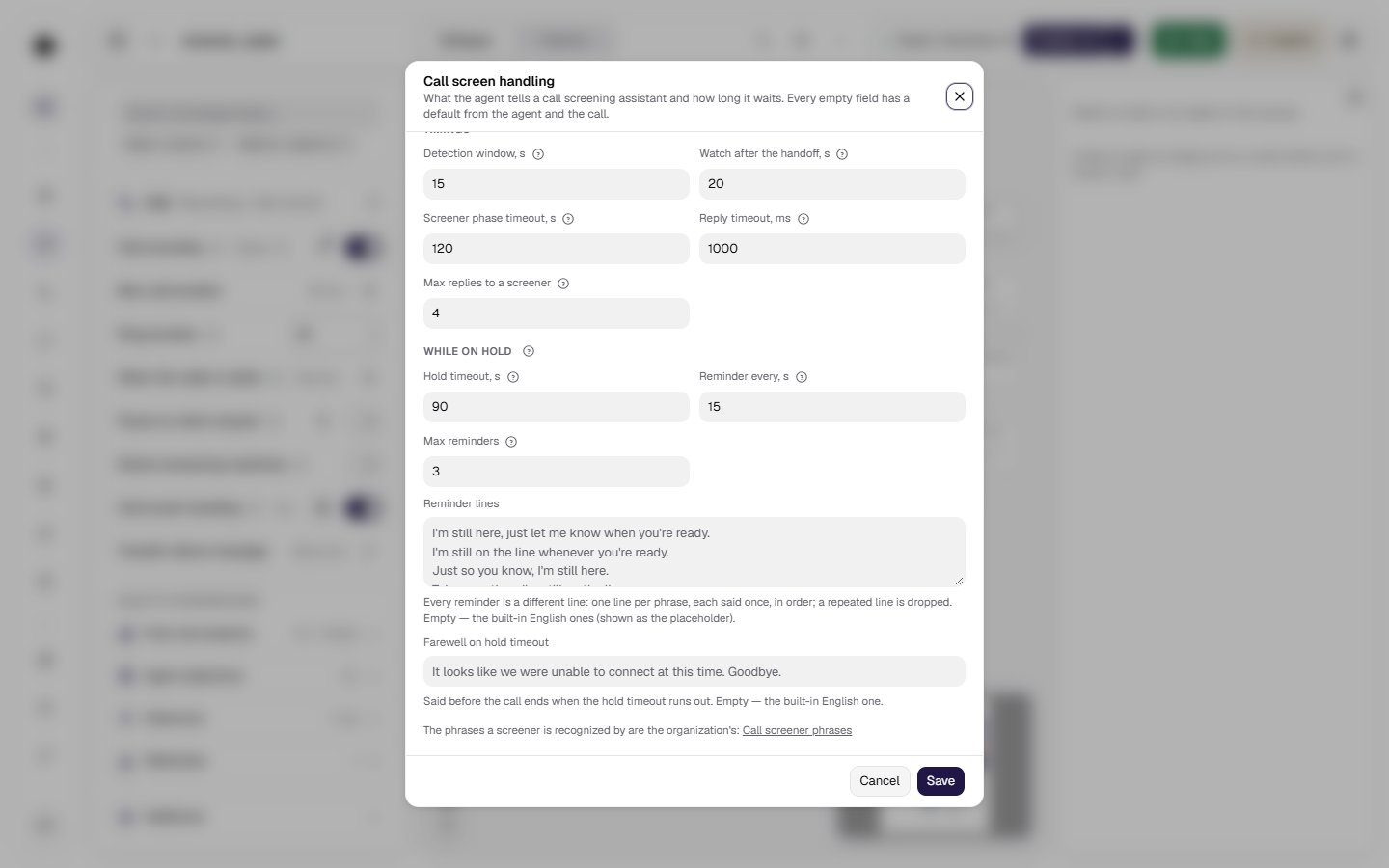
Only the Hold timeout, s ends a call on hold: reminders neither shorten nor extend it.
Where to see the result
- Call history — the outcome Voicemail or Voicemail, no message left.
- Call details with Show system events on — a Voicemail event (the agent hung up or left a message) or an Answering machine detection event (the call went on: a person answered, or the agent is set to continue). The event shows:
- why the decision was made — marker phrase, LLM classifier, provider signal (SIP), monologue: speech without pauses, silence on the line, phone number read out, detection timeout or call ended before the verdict;
- what exactly fired — exact phrase, model hint, model, provider signal, monologue, silence on the line or phone number; if a phrase decided, the phrase itself and its source: organization list or agent phrases;
- the first recognized words — or no speech recognized if there were none;
- the marker phrase in the interim transcript mark — the phrase was caught in the middle of the greeting, before the finished recognition result.
- Transcript — the machine’s greeting is shown as a client line. With system events on it carries the answering machine label: the decision was based on this text, and the agent did not reply to it. If the start of the greeting has already become an ordinary client line, only the remainder is shown as a separate labeled line. For the Continue action there is no such line.
- Webhooks and the API get the same outcome (
voicemail_reachedorvoicemail_suppressed) and themessage_leftflag. - Call screeners — with system events on, the call details show a Call Triage event, the screener’s lines and the agent’s replies to it carry the call screener label (the flow never saw them), and the Call screener block shows how the talk went. The three screener outcomes are in the outcome filter of the call history. In webhooks and the API the screener details come in
meta.screener, next to the voicemail decision.
Limits to know about
- The agent talks over the machine for the first seconds. This is on purpose: this way a live person hears no pause at the start of the call. The caller’s replies do not wait for the detector either, so the agent may start replying to the machine’s greeting itself. With the leave-a-message action, the mailbox may get the start of an agent line and then the message.
- “Human” by timeout is not a confirmation. It only means no signs of a machine were found. An unfamiliar greeting without known phrases, where the model is not sure, can pass as a person.
- Accuracy depends on speech recognition. A bad line, noise or a rare language make results worse.
- The silence rule takes a silent person, or a person on mute, for a machine.
- The provider signal is not sent by every carrier.
- The callee hung up before the decision — the call details show “call ended before the verdict”. This does not mean “human”.
How to improve accuracy
- Keep the phrases and the model on — this is the default.
- Review calls where a machine was missed: the reason is “detection timeout”, but the recording has a machine greeting. Add a stable phrase from it — two words or more — to the organization’s list.
- Do not add phrases a live person says (“wait a minute”, “please hold”) — otherwise people will be taken for machines.
- Short words (“hello”, “yes”) never give an exact match — they only work as hints for the model.
- Put phrases that only one agent needs (a specific client or country) in that agent’s Agent voicemail phrases field in the AMD parameters window. Shared phrases go to the organization’s list.
- Turn on the silence rule only for carriers that connect after the beep, and test it on test calls first.
- Do not raise the detection timeout much. It does not delay the agent’s replies, but a “human” decision comes later, and a machine that talks without pauses and without listed phrases is also recognized later.
- The Restore recommended button on the phrases page brings back the original list.
Agents configured earlier keep their behavior. The former detection mode is now a set of checks: “provider” is the provider signal, “acoustic” is the monologue, “semantic” is the model, and “hybrid” is the model, the provider signal and the monologue. Phrases now work with any set.