

Agents
Agents are the heart of HubTalk AI v4. They are the voice interfaces you build once and run for customers, combining speech, prompts, and business actions into a single experience.What agents do
An agent can:- greet callers and answer questions
- collect customer data during the conversation
- perform handoffs to a human operator
- end the call cleanly when the task is completed
- send call data to your systems through webhooks
Create your first agent
Open the Agents section and click Create Agent. A new agent opens immediately in the builder interface. The creation screen shows the agent setup panel with sections such as Functions, Variables, Post Call Analysis, VAD, Call Settings, Speech settings, Webhook Settings, and Knowledge Base — all of them described in Agent settings.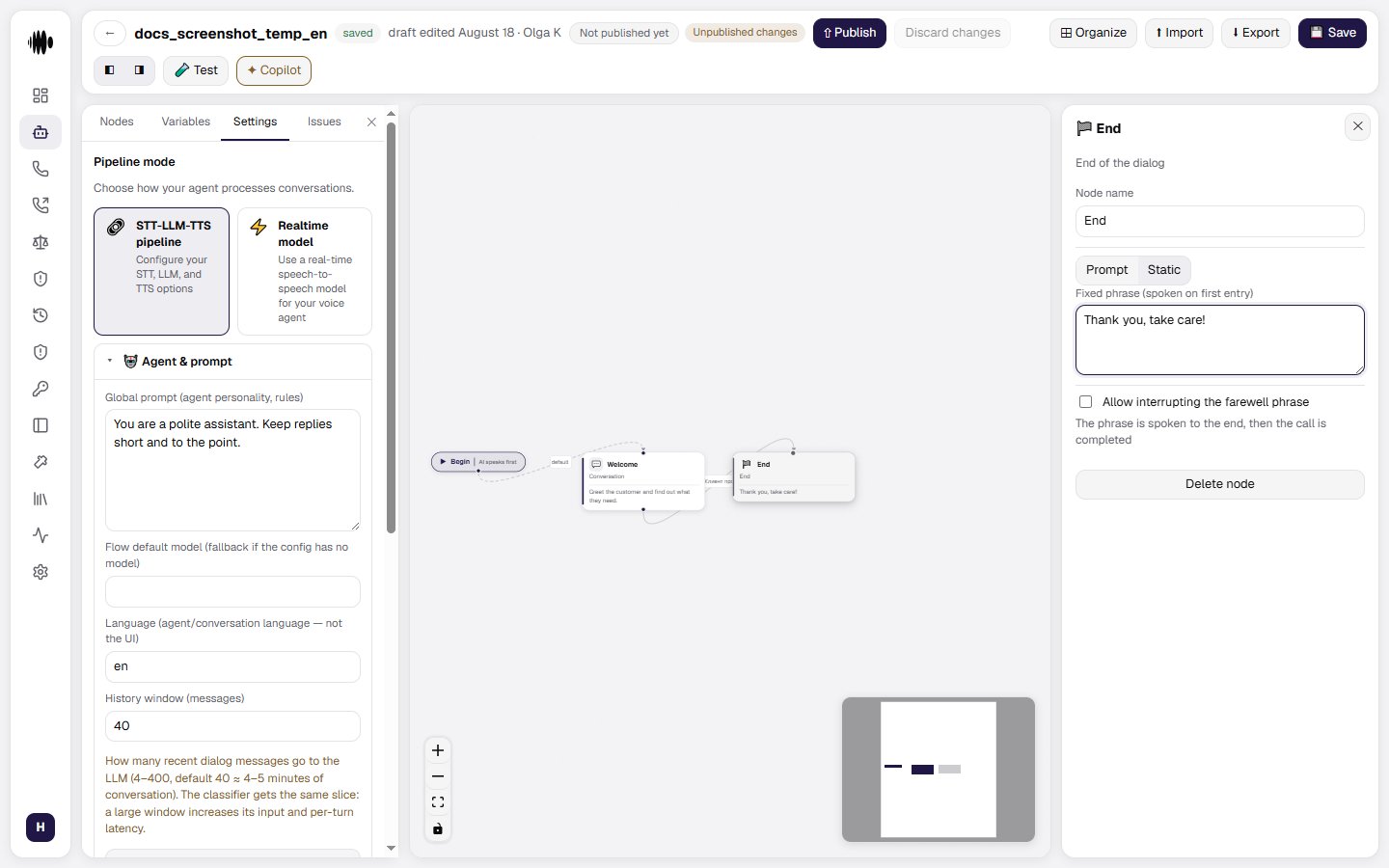
Where to start
Start from a clear goal for the call: support, booking an appointment, confirming an order, qualifying a lead. Everything else follows from it. Then build a minimal flow and finish that one rather than every branch at once:- Welcome message — the first thing the caller hears. Friendly and clear; this is also where you decide who speaks first.
- Intent and questions — what the agent has to learn from the caller, and what counts as success.
- Handoff and ending conditions — when the agent gives the call to a human, and when it says goodbye itself.
Publish first, hand out afterwards. A member can only pick a published agent for a campaign, so the first publication makes the agent visible to the whole organization. An agent that is still being built is hidden before that — see The agent list and access.
Where everything is documented
The agent list and access
The agent table and organization folders, renaming and deletion, the Visible to members setting and what exactly it hides.
Flow nodes
Nine node types — Conversation, Function, Code, Logic Split, Extract Variables, Transfer, Component, MCP Tool, End — and the fields of each.
Working in the editor
Document search, agent variables, the issues tab, testing the flow and starting a test from a selected node.
Agent settings
Prompt and models, voice, recording and call control, conversation goals, analytics and webhooks.