Report template
Report template
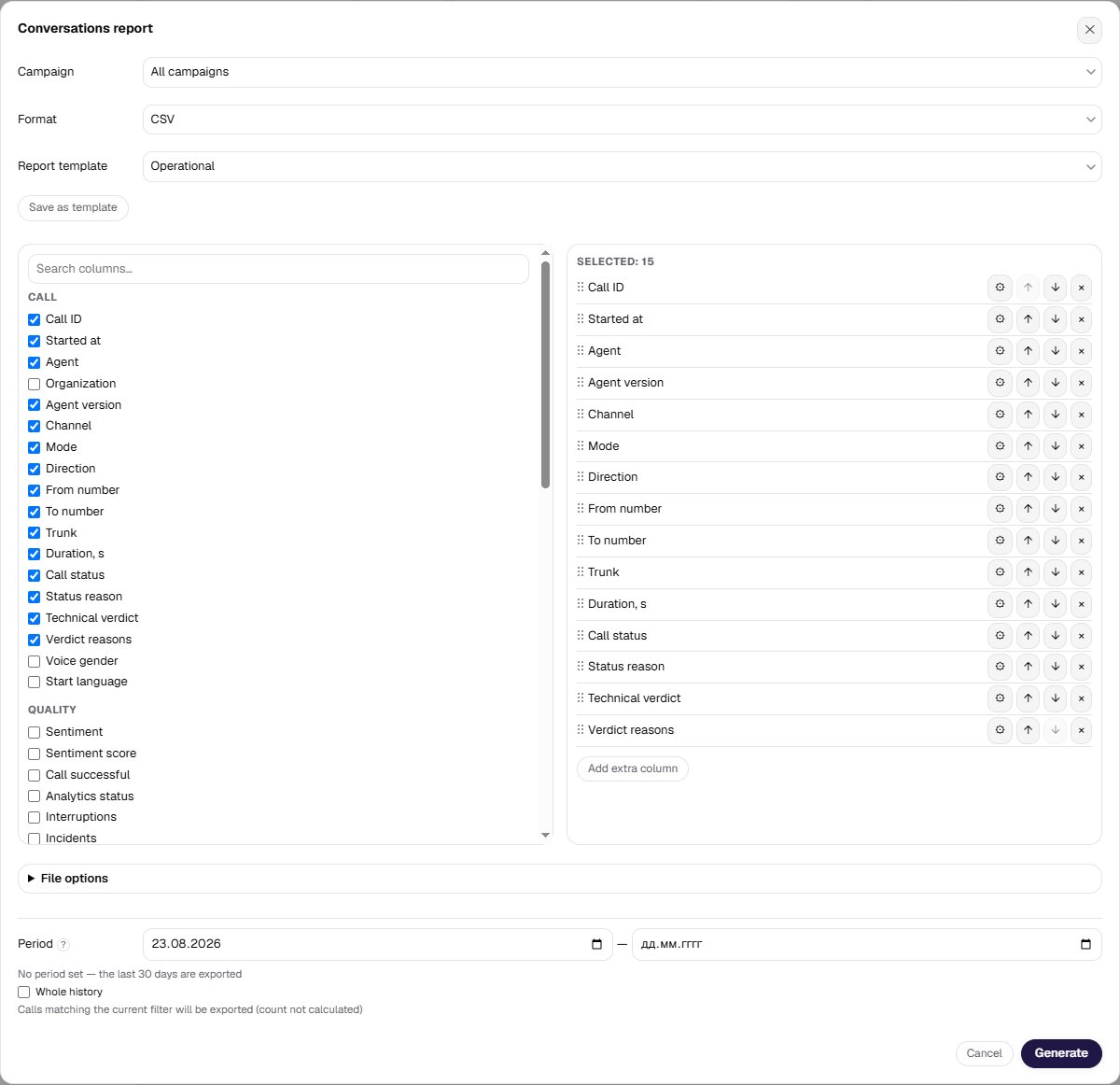
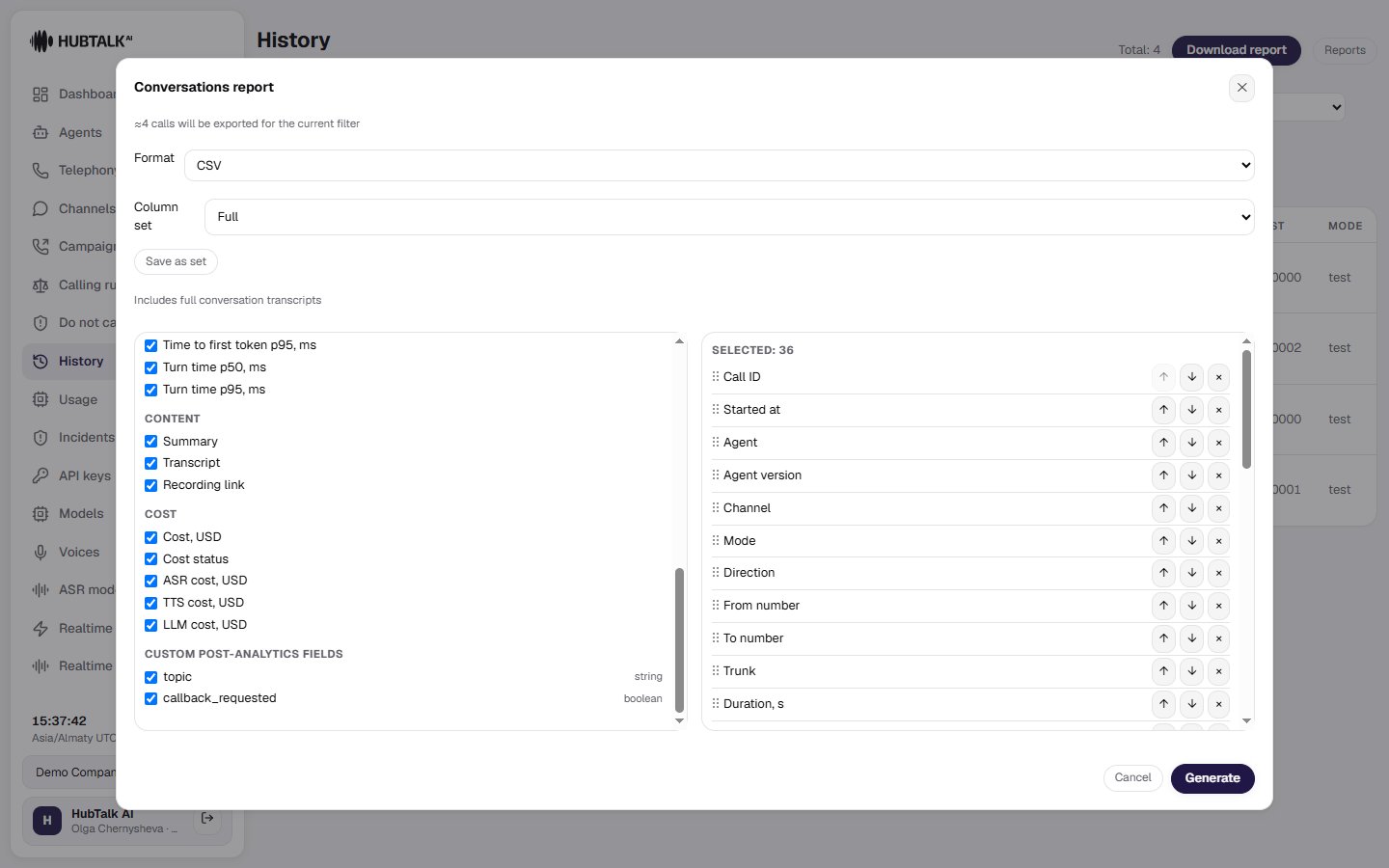
A layout that you need every week can be saved under a name: Save as template keeps the columns, their order, the export format and the four settings below — column labels, value replacements, extra columns and the file structure. Templates belong to the organization — up to 50 of them — and members manage theirs end to end, including deleting. An unsaved selection is called Custom template. A template is a copy, not a link. The report job takes a snapshot of it at creation, so editing or deleting a template does not change a single report that has already been generated. That is also why applying an old template can find that the world moved on — a renamed or removed analytics field, or cost columns saved by someone who could see them. The form says so in a line above the list: how many columns the template holds and which of them are unavailable, with their boxes unticked. Nothing is dropped behind your back. Filters are deliberately not part of a template. The period is different every time, so a template that also froze “1–14 August” would be useless a month later. A template with none of the settings filled in produces the file in its default shape — if you need none of the below, leave them alone.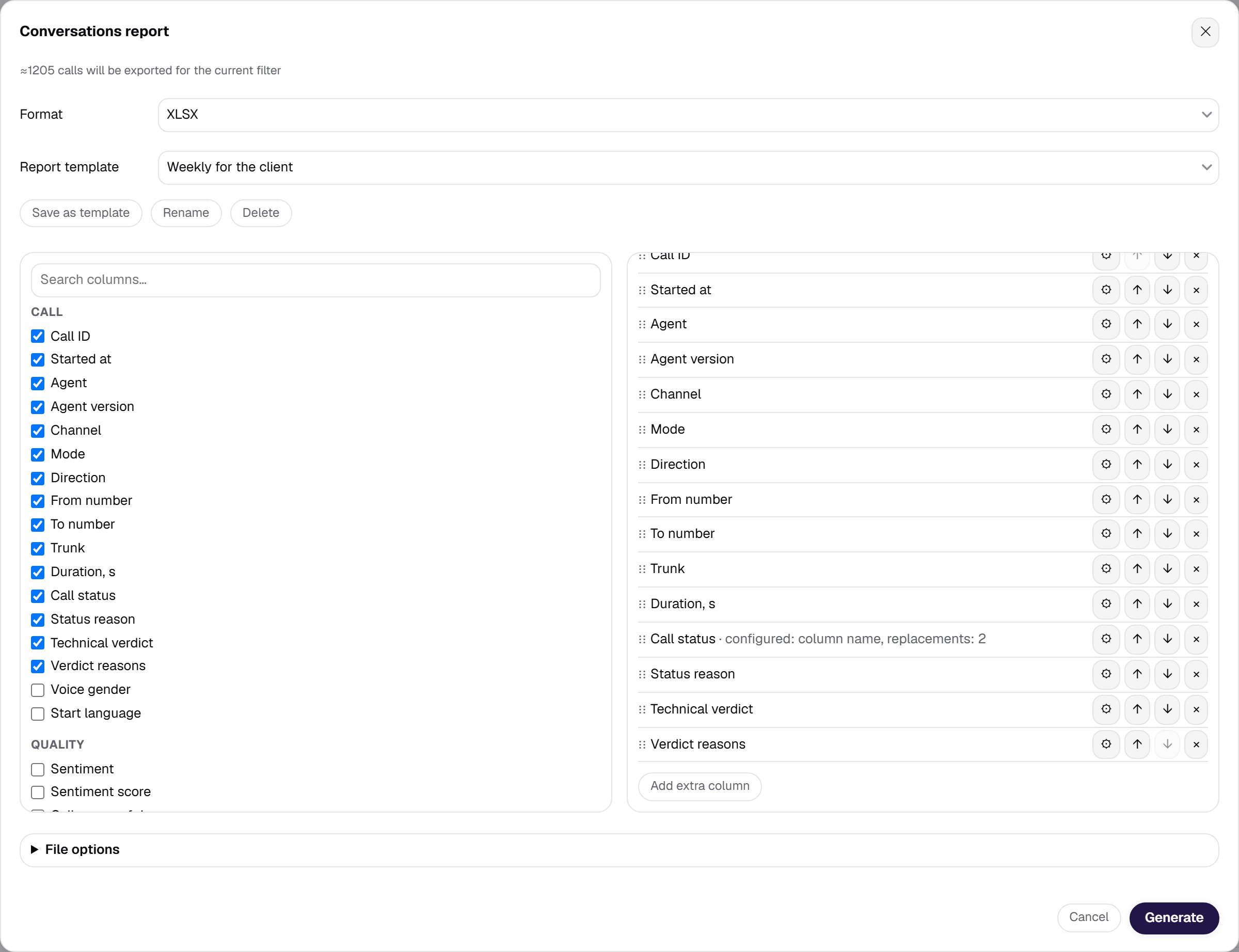
Column labels
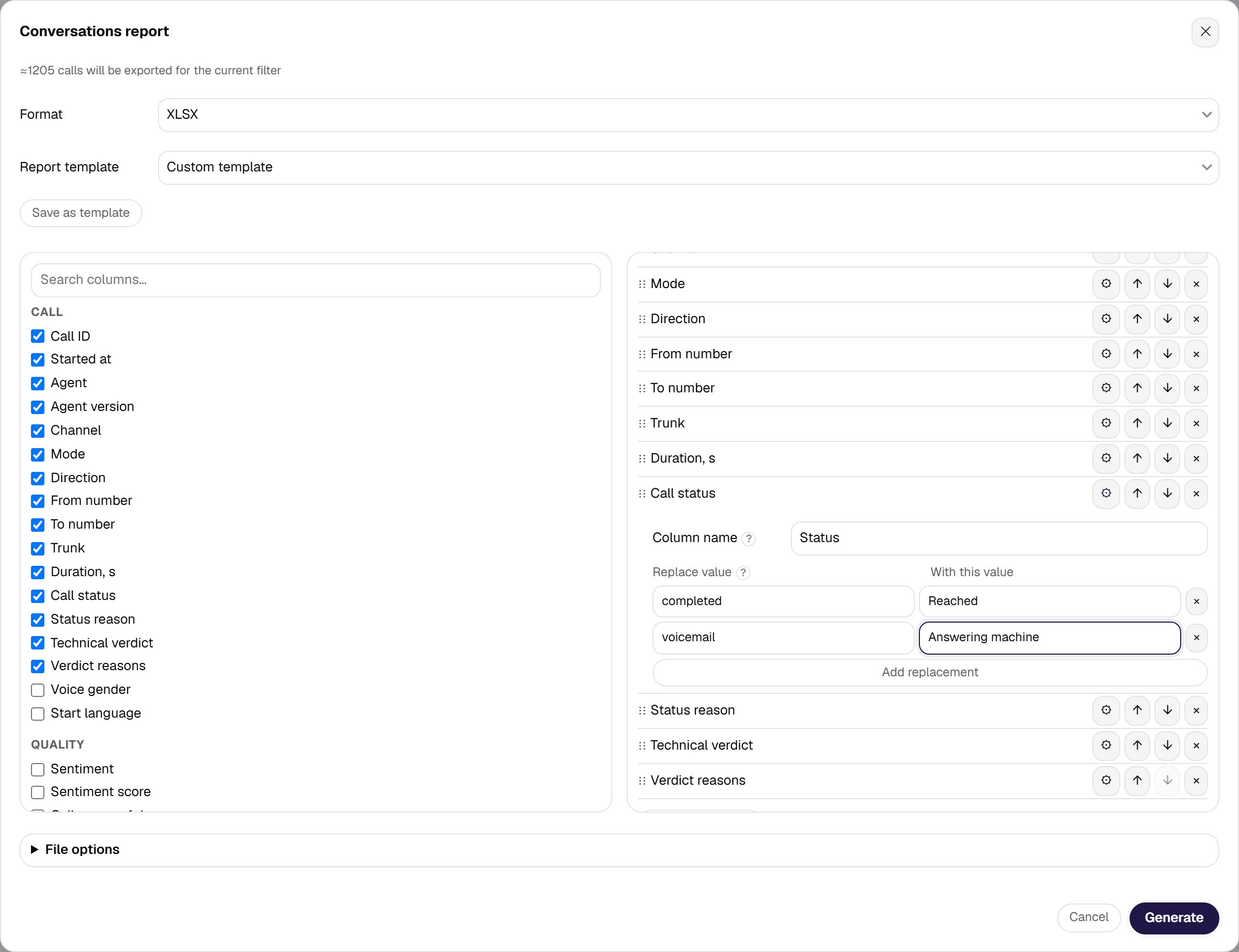
Every selected column in the right panel opens a Column name field — what it will be called in the file header. Leave it empty and the technical key stays. A label is up to 200 characters, and it is template data rather than an interface translation: the platform writes exactly what you typed. This is how you produce the file your recipients already recognize, without changing any parser on our side.Value replacements
The same column carries a Replace value → with this value table, up to 100 rows per column. Matching is exact, on the string form of the cell; an empty value can be replaced too; anything not in the table is exported as is. The usual use is turning technical values into words the report’s reader understands:completed → Reached, voicemail → Answering machine.
Extra columns
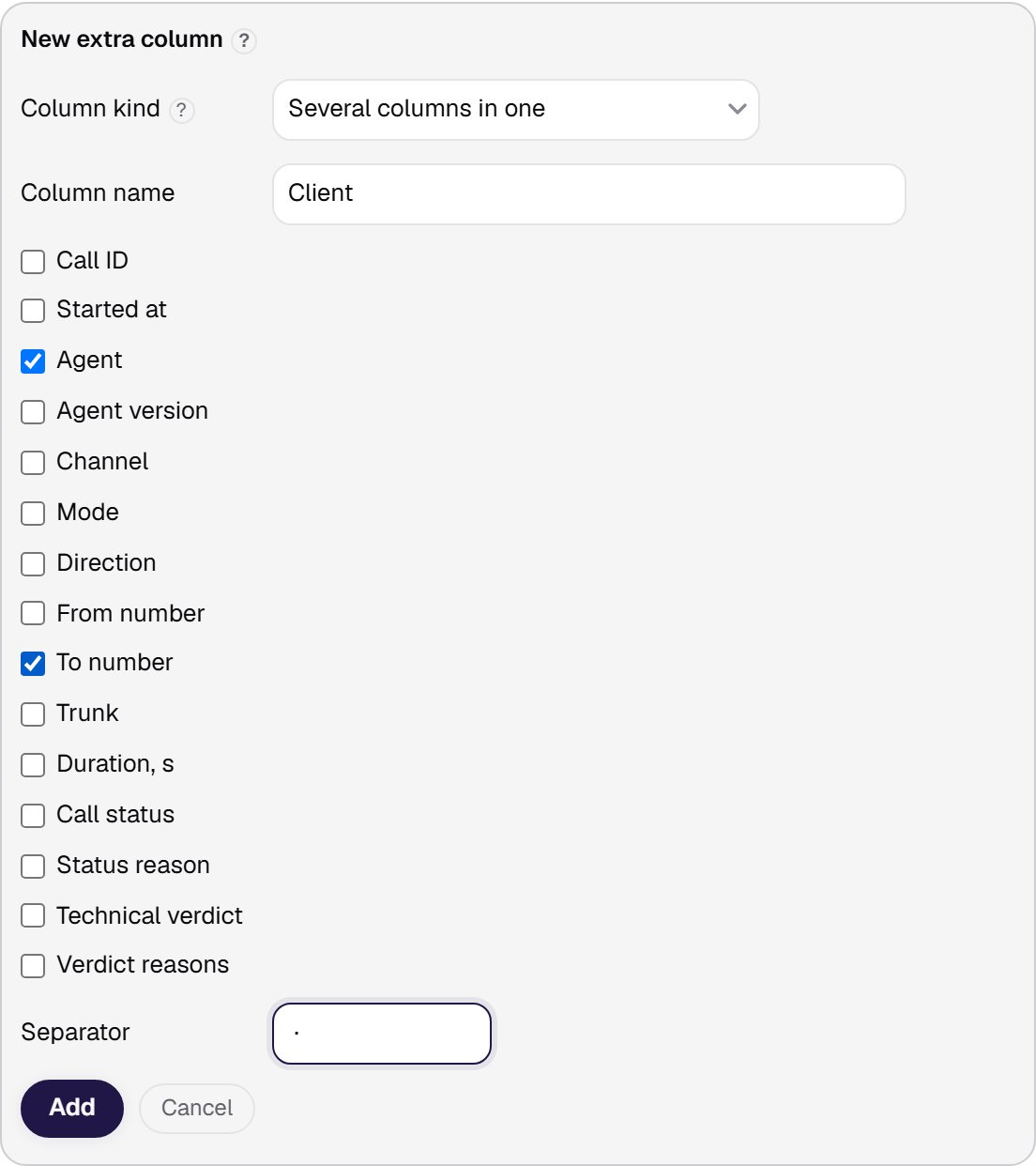
Add extra column creates a column that is not in the catalog, of two kinds:- one value in every row — a constant: an export code, a source name, a batch marker;
- several columns in one — a join of two to five catalog columns with your separator. An empty part is skipped, so there are no doubled separators.
File options
The File options block governs the structure of the export:- Summary sheet — a separate first sheet with totals.
- Sheet per column — rows are split across sheets: one sheet per value of a column, with the header on each. Agent, call status and status reason are available; the sheet name is the value itself, trimmed to 31 characters.
- File name — a pattern with
{campaign_id},{campaign_name},{date}and{template}placeholders. The campaign is substituted only when the filter names exactly one; the server adds the extension. When the filter names no campaign,{campaign_id}is replaced by the report’s creation date.{campaign_name}stays empty in that case: a name is decoration, telling files apart is the identifier’s job. - All cells as text — numbers and dates are written as text so Excel does not reshape them: no exponential notation on long numbers, no lost leading zeros. Individual columns can be excepted and stay numeric.
- Date format — one of three: ISO 8601,
YYYY-MM-DD HH:MM:SSorDD.MM.YYYY HH:MM:SS.
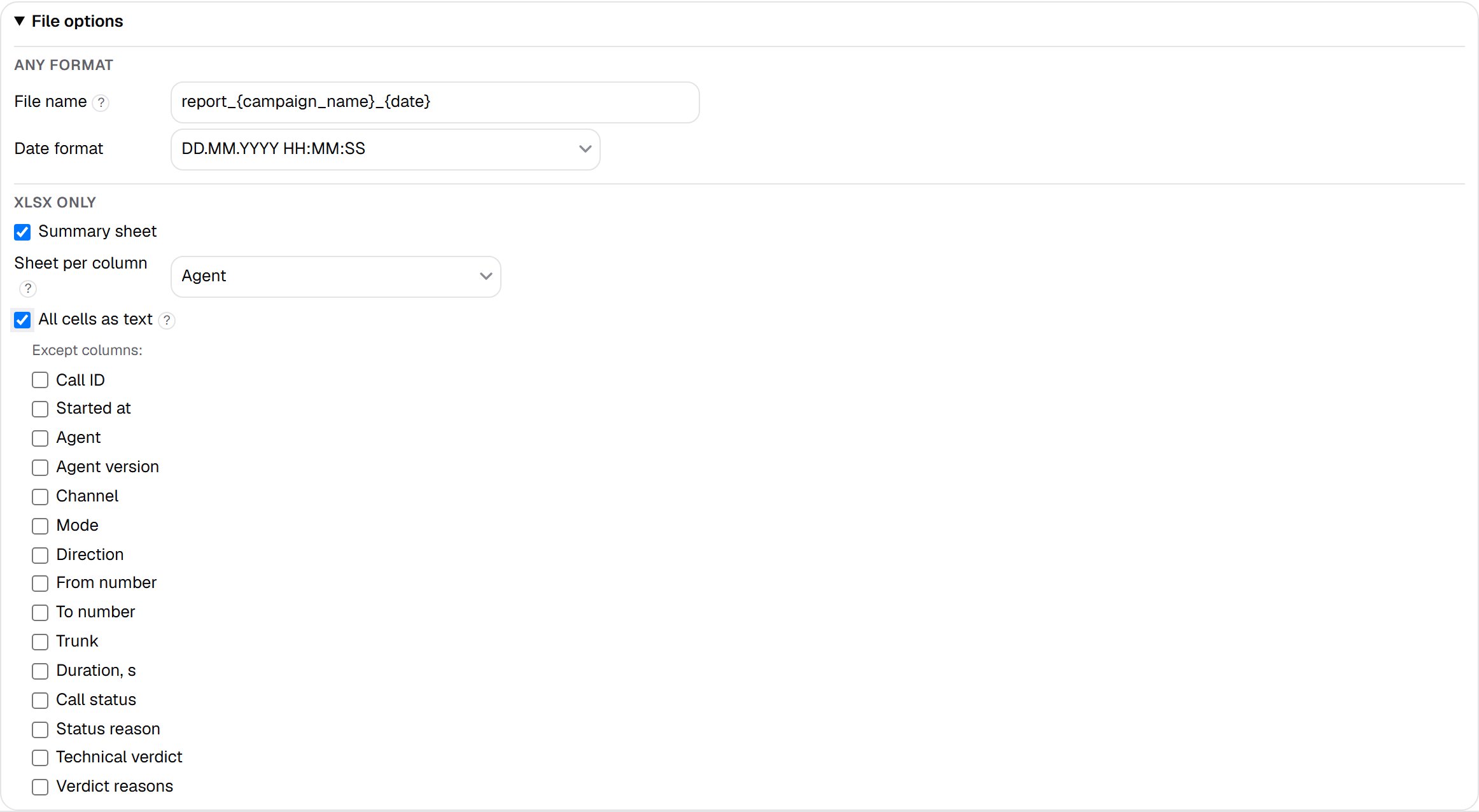
For CSV only the file name and the date format apply. The summary sheet, sheet-per-column and all-cells-as-text are properties of an XLSX workbook; the form keeps them visible and saves them, but they are not applied to CSV, and the form says so.
The language of the file
The service texts inside an XLSX workbook — the sheet names and the nine summary labels (“Total calls”, “Status”, durations, success rate) — come in your cabinet’s language. Three details:- The language freezes when the report is created. The file is built in the background, sometimes well after the request, and by then there is no one left to ask — so the language is written into the job alongside the filter.
- The names and descriptions of the ready-made system forms are English (so are the import report’s sheet names).
- Column labels are not translated. By default the file header carries technical keys (
session_id,started_at) — parsers on your side depend on them. Set a readable header yourself, see Column labels.
Jobs already created are not rewritten. The snapshot of the template name stored in an older job stays as it was; the language changes only for new reports.