

Issues, chat test, voice test, Copilot
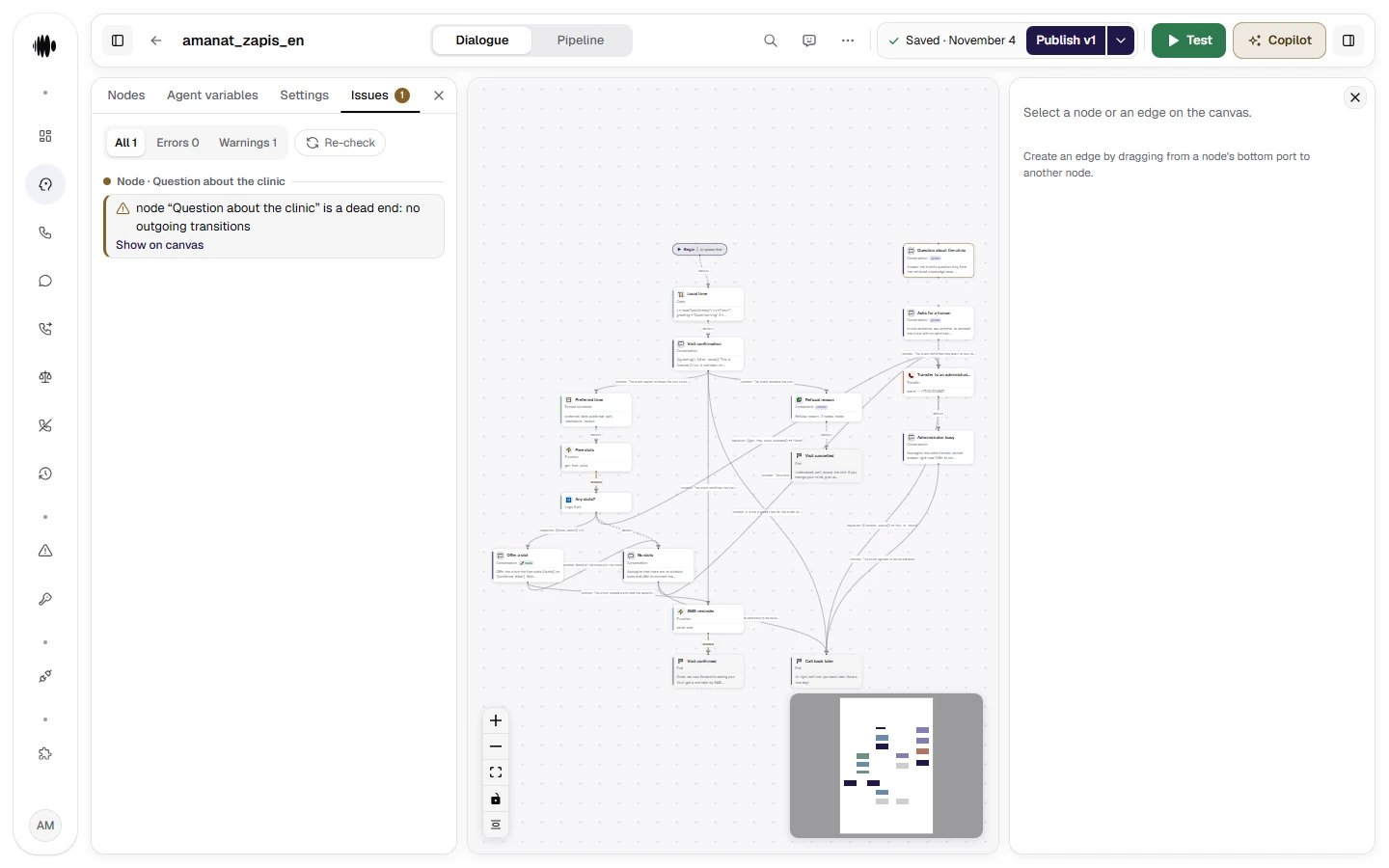
Issues. Errors block publishing, warnings do not. There is one finding here: the node has no outgoing transitions, and the Show on canvas link takes you to it on the canvas.
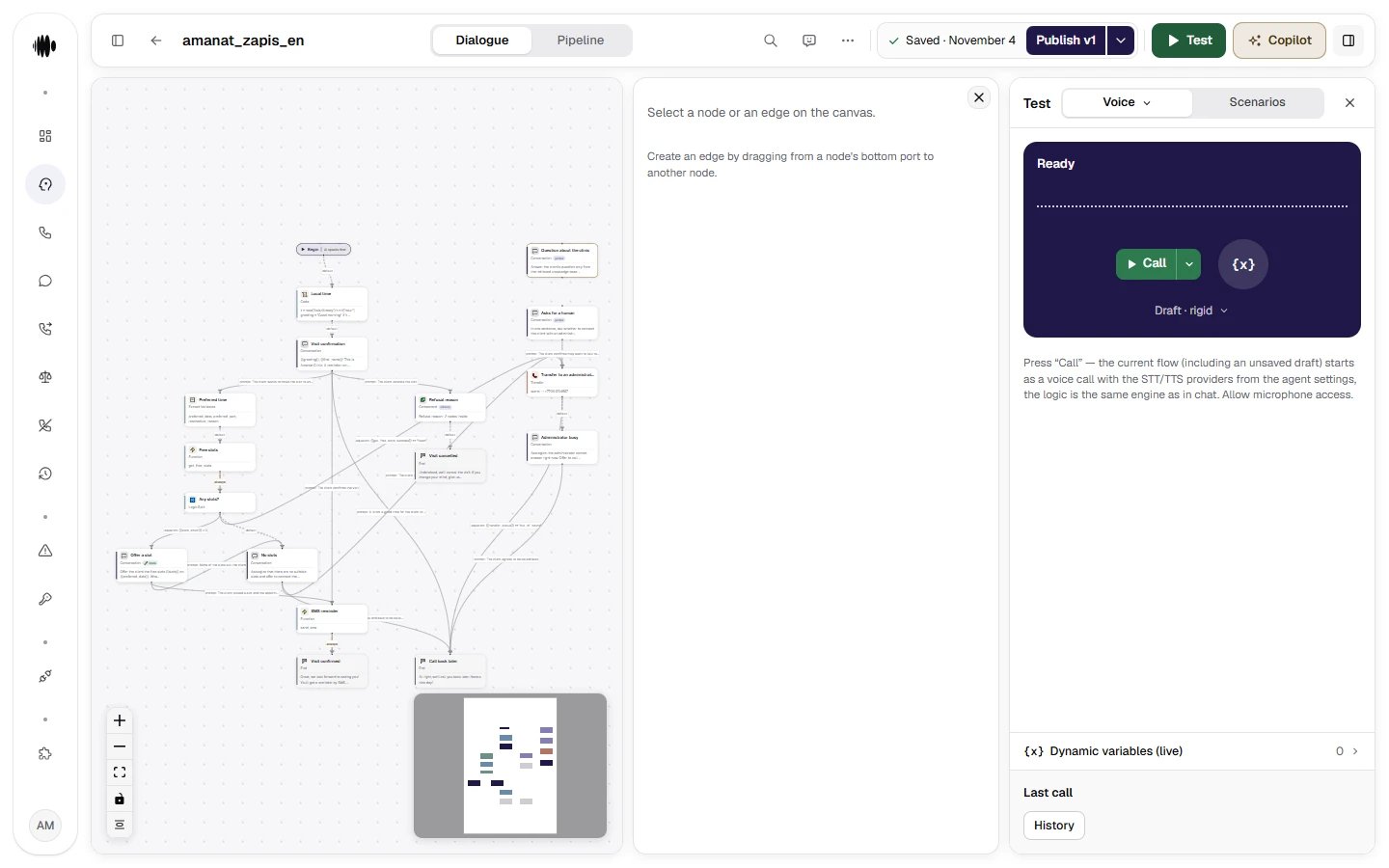
Test → Voice → Call. A call from the browser against the draft or the published version, with its own call variables and an export of latency metrics.
Starting a test from a selected node
You don’t have to talk your way to a node in the middle of the graph from the start: the conversation follows the edges from Begin through the greeting, data collection and branching, and reaching the right branch on the first try doesn’t always work — one phrase is misunderstood by the classifier, and the conversation goes into the neighbouring branch. Select the node on the canvas, open the ▾ arrow on the green Run button and choose Run from the selected node ·<name> (in the voice test — Call from the selected node). The session starts right from it: the edge from Begin is not traversed, and the node runs through the same mechanism as when it is reached by an edge. It works in both the chat and the voice test. In the chat, the restart icon (Restart from <name>) restarts from the same node, so you can run one section as many times in a row as you like.
With no selection and on the Begin node, the menu item is disabled and hints Select a node on the canvas.
In the session record, a start from a node is marked with a separate Start from node event with the node’s name: whoever reads the record doesn’t have to guess why the conversation started in the middle.
- Test entry points only. The public API, telephony and transferring a call to another agent don’t accept the start node field. A conversation with a real client started from the middle with empty variables is a defect, not a feature.
- There is one entry point — the Run button menu in the test panel. There is no context menu on the canvas.
- A component node as a start — only in the draft. When the published version is being tested, the menu item for a component node is disabled and suggests testing the draft. In the draft, a component node resolves to its entry point.
How to read the chat test trace
Every turn in the test panel shows not only the reply but also the engine’s decision: which transition fired and of what type (for example,PROMPT, EQUATION, ALWAYS, DEFAULT, and GLOBAL for global nodes), how long the classifier and generation took, what the function call returned, what was found in the knowledge bases, which objective was closed. This is the main debugging tool: if the agent “went the wrong way”, the answer is visible in the transition chip rather than in guesses. Each agent reply is captioned with its node, and the latency pill under the reply opens a card with the phases of the turn. Session variables are visible in the Dynamic variables (live) drawer under the log. More on the test panel — Test before launch.
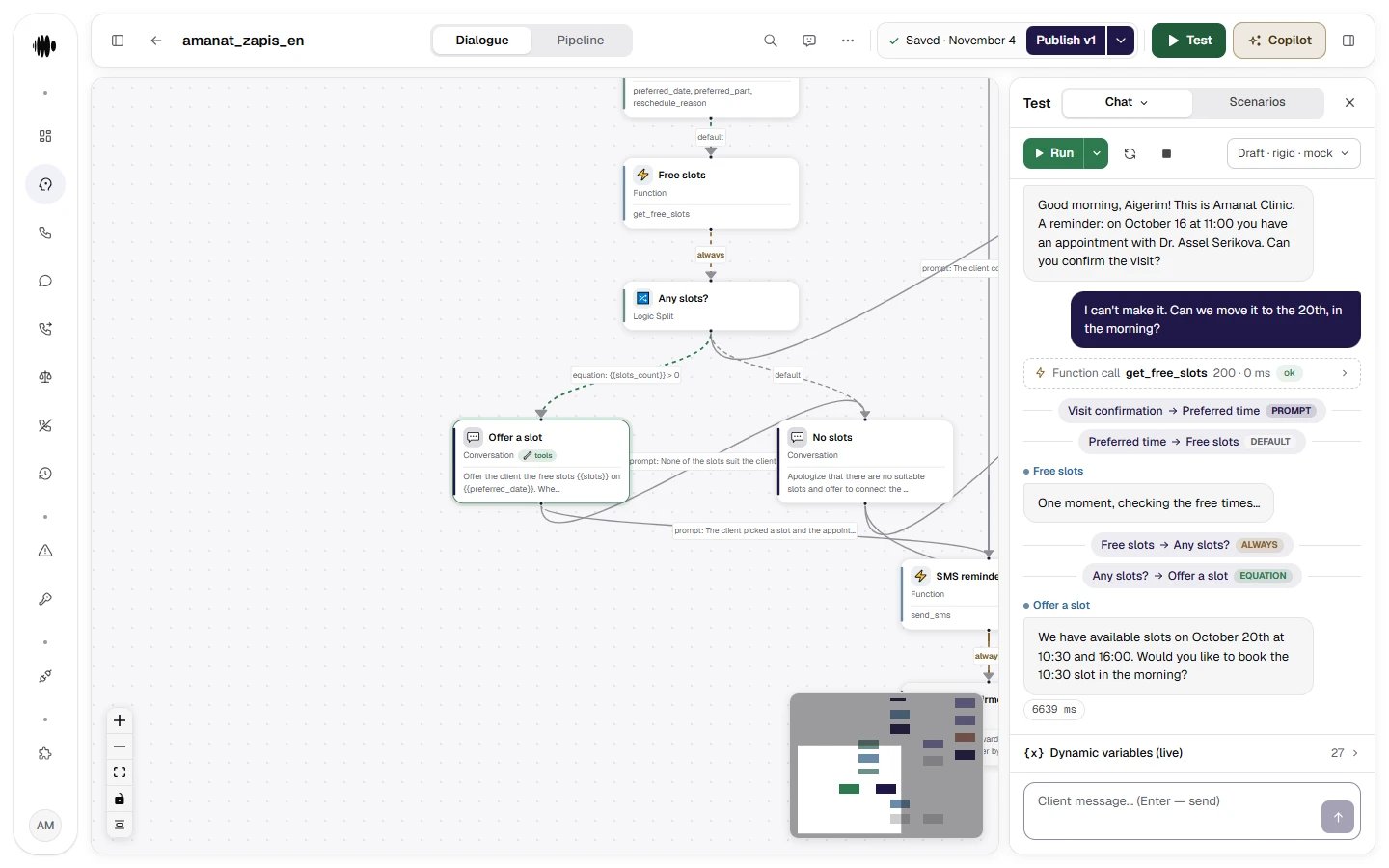
Test → Chat → Run. A real run: the client asks to reschedule a visit, a prompt transition fires, extract pulls out the date, Function returns a mock CRM response (200), an equation leads to the node with the slots. The settings summary at the top opens the choices: the draft or the published version, rigid or flex, HTTP functions — mock or real calls.
kk/ru) in Kazakh too: «Можно перенести визит на пятницу?», «Жұмаға ауыстыруға бола ма?». For an agent in the USA (us_tcpa) — in English, and for a bilingual agent (en/es) in Spanish too: “Can I move my appointment to Friday?”, “¿Puedo cambiar mi cita al viernes?”. Switching languages mid-conversation is a separate test.
Scenarios: testing without you
On the Scenarios tab of the test panel, it’s not you who talks to the agent but the platform’s test callers. You describe the scenarios — who calls, how they behave and what you expect from the agent — or have them generated from the agent settings, 3 to 20 at a time. If there are no enabled scenarios, the check runs with five base callers: calm, in a hurry, confused, drifting off topic and attacking. The Check the agent button runs the conversations in parallel, each up to six turns. After each conversation, the judge decides whether the agent did what was expected of it and marks the line with the error — Error here. The verdict — Ready to launch, Not ready or Not everything was checked — is based on the organization’s thresholds: at least 95% of scenarios passed, 0 breaches. During the check, the agent’s functions answer with test mocks, and the conversations don’t appear in the call history. Test callers speak the agent’s language from its settings, and the judge explains its decision in the interface language. So the check works equally well for an agent speaking Russian or Kazakh and for an English-speaking agent under the US profile. A failure has a Fix with Copilot button: Copilot receives the conversation from the check and proposes a change to the agent. In detail — Testing an agent.Copilot
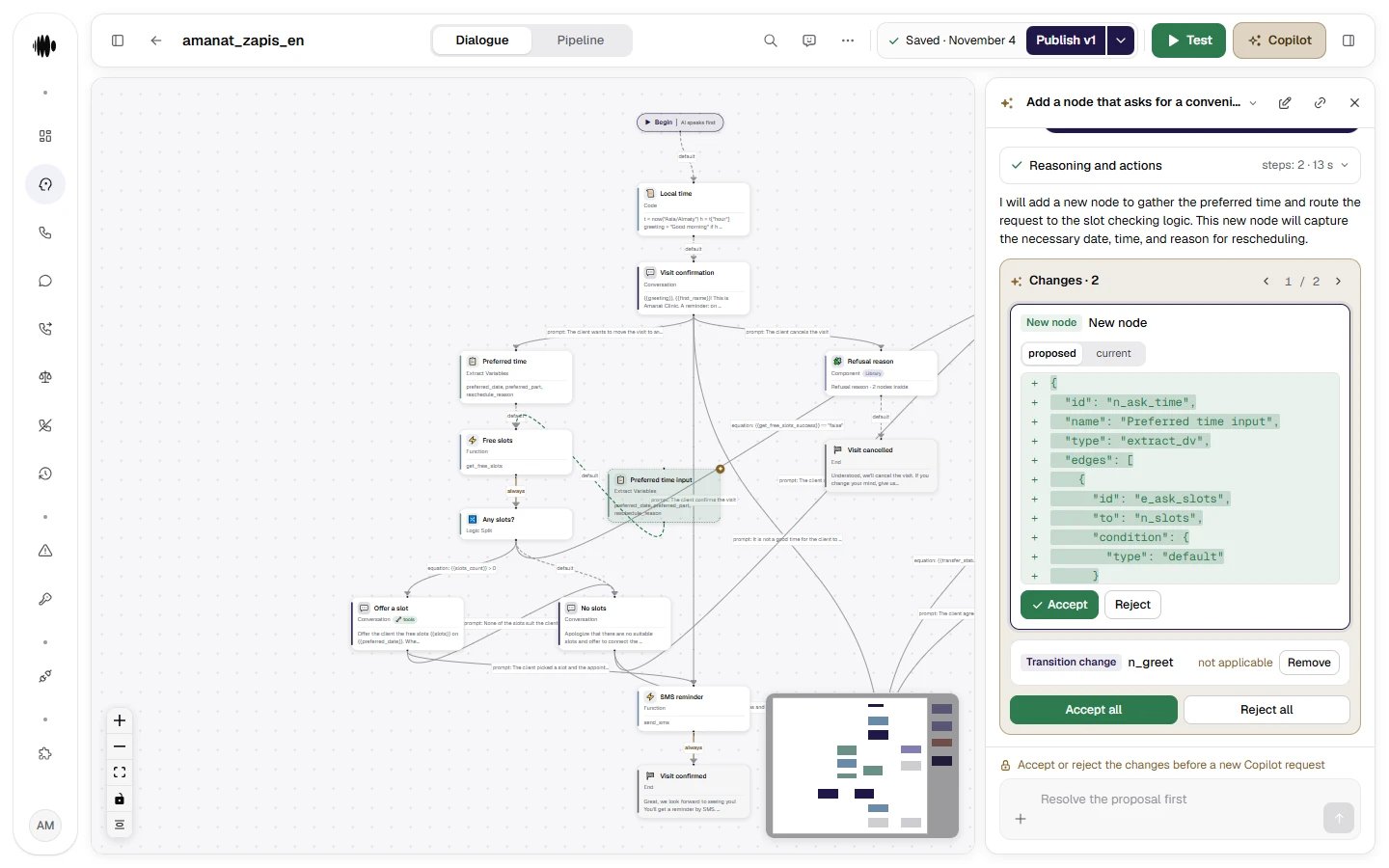
Copilot — changes in words: “add a node that asks for a convenient time and lead it to the slot check”. Copilot never changes the flow silently: it shows a proposal, and you accept or reject each change.