

Post-call analysis: what we learn after the call
Module goal: get structured fields out of the conversation that reports and campaign decisions can be built on.
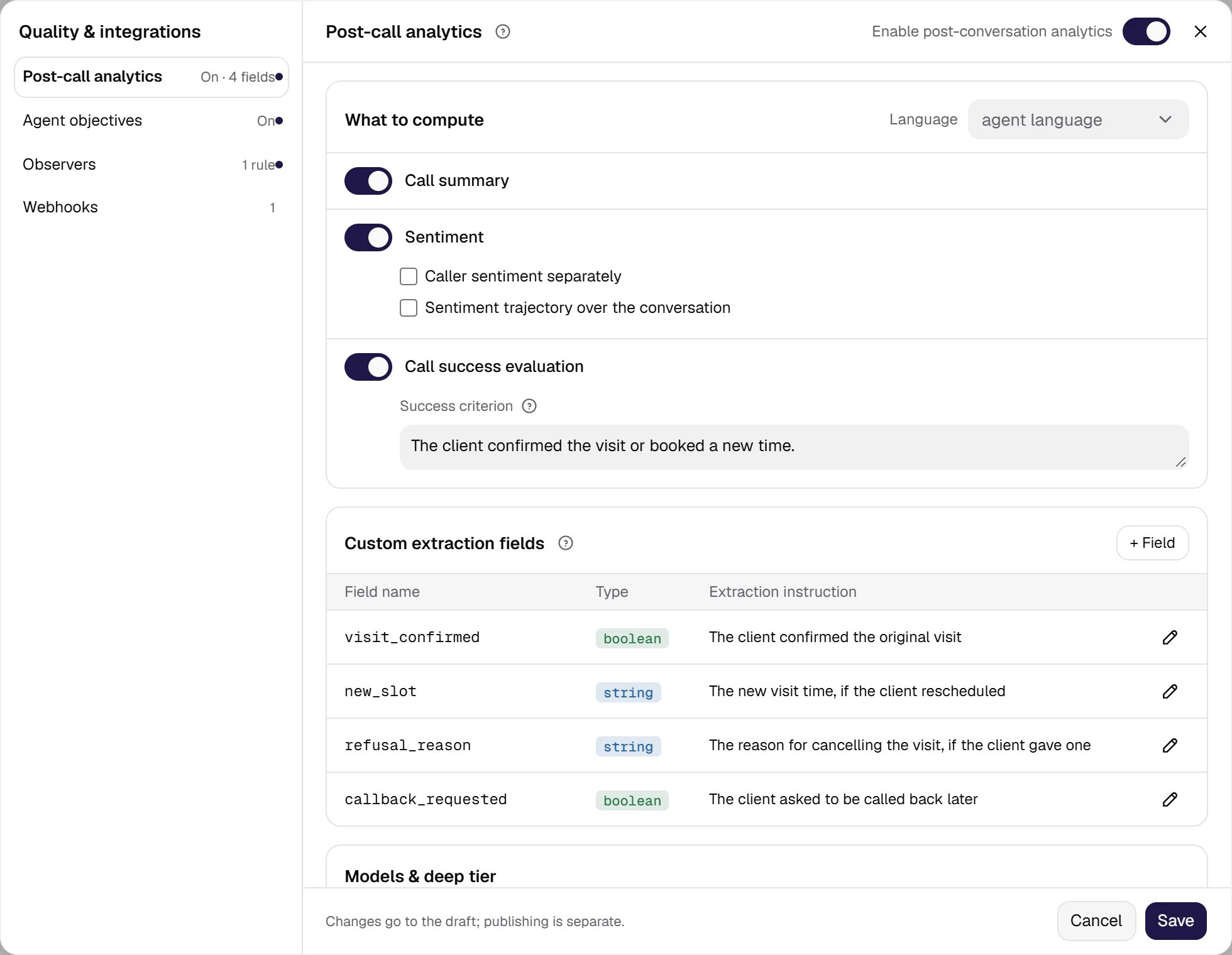
The Post-call analytics window (Settings → Quality & integrations): summary, sentiment (including the caller's own) and a success criterion in your own words.
Show the whole panel
Show the whole panel
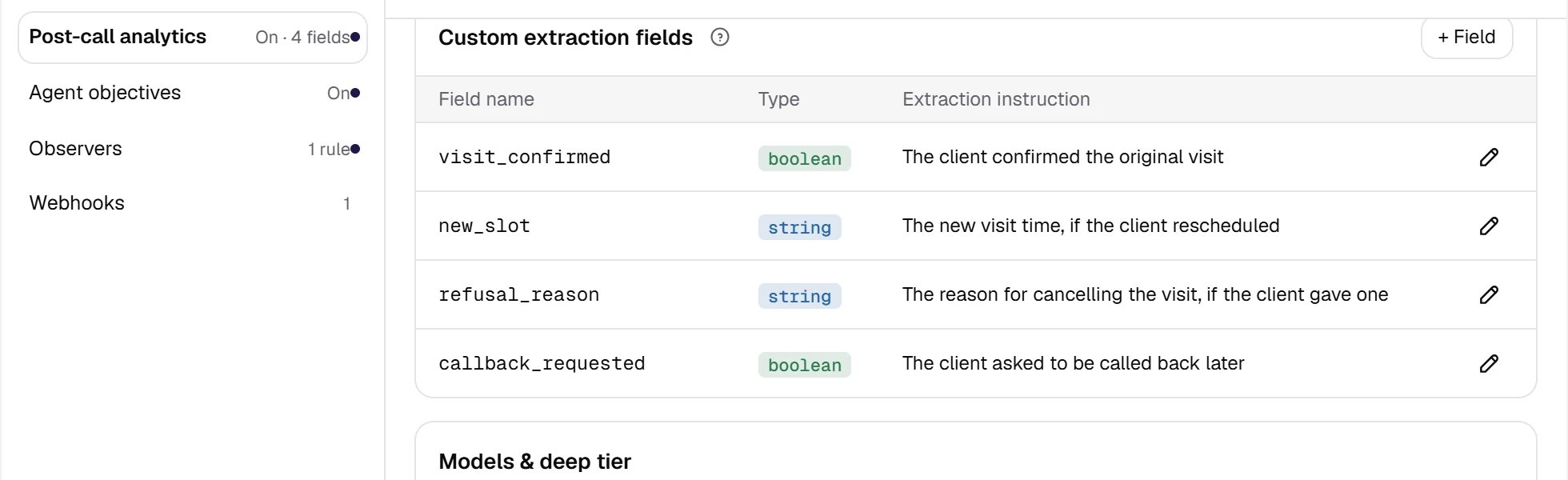
Custom extraction fields — your own fields over the full transcript: visit_confirmed (boolean), new_slot (string), refusal_reason (string), callback_requested (boolean).
Show the whole panel
Show the whole panel
{{var}} — “did the customer confirm the visit on {{appointment_date}} at {{appointment_time}}”. An unknown or empty variable is substituted with an empty string.
All the settings are in the post-call analytics section of the Quality & integrations window; first turn on Enable post-conversation analytics in the section header.
Results language and field examples
Language in the header of the What to compute card sets the language of the summary, explanations and text fields. It is independent of the cabinet and agent languages; the empty value, agent language, means the agent’s language. Tip: choose the language in which your staff and the systems receiving the webhook will read the results.- Kazakhstan (
kz) — usually Russian (ru); Kazakh (kk) if reports are read in Kazakh. Example field:satisfaction(enum) with the options «высокая», «средняя», «низкая». - USA (
us_tcpa) — English (en). Example field:satisfaction(enum) with the optionshigh,medium,lowand the instruction “Did the customer confirm the visit on{{appointment_date}}at{{appointment_time}}?”.
visit_confirmed, satisfaction) is the key in reports and the webhook, so it is convenient to keep it in Latin letters in any market. An enum value is one of the options in the list, so write conditions on the field with exactly the same text as the option.
Two tiers and when the deep one kicks in
The mass tier runs on every call that passed the content threshold — it uses a fast model (Analytics model (mass tier), the system setting by default). The deep tier runs only on Deep tier triggers: sentiment (for example negative), outcome (Completed or Interrupted), a condition on an extracted field (for examplesatisfaction == low, or satisfaction == низкая for a Russian-language agent) and Sampling — a percentage of calls. With no triggers and zero sampling the deep tier does not run. Without a Deep analytics model of your own, the server deep model is used; with none set at all, the triggers never fire. Tip: this way the strong model works on dozens of calls, not tens of thousands.
The Content threshold block filters out empty conversations before any model is called: Min user turns (1 by default), Min duration (0 by default — the check is off) and Skip dispositions. By default every disposition except Silence (auto-end) is checked: such a call usually contains part of a conversation and is analyzed. Failed dials and calls dropped before the answer are never analyzed and have no chips of their own.
Success criterion and Goal achieved
Thecall_successful flag is determined by the analytics model when Call success evaluation is on and the Success criterion is filled in, for example “the visit is confirmed or a new time is booked”.
The Goal achieved card in the campaign details shows for how many contacts post-call analysis marked the call successful (call_successful), and the analysis coverage. The card is shown only when the campaign agent has post-call analytics and Call success evaluation on. The same flag is the Goal not achieved condition in the campaign’s retry rules, see module 23, Outbound campaign.
Tip: why the Success criterion is in words
call_successful is a metric a manager understands without explanation. Word the criterion so that borderline outcomes are decided in advance: if “call me back later” is not a success, say so — then such a contact returns to dialing under the Goal not achieved condition.Where the results are visible
- History and call details — on the Overview tab: Summary with the summary, sentiment and success badge, Call results with your fields, see Call details. In History, calls are filtered by Call success.
- Reports — the Call successful and Summary columns and the custom post-analytics fields, see Report columns.
- Dashboard — the Goal reached and Analytics field widgets, see Dashboard.
- Webhook — the Analytics ready (call_analyzed) event with the
call_analysisblock:summary,sentiment,custom_fieldsandcall_successful, see Webhooks. - Campaign — the Goal achieved card.