

Publishing and versions
Module goal: understand exactly what goes live and be able to roll back.
1
You pressed Publish vN
The button in the editor toolbar and the Publish with a note… item in the arrow menu next to it open the same publish window. Unsaved changes are saved first; if saving fails, the window does not open, and the editor says why. When the draft does not differ from the published version, the button is inactive.
2
The publish window
The window has two rows. Schema — whether there are errors on the Issues tab; while there are, the publish button is inactive, and Show errors takes you to them. Scenario check — passed, failed, not run, or the agent changed after the check. It does not block publishing: if the check failed, the button reads Publish anyway. Below is the optional What changed field: the note goes into the version history.
3
The draft becomes a version
When you press the button, the platform checks the whole draft once more, including the provider settings (see below). If there are errors, nothing is published, and the editor shows how many. If not, the draft becomes a new version. If someone published the agent from another tab in the meantime, the editor warns that the agent was published elsewhere — review the draft and publish again.
4
Calls in progress are not interrupted
Calls running at that moment finish on their own version: the version snapshot is immutable. The publish window says so: “New calls will go to vN. Calls in progress will finish on vN−1.”
5
The next calls run on the new version
Every new call takes the current published version, including calls of running campaigns: a campaign does not pin the agent version at launch. There is no need to pause a campaign for an edit.
6
Roll back if needed
In Version history (the arrow menu next to Publish vN) you can view any version, compare it with the draft and Restore it. Restoring loads the version’s document into the draft and replaces the current draft; the published version does not change. The restored variant goes live through a regular publish — as a new version. To simply throw away the draft edits, pick Discard changes — back to vN in the same menu.
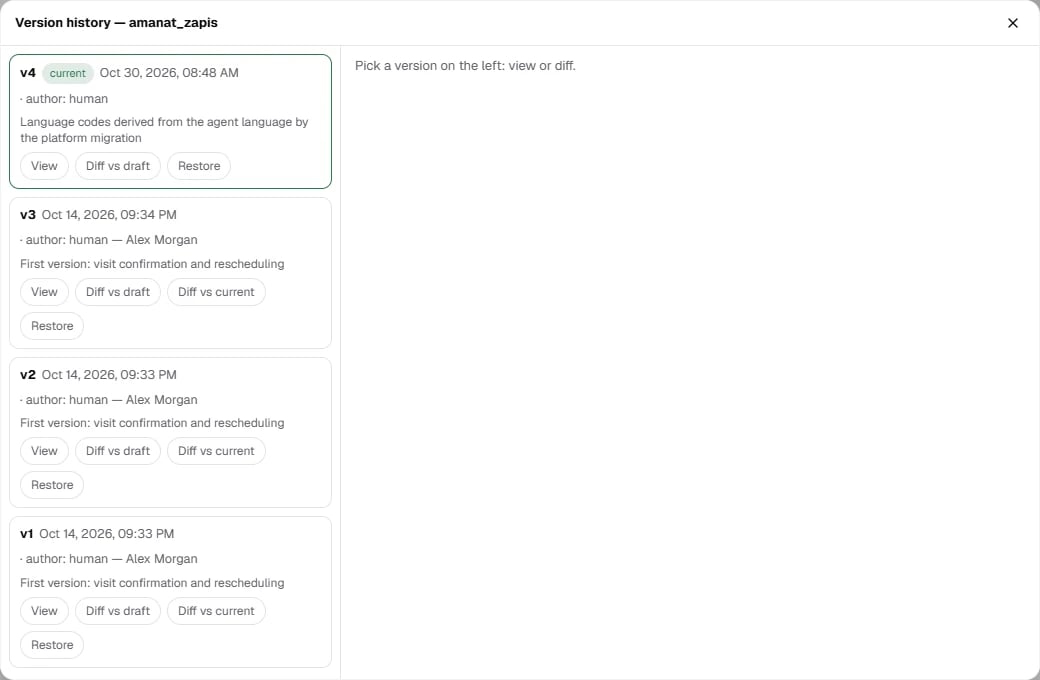
Version history: version, date, author (human, human + Copilot or the platform) and note. Diff vs draft shows how the current edit differs from the version. Tip: look at it before every publish.
What a version capturesNot only the graph: the snapshot includes the models, voice, ASR, call settings, knowledge base bindings, observers and expanded components. So an edit to a catalog or a library component does not change the behavior of an already published version — it is picked up at the next publish. This is exactly what production needs: nothing “drifts” on its own.There are two exceptions. The organization’s phrase corrections dictionary applies to published agents from the next call, without republishing. And the organization calling window applies to all campaigns at once, including running ones.
Provider settings check
Validation checks more than the graph. On publish, on campaign launch and when a demo link is created, the platform builds the same recognition and synthesis objects as a real call — only as a dry run, without the network — and shows the findings before the agent goes to work. This catches what would otherwise surface on the very first live call. These findings are errors, and they block publishing:- the recognition or synthesis provider does not accept the model settings — with them the call would fail at the start;
- a voice, recognition or model parameter value is outside the range allowed for it;
- knowledge base not found or audio file not found that the scenario refers to;
- the transfer target agent is not published — the transfer would go nowhere.
The point of the check is that you learn about a broken setting on your own screen, not from a recording of a conversation with a customer.
PracticePublish your agent with the note “training build v1” in the What changed field. Then change the greeting, look at Diff vs draft and publish v2. Restore v1 into the draft, publish it as v3 and make sure the greeting is back.