

Call control and voicemail
Module goal: set the call timers so the agent does not hang on the line for hours, does not talk to voicemail, and introduces itself properly to the callee’s call screener.
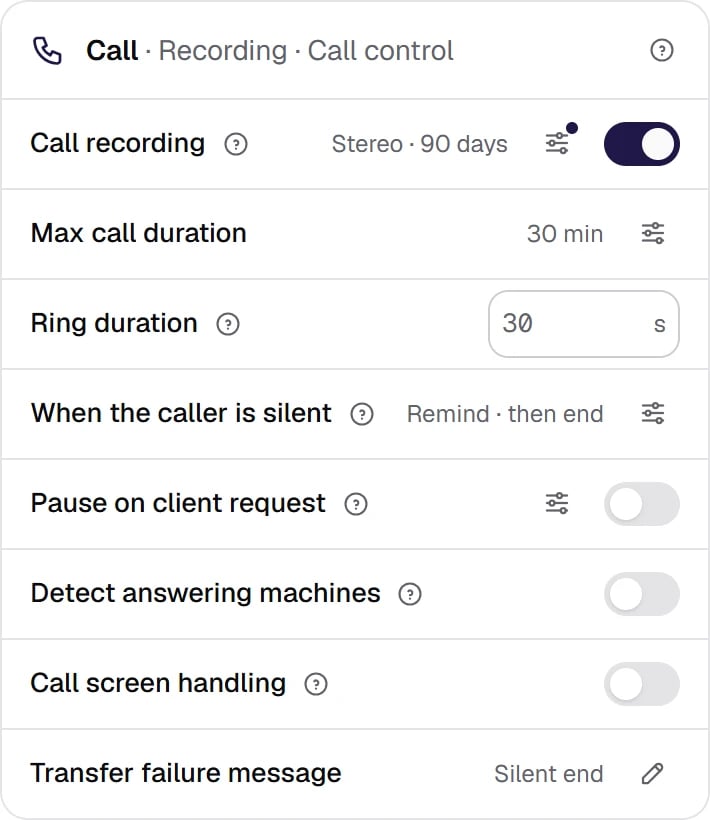
The Call card: the duration cap, ringing, a silent caller, pause on client request, answering machine detection and call screen handling. The timers in one card are the agent's manners on the line.
Show the whole panel
Show the whole panel
Call timers
The order is: reminders first, then the call ends when the silence threshold or the reminder limit is reached — whichever comes first; the duration cap applies independently of everything else.
Noise on the line does not suspend these timers for long. While the detector hears sound, the platform assumes the caller may be speaking and holds the silence count. But if recognition returns no words meanwhile, there is no point waiting forever: the hold is capped — about 5 seconds with recognition that returns words as the person speaks, and 30 seconds with recognition that returns only the finished result. After that the timers run as usual.
There is also a platform ceiling on top. Even if you chose No limit, a session longer than the platform ceiling is force-closed together with its telephony room, even if participants are still on the line. The default is 4 hours. The ceiling is a safeguard against stuck calls: without it a session could hang in the history for dozens of hours and skew reports. An unanswered call has an empty duration.
Answering machine detection (AMD)
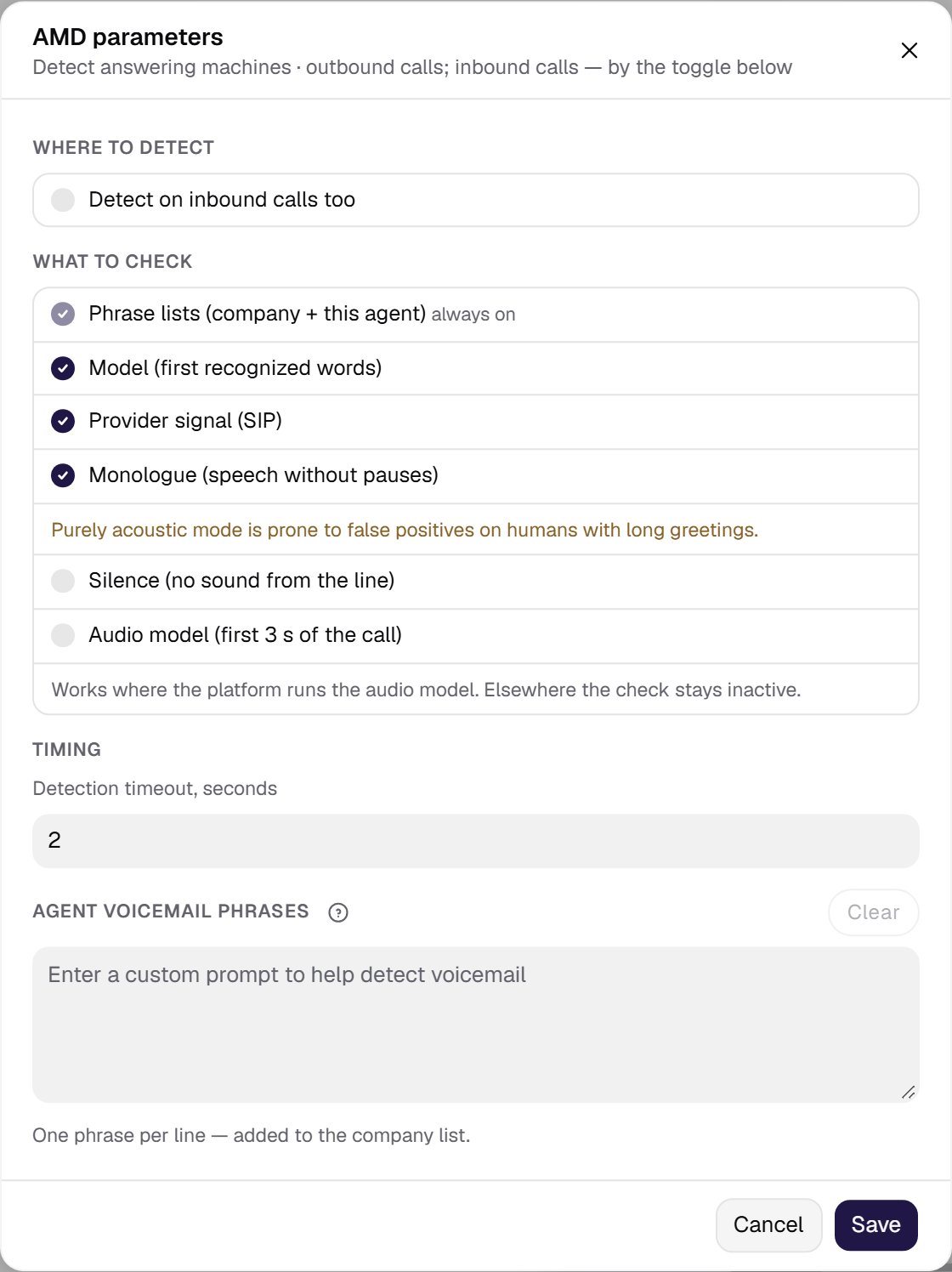
Answering machine detection (AMD). The agent greets at once, the detector listens in the background and, once it recognizes a voicemail, cuts the agent off — so a fragment of the greeting may end up in the mailbox.
Show the whole panel
Show the whole panel
The voicemail message
With the Leave message action, the text goes into the Agent voicemail message field: static text with{{var}} variables, or a prompt the model uses to write the line. An empty field means the built-in message in the agent’s primary language: it exists in Russian, Kazakh, English, Spanish, Uzbek and Kyrgyz. The Wait for the greeting/beep to end before speaking switch is on by default.
An example of static text for an English-speaking agent:
Hi , this is Anna from Bright Dental, calling about your appointment on . Please call us back at .And for a Russian-speaking agent:
Здравствуйте, ! Это Анна из клиники «Здоровье», звоню насчёт вашей записи на . Перезвоните нам, пожалуйста, по номеру .
{{first_name}}, {{visit_date}} and {{callback_number}} here are call variables you pass yourself, for example from the campaign’s contact data (see the Variables lesson).
Whether a message may be left on a given call is decided by the organization’s voicemail message policy; a campaign can set its own on the Dialing step. The modes are Every voicemail reached, By rules and Never. If the policy blocks the message, the voicemail is still detected, the call ends without a message with the outcome Voicemail, no message left, and the attempt counts against all limits. The policy applies only to campaign calls.
For organizations on the US market profile (us_tcpa), legal caps on the number of attempts apply on top of your policy, and the strictest limit wins.
Call screeners
Many phones answer an unknown number with a call screener — the callee’s assistant: iOS Call Screening, Call Assist, Cloaked AI. The assistant asks who is calling and why, then connects the call, holds the line, declines it or offers to leave a message. To the answering machine detector such an assistant is neither a person nor a voicemail. The Call screen handling row of the Call card — right under Detect answering machines — teaches the agent to tell a screener and a key-press menu from a person and a voicemail. It is off by default and works only on outbound phone calls, independently of answering machine detection.- A screener is recognized by phrases from the organization’s Call screener phrases list. Until the organization saves its own list, the recommended list of its market applies: for the US market — 20 phrases in English and 6 in Spanish, for other markets — 6 phrases in Spanish.
- The agent answers “who is calling” with a template, the First reply (template), built from the facts of the Agent identity group in the Call screen handling window: Agent name, Company, Purpose of the call and Callback number. Keep the purpose of the call general: the owner of the phone sees the transcript.
- The screener connects a person — the agent starts the flow from the first step in the same call. Declines the call — the outcome is Declined by a call screener. Offers to leave a message — the agent does the same as for a voicemail.
- The mailbox is full (“The mailbox is full” and similar built-in phrases) — with call screen handling on, the agent does not speak the message, and the call ends as a voicemail.